How do parents receive and pay fee invoices in Kriyo?
Invoice Notifications and Reminders
Once an invoice is sent, parents receive an instant notification on their Kriyo Parent App.
To ensure on-time payments, Kriyo automatically sends reminders at specific intervals:
- 7 days before the due date
- 3 days before the due date
- 1 day before the due date
- On the due date
- 1 day after the due date (if unpaid)
- 3 days after the due date (if unpaid)
These timely reminders help parents stay informed and ensure payments are made promptly — so they never miss a due date.
Viewing Invoices and Program Fee Structure
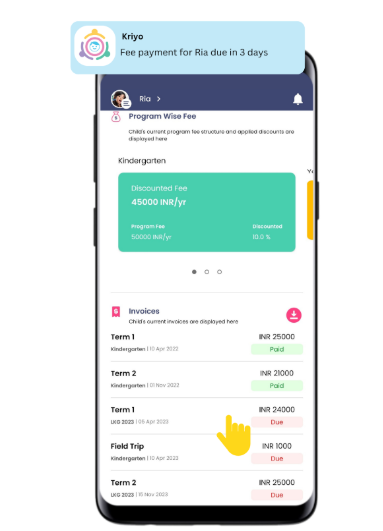
Parents can view all paid and due invoices, as well as program fee structure details, in the Payments section of the Kriyo Parent App.
💡 Note: The program fee structure is visible only if it was added during program creation by the school. If a special discount is applied for a child, only that child’s parent will see the updated amount in their app.
See also:How to Display Discounts on the Fee Card for a Specific Child?
Making a Payment
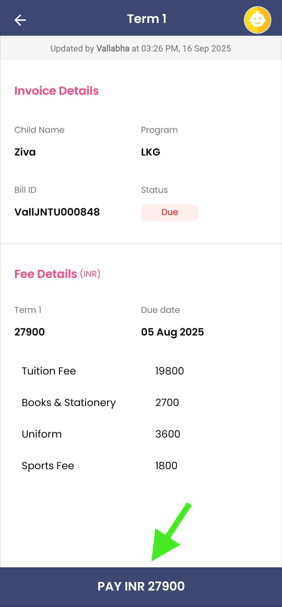
Parents can simply tap the Due Invoice, click Pay, and choose their preferred mode — UPI, Net Banking, or Wallet — to complete the transaction in seconds.
If the school has linked a payment gateway, payments are processed securely and credited directly to the school’s account. Once successful, the invoice status automatically updates from ‘Due’ to ‘Paid’, and both school and parent receive confirmation instantly.
If a parent misses the due date, and the school has configured a late fee penalty, a pop-up will appear before payment showing the penalty amount.
The parent must pay the invoice amount along with the late fee, and the digital receipt will reflect the total, including the penalty.
Parents can also download digital fee receipts immediately after payment — featuring the school’s logo, name, and address — eliminating the need for paper receipts.
Parents can also download a consolidated fee receipt. By long-pressing any paid invoice, they can select multiple paid invoices and download a single combined receipt, which is saved in the Downloads folder on their mobile device.
Related Articles
Related FAQs