How to enable Late Fee Penalties in Kriyo?
Timely fee collection is critical for every school or preschool.
Kriyo simplifies this process by allowing you to configure automatic late fee penalties, ensuring parents pay on time and reducing the need for manual reminders or follow-ups.
Steps to Enable Late Fee Penalties
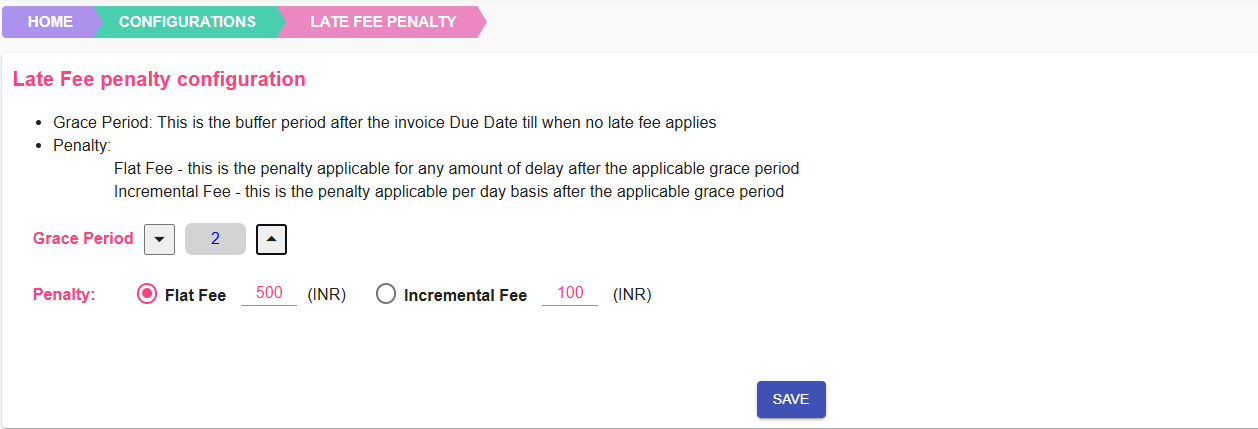
- In Kriyo Web, go to Configurations and select Late Fee Penalty.
- Set a Grace Period (optional) — the number of days after the due date during which no penalty will be applied. Use this option only if you wish to give parents a short buffer period to make payments before penalties begin.
- Choose your penalty type:
- Flat Fee – A one-time fixed amount charged after the grace period ends.
- Incremental Fee – A daily penalty that increases for each day the payment is delayed.
- Save the settings, and penalties will be automatically applied to all overdue invoices.
💡 Note: Only one penalty type can be active at a time.
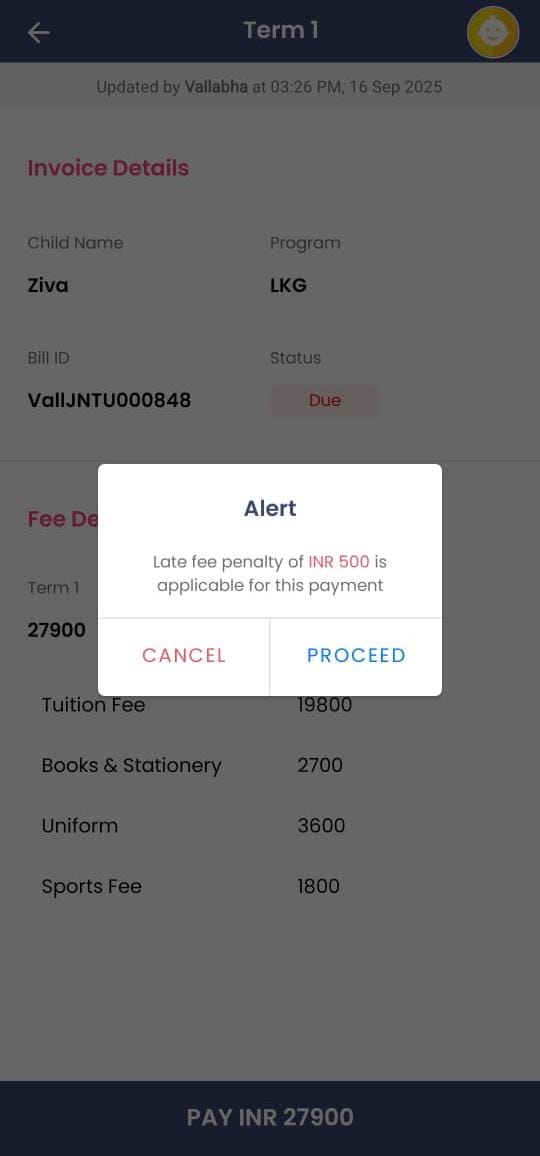
Parent Payment Experience
Parents cannot skip penalties or make partial payments through the Kriyo Parent App.
They must pay the full invoice amount, including applicable penalties (if any).
However, schools can waive penalties for specific cases if needed.
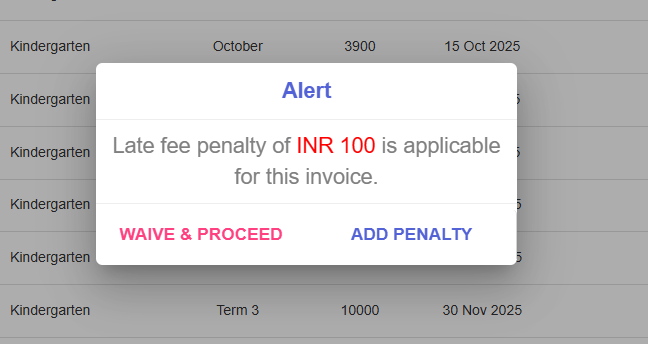
To Waive a Penalty
- Go to Fee Invoice and select the overdue invoice.
- Click Mark as Paid.
- An alert will display the penalty amount.
- To waive it, select Waive and Proceed, fill in the payment details, and click Save.
To Manually Add a Penalty
If your school has not enabled in-app payments, you can manually add a late fee penalty for each overdue invoice directly from the Fee Invoices section.
This helps maintain accurate payment tracking while ensuring penalties are applied consistently for late payments.
- Go to Fee Invoices and select the overdue invoice.
- Click Mark as Paid.
- When the penalty alert appears, select Add Penalty → click Proceed.
- A pop-up will confirm: “Added the penalty amount to the invoice. Enter the payment details and SAVE.” Click Proceed to continue.
- The system automatically redirects you to the Mark as Paid page.
- Enter the required payment details (amount received, mode of payment, payer name, etc.).
- Click Save to complete the process.
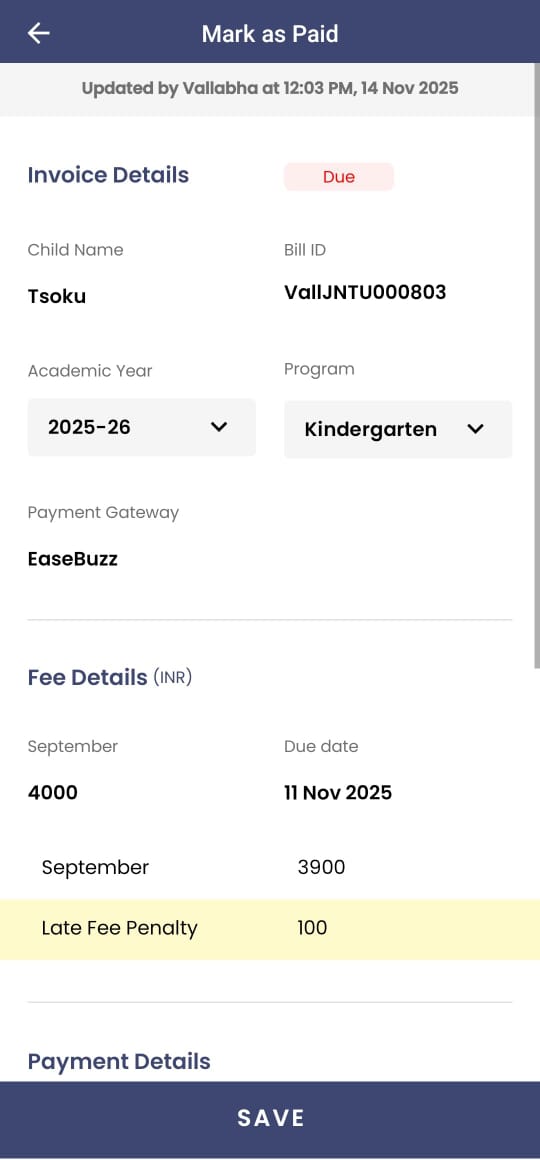
Once saved, Kriyo automatically:
- Adds the penalty amount to the selected invoice.
- Updates the invoice total and marks it as Paid.
- Reflects the penalty in all relevant reports and summaries for accurate tracking.
💡 Note: If your bank account is linked with Kriyo, this entire process is automated. The late fee penalty will be automatically calculated and added to the invoice — no manual edits required.
Related Articles
Related FAQs