How to display discounts on the fee card for a specific child?
- On the Home page, tap See All Features.
- Scroll down to the Profiles section and select Children Profiles.
- Choose the program and open the child’s profile.
- Select Invoices from the pop-up.
- Tap the Edit (pen icon) on the colorful program cards displayed at the top.
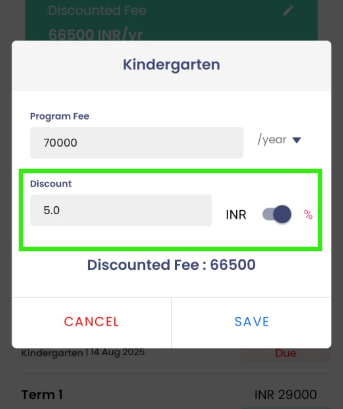
- Enter the discount either as an amount or a percentage. You can toggle between the two options.
- The discount and adjusted fee are visible only to the selected child’s parents and the school.
Note: If no discount has been added for the child, the discount section will not appear on the fee card. The card will display only the program name and fee to keep communication simple.