How to manage offline payments in Kriyo?
Kriyo allows schools to manage both online and offline payments in a single platform, keeping all fee-related data accurate and up to date.
This eliminates the need for separate ledgers or spreadsheets and ensures your finance reports always reflect real-time information.
Even if some parents initially prefer cash or cheque payments, schools can easily record them in Kriyo, generate digital receipts, and maintain a smooth, paper-free process. And eventually, you can move everything to in-app payments for an automated and stress-free fee management system.
See article:What are the benefits of using fee management in Kriyo?
- Go to the Fee Invoices module.
- Tap the Due Invoice you want to update.
- In the pop-up, select Mark as Paid.
- Enter the required payment details such as amount paid, name of the payer, collected by (staff name), and reference details (cheque number, UTR, etc.).
For Cash Payments
- Simply enter the payer and collector details.
- Tap Save Kriyo automatically assigns a receipt number and generates a digital fee receipt.
- If you prefer, you can also enter a custom receipt number manually before saving.
For Cheque Payments
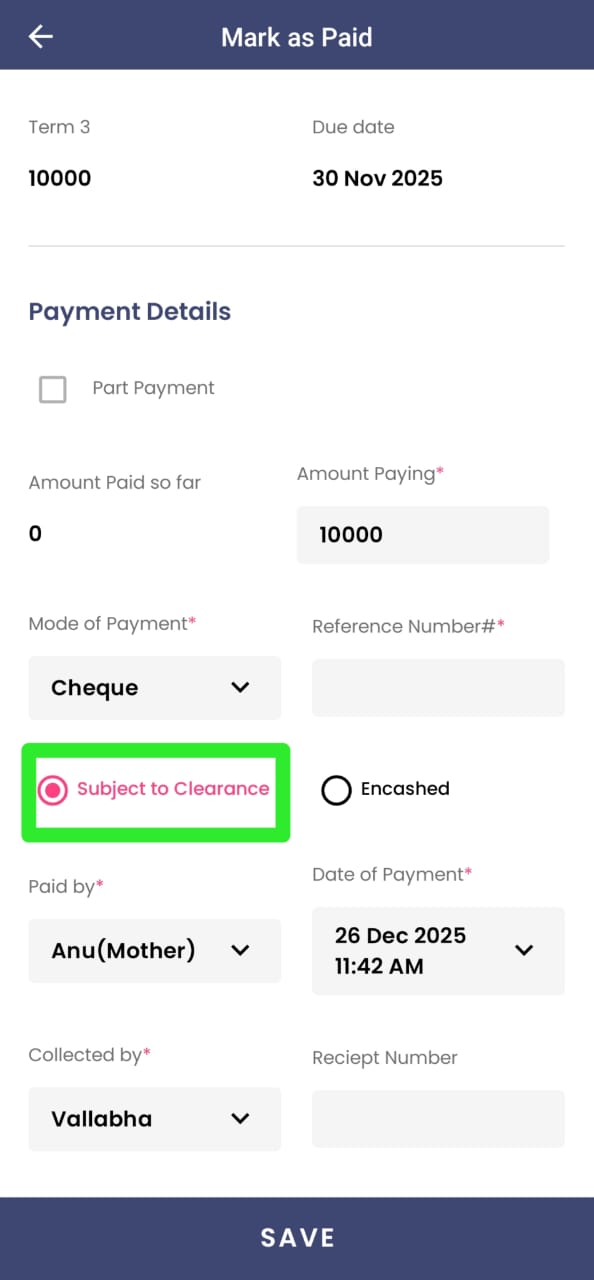
- Enter the cheque details and mark the payment as Subject to Clearance.
- Recording the cheque reference number helps with backtracking in case of delays or bounces.
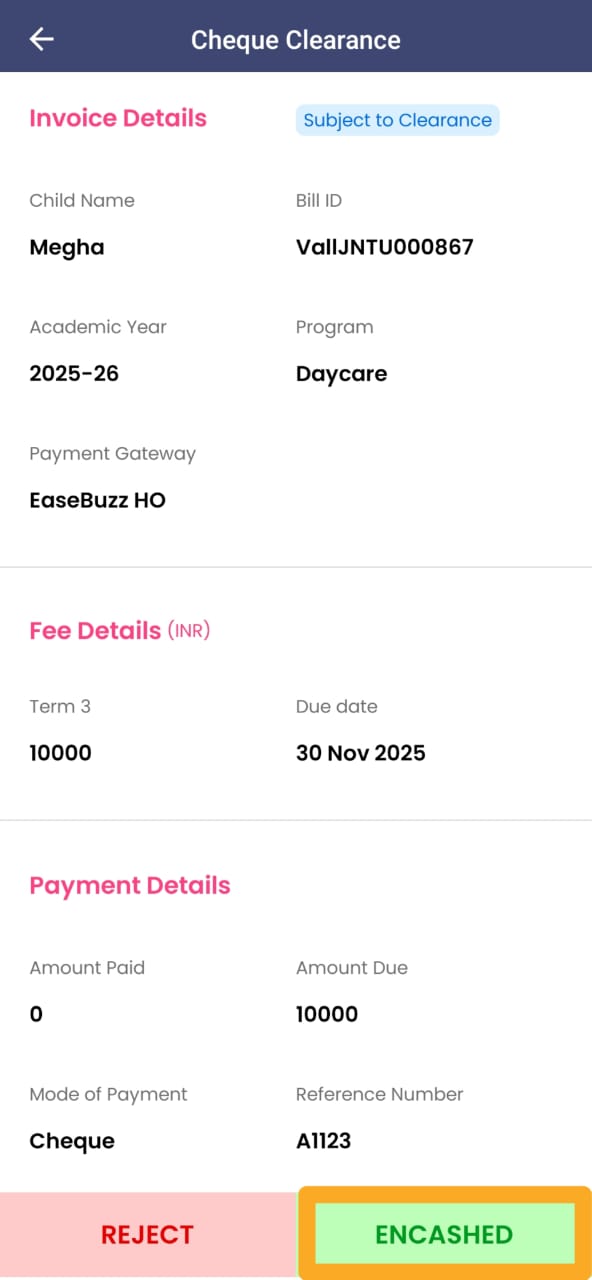
- Once the cheque is encashed, open the same invoice and at the bottom, tap the Encashed button.
- The invoice status automatically changes from Subject to Clearance to Paid.
- The parent then receives a confirmation, the digital receipt becomes available, and the reports also get updated accordingly.
- In case the cheque gets bounced or there’s any mismatch or issue with the cheque, you can tap Reject. The parent will be notified accordingly, and your reports will automatically reflect the updated status.
For Part Payments
Kriyo gives schools the flexibility to accept part payments when needed.
However, parents cannot make part payments directly from the Kriyo Parent App — they must pay the full invoice amount as mentioned on the invoice.
This ensures that parents don’t pay random or uneven amounts, making it easier for schools to track payments accurately and maintain clear financial records.
If a parent specifically requests to pay partially, the school can record the part payment manually.
To accept a part payment:
- Open the required invoice in the Kriyo Web or Mobile App.
- Click on Mark as Paid.
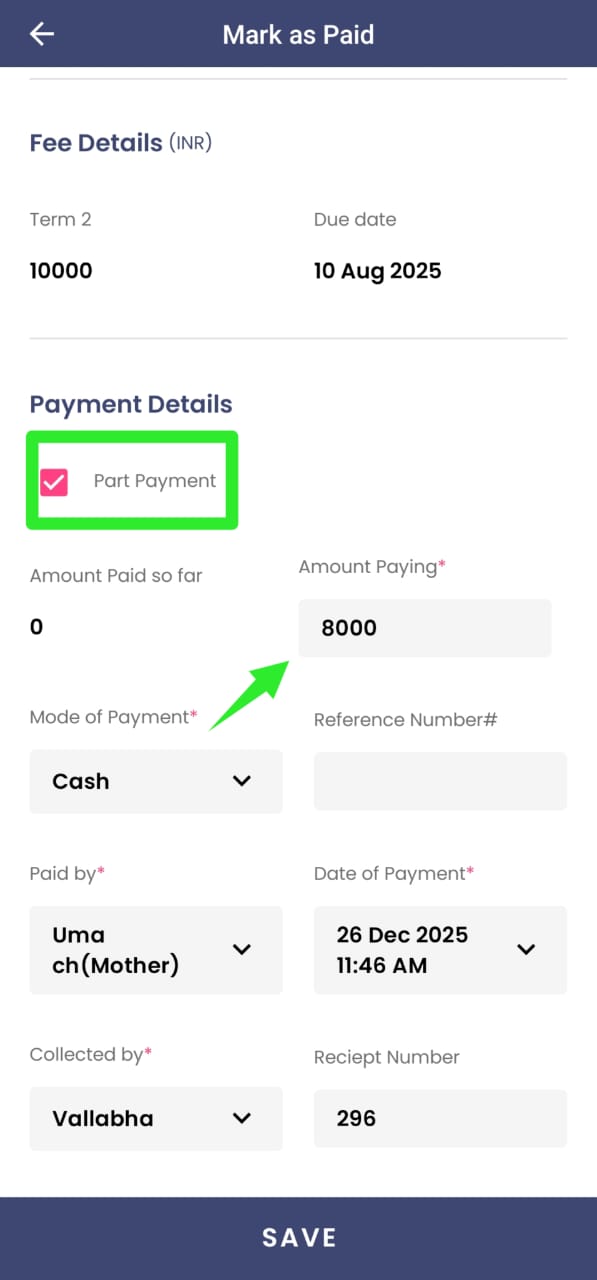
- Select the Part Payment checkbox.
- Enter the amount received from the parent.
- Click Save.
Kriyo will automatically:
- Calculate and display the pending balance.
- Update all relevant reports and dashboards.
- Generate the receipt only for the paid amount, not for the full invoice value.
💡 Example:
If the Term 1 fee is ₹30,000 and the parent pays ₹20,000, record ₹20,000 as a part payment.
The system will automatically show ₹10,000 as pending, which can be cleared later.
Benefits of Managing Offline Payments in Kriyo
- Maintain unified records for both in-app and offline payments
- Automatically generate digital receipts for every payment
- Eliminate manual reconciliation errors
- Keep reports, invoices, and bank records always in sync
Related Articles
Related FAQs