How to enable and manage CCTV access in Kriyo for schools?
The CCTV Access feature in Kriyo allows schools to integrate their existing CCTV cameras into the Kriyo platform and optionally provide live access to parents—while maintaining full control over privacy and visibility.
This product guide explains how schools can set up CCTV access, manage camera links, and control parent visibility step by step.
Where to Find CCTV Setup in Kriyo
To configure CCTV access:
- Log in to Kriyo Web
- Go to Admin Tools
- Click on CCTV Setup
Here, you’ll see a list of all your programs (programs typically represent classrooms or sections).
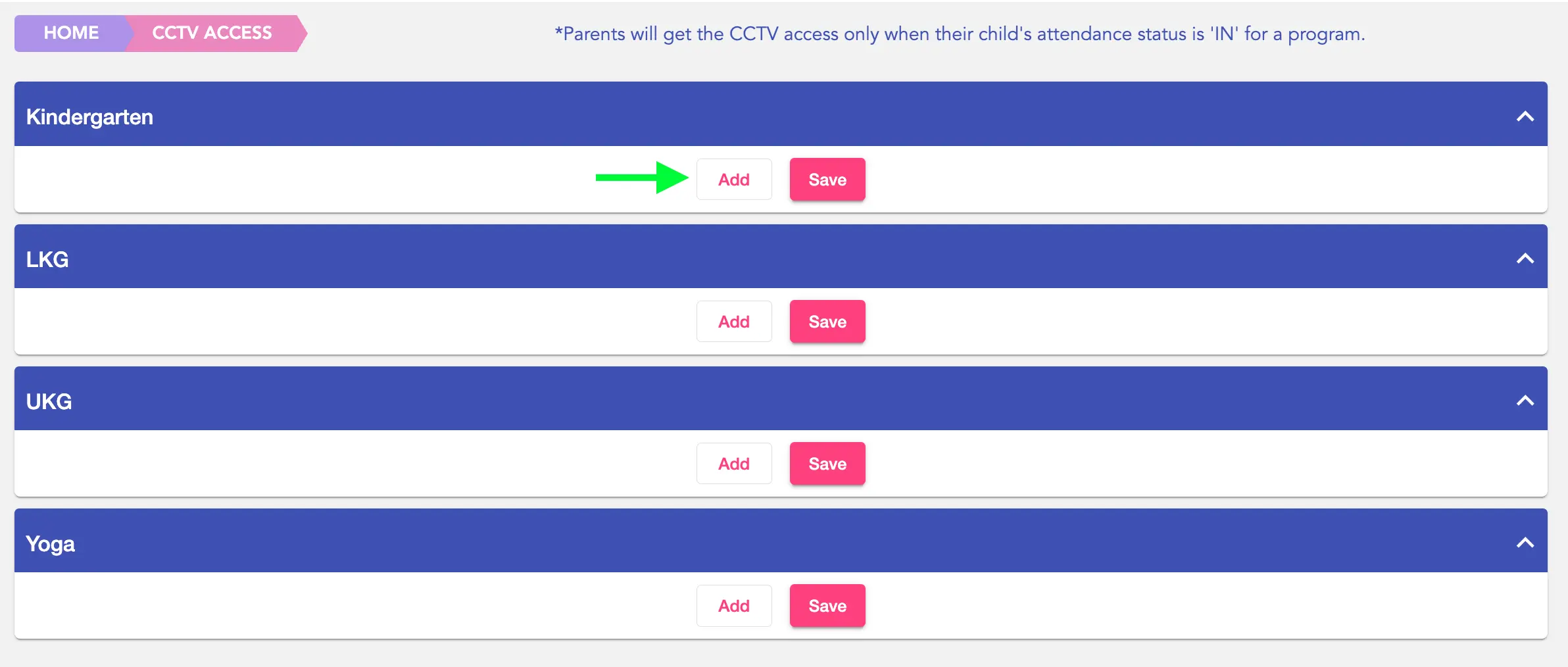
Understanding Program-Level CCTV Configuration
CCTV access in Kriyo is managed program-wise. This means:
- Each program (classroom) can have its own CCTV links
- Access can be configured differently for each program
- Parent access can be enabled or disabled independently per program
This gives schools granular control and avoids blanket access.
Adding CCTV DVR Links
Kriyo supports DVR links provided by your CCTV vendor. Other formats are not supported.
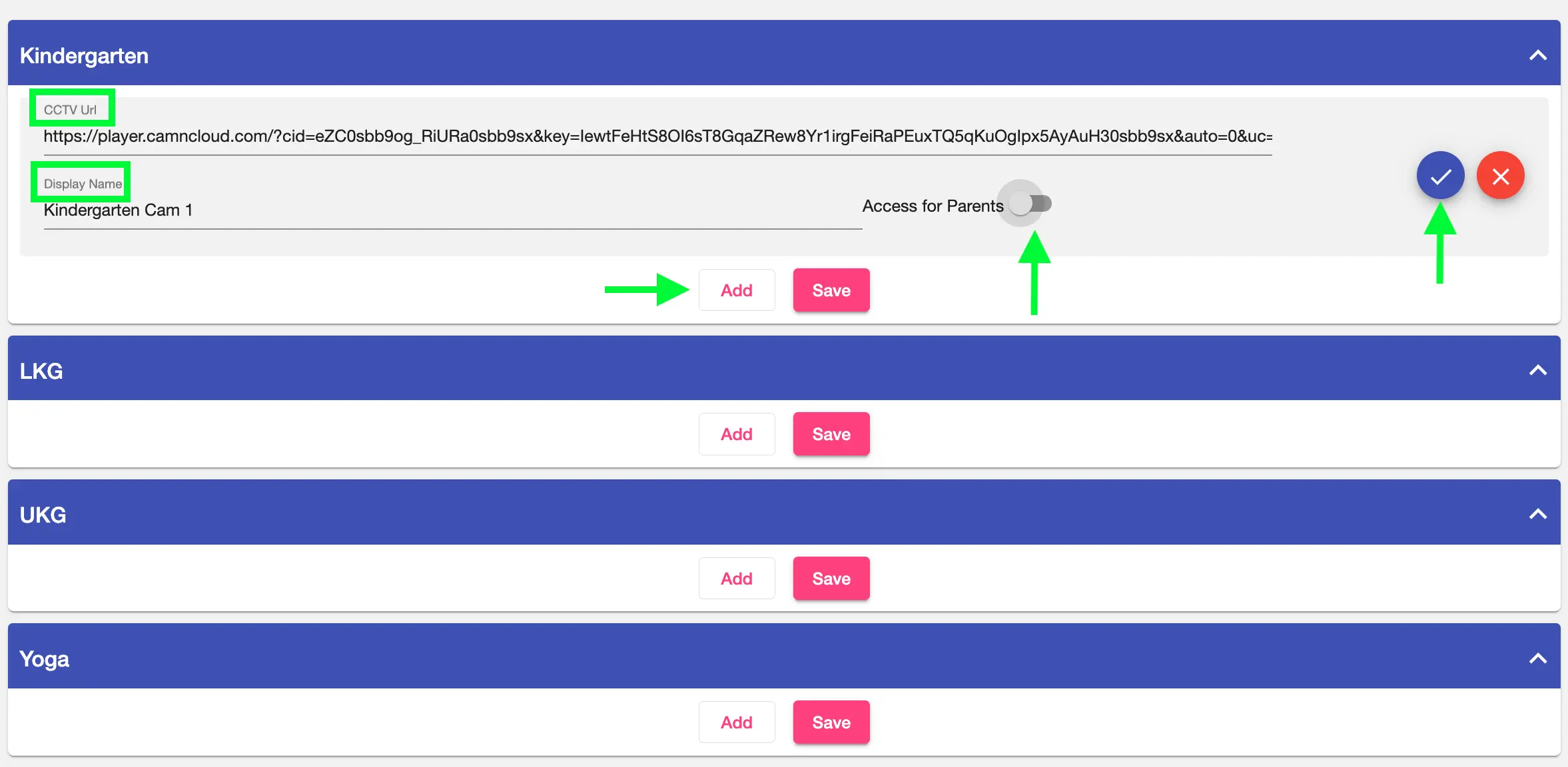
To add CCTV links:
- Select the relevant program
- Click Add
- Paste the CCTV DVR link provided by your vendor
- Enter a display name (for easy identification of the camera)
- Click the blue tick to confirm the entry
You can:
- Add multiple DVR links for a single program
- Use the Add button to create more rows
- Use the cross (×) button to remove unwanted rows
- Click Save after adding all required links
Editing or Updating CCTV Links
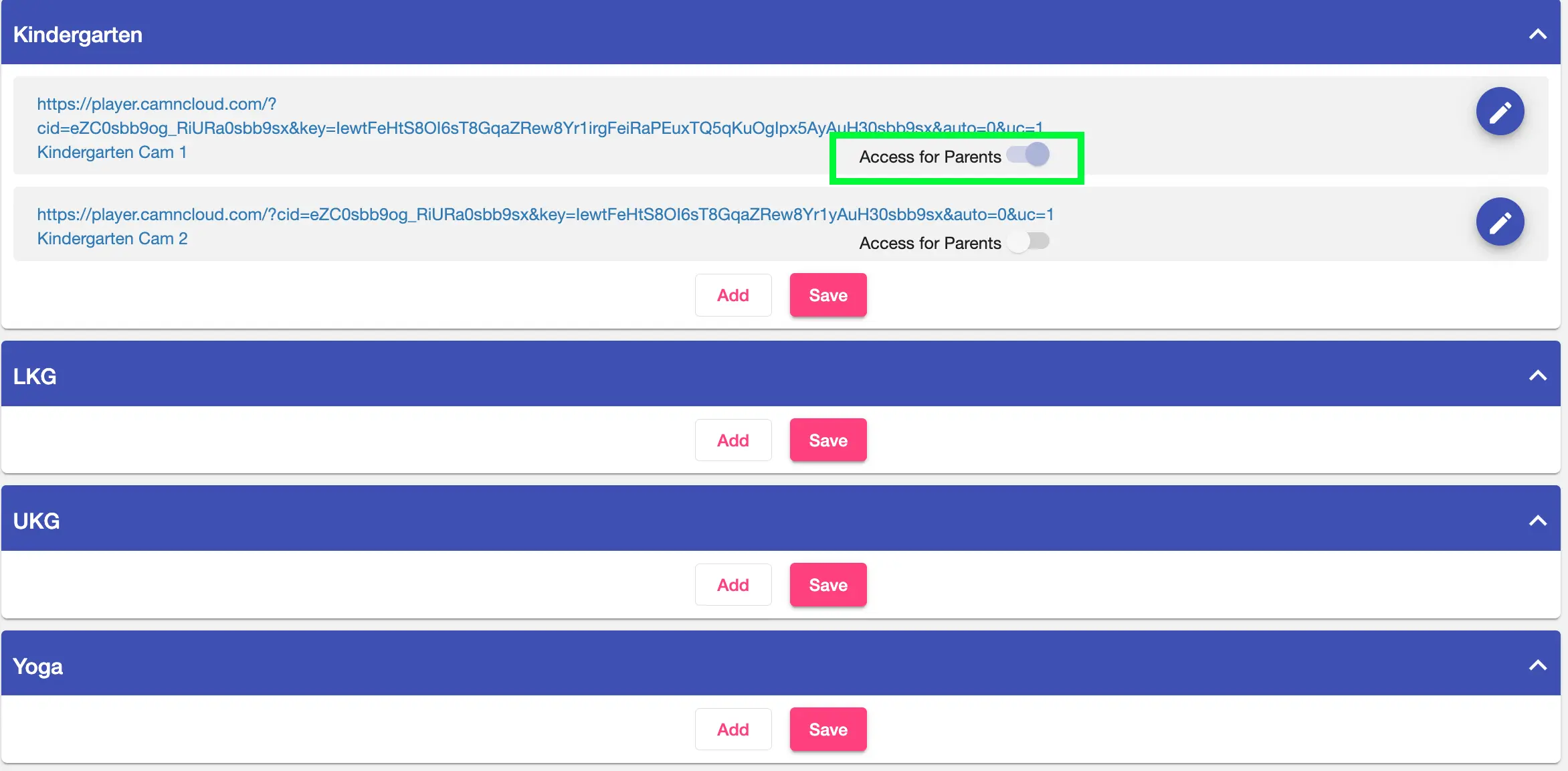
If you need to update an existing CCTV configuration:
- Click the edit icon next to the camera entry
- Update the DVR link, display name, or parent access setting as required
- Confirm the changes using the blue tick
- Click Save to apply the updates
This ensures your CCTV setup remains accurate and up to date at all times.
Controlling Parent Access to CCTV
Once the CCTV links are added, schools can decide whether parents should have access.
For each program, you can:
- Keep parent access turned off (only school admins/authorized staff can view)
- Enable Access to Parents using the toggle
- Click Save to apply the changes
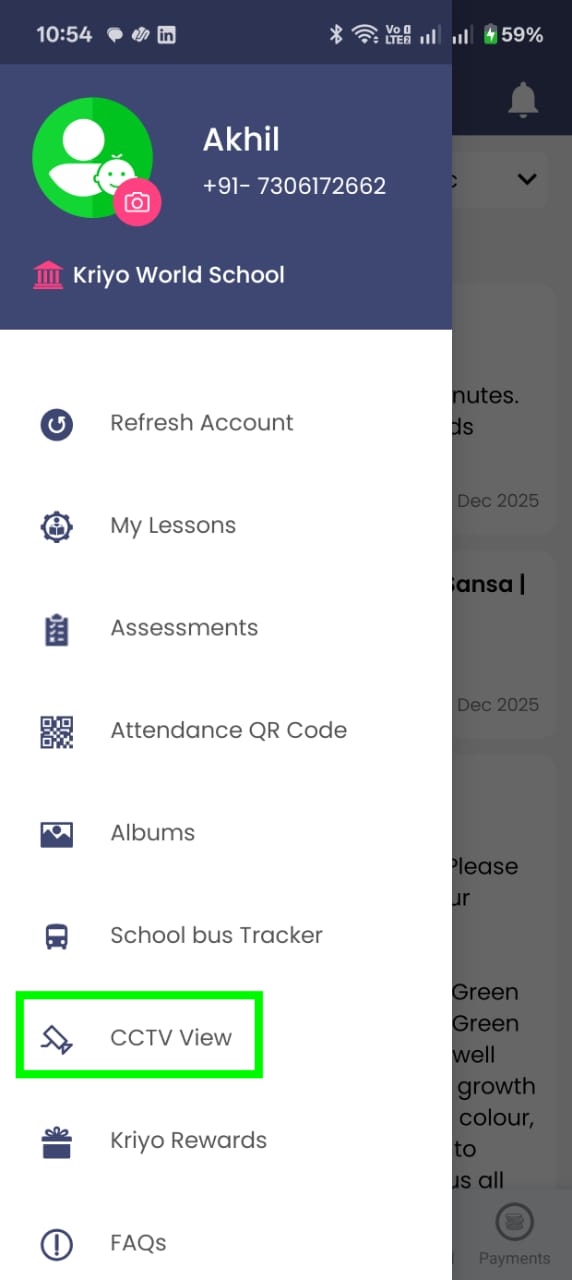
When parent access is enabled:
- The CCTV View option appears in the left menu of the Kriyo Parent App
- If access is disabled, parents will not see this option at all
How Parent CCTV Access Works in Kriyo
Kriyo is designed with child privacy and relevance at its core.
Even when parent access is enabled:
- Parents can view CCTV only for the program their child is enrolled in
- Access is available only when the child is checked in
- Once the child is checked out, CCTV access is automatically removed
- Parents cannot view cameras on days their child is absent
This ensures CCTV access is contextual, ethical, and privacy-conscious.
Viewing CCTV for School Use
Schools may also choose to:
- Integrate CCTV links
- Keep parent access disabled
- Allow viewing only for school administrators or authorized staff
This can be useful for internal review, monitoring, or compliance purposes without extending access to parents.
Best Practices for Using CCTV Access in Kriyo
To use this feature effectively:
- Add clear display names for each camera
- Enable parent access only where appropriate
- Communicate CCTV availability and boundaries clearly to parents
- Review access periodically to ensure it aligns with school policies
CCTV Access in Kriyo is designed to help schools offer reassurance and transparency without compromising privacy or control—making it easier for schools and parents to stay aligned and confident.