How to Set Up Late Fee Penalties in Kriyo?
Where Late Fee Penalty Is Configured
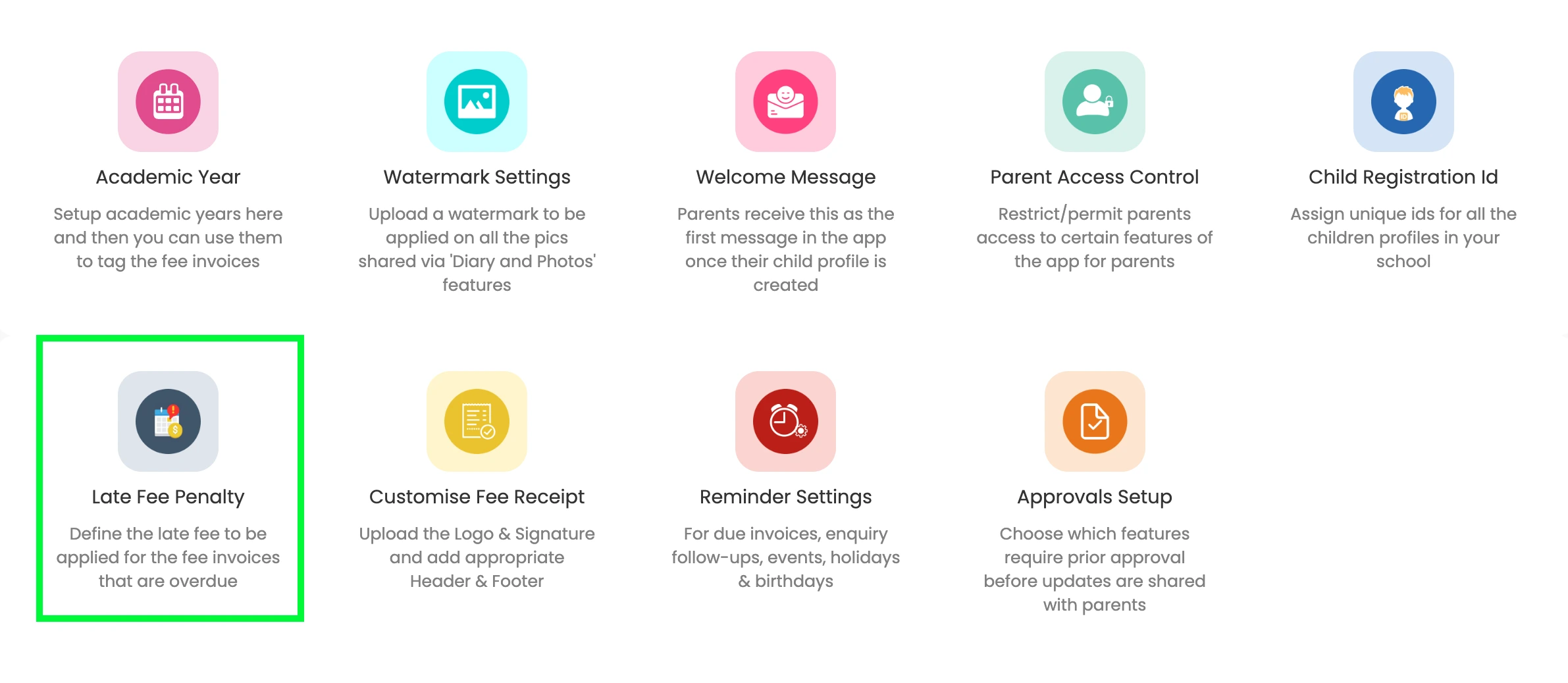
Late fee penalty settings are available only on Kriyo Web.
To access it:
- Open Kriyo Web
- Go to Admin Tools
- Click Configurations
- Select Late Fee Penalty
How Late Fee Penalty Works in Kriyo
Late fee penalties apply automatically to all unpaid (due) fee invoices once enabled.
Key points to know:
- The penalty applies only after the invoice due date
- It affects all due invoices , not selected students or programs
- Only one type of penalty can be active at a time
- Any change made applies immediately to all due invoices
Step 1: Set a Grace Period (Optional)
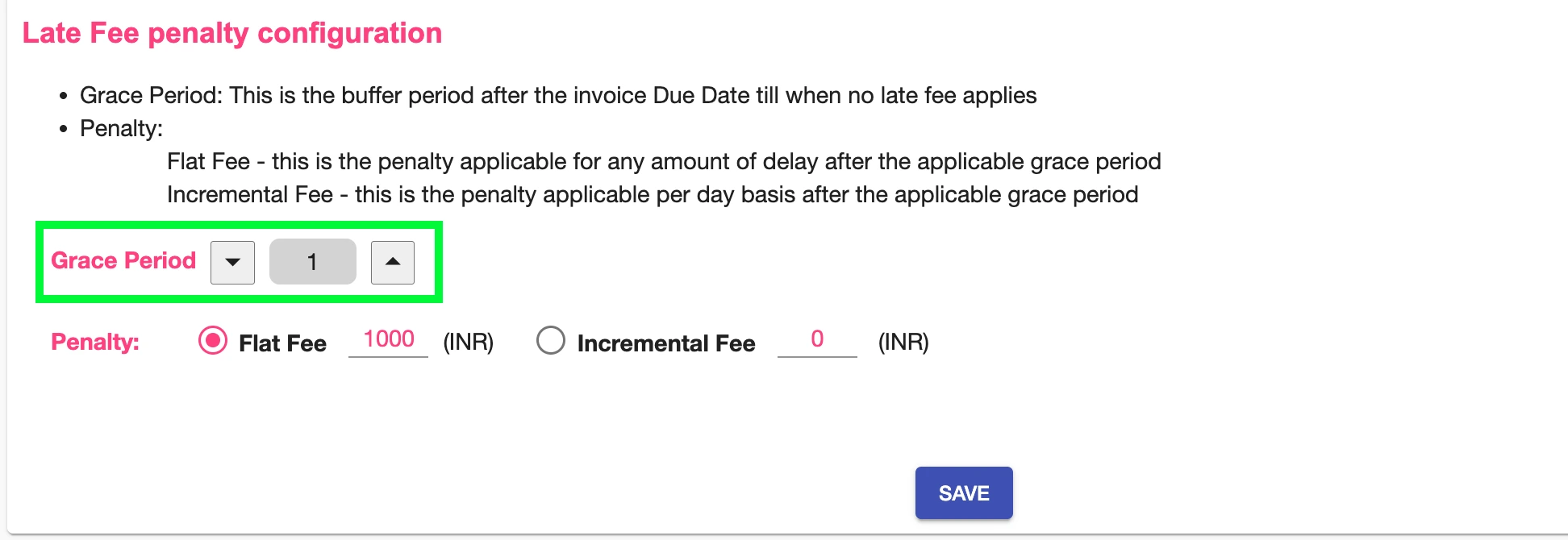
You can choose to give parents a grace period before penalties apply.
- Enter the number of days after the due date during which no penalty is charged
- Set it to 0 if no grace period is required
Example:
- Due date: 1st of the month
- Grace period: 2 days
- Penalty starts on: 4th
Step 2: Choose the Penalty Type
Kriyo supports two penalty types. You can enable only one at a time.
Option 1: Flat Late Fee
- A fixed amount added once after the grace period
- Example: ₹1,000 added if payment is delayed beyond the due date
Best for schools that want a simple, one-time deterrent.
Option 2: Incremental (Daily) Penalty
- A fixed amount added per day after the grace period
- Example: ₹100 added for each day of delay
Best for encouraging quicker payment once the due date is missed.
Step 3: Save and Activate
- Enter the penalty amount
- Click Save
Once saved:
- The penalty is applied automatically
- Parents will see the updated payable amount in their app
- The penalty appears clearly on the invoice and receipt
Important Behaviour to Know
- Late fee penalties apply only to invoices that are in “Due” status
- Paid invoices are not affected
- If you:
- Change the penalty type
- Modify the amount
- Remove the penalty
- 👉 The change applies immediately to all currently due invoices
What Parents See
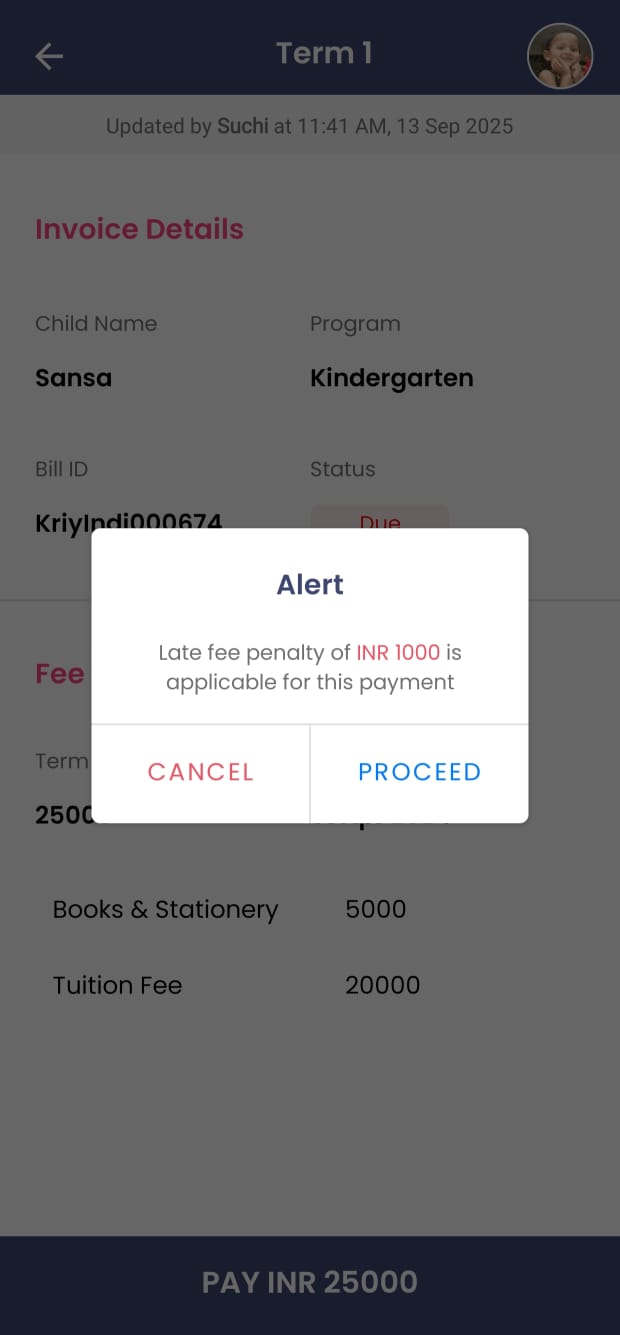
If a parent tries to pay after the due date:
- A pop-up shows the late fee amount
- The total payable amount includes the penalty
- The digital receipt reflects the penalty separately
This keeps communication transparent and avoids disputes.
Waive Off Late Fee Penalty If Required
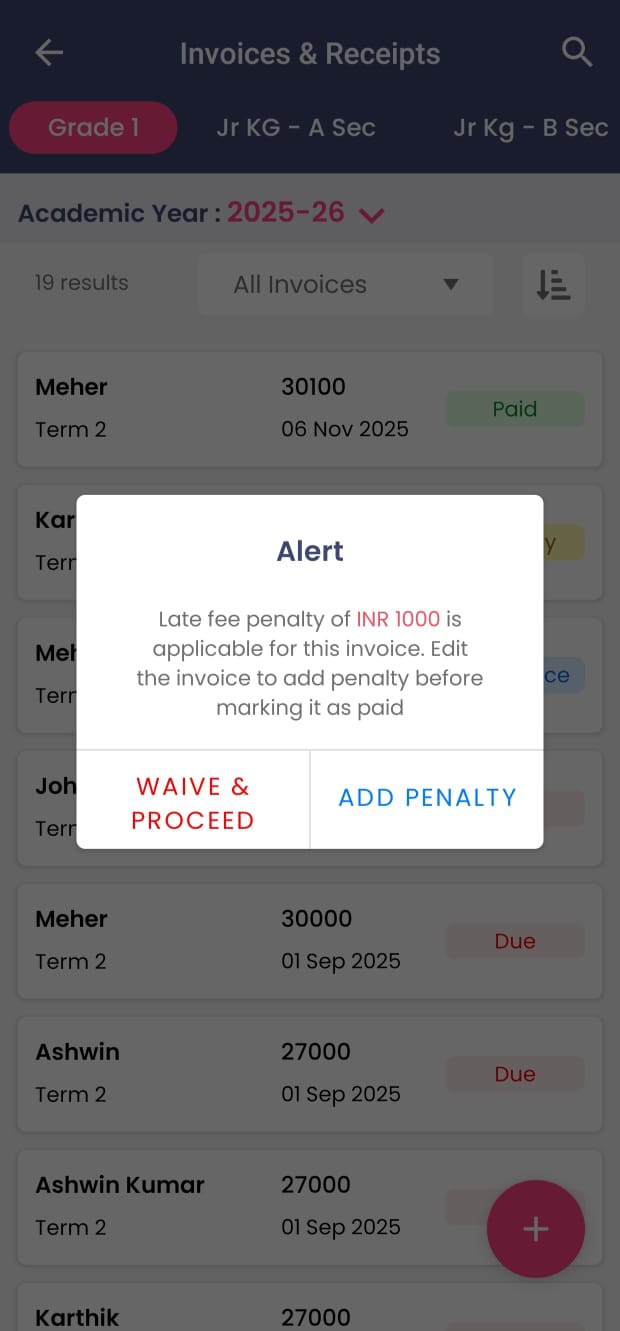
When a fee payment is made after the due date, parents are required to pay the invoice amount along with the applicable late fee penalty. Parents cannot skip or modify the penalty on their own.
However, schools have the flexibility to waive the late fee penalty while recording or updating the payment from the Kriyo School app or web, if they choose to do so.
While updating the payment, schools can:
- Apply the late fee penalty and collect the full amount, or
- Waive the late fee penalty in special or exceptional cases
This is useful in scenarios such as:
- Genuine delays or exceptional circumstances
- One-time goodwill adjustments
- Offline or manual payment reconciliation
The final payment record and receipt will clearly reflect whether the late fee penalty was applied or waived, ensuring accurate and transparent accounting.
When to Use Late Fee Penalties
Late fee penalties are useful when:
- Automated reminders are ignored
- Manual follow-ups are increasing
- Schools want to encourage payment discipline without constant chasing
Quick Summary
With Late Fee Penalty in Kriyo, schools can:
- Encourage on-time payments automatically
- Apply fair and transparent penalties
- Reduce manual follow-ups
- Maintain clean and consistent fee records
All with a one-time configuration on Kriyo Web.