How to Set Up and Manage Watermark Settings in Kriyo
Photos shared with parents often travel beyond the classroom — to grandparents, relatives, and social media. Kriyo automatically adds your school logo to every shared photo and album.
Your brand stays visible.
Your identity stays protected.
Your professionalism travels with every memory.
Watermark Settings in Kriyo allow schools to automatically add their logo or branding to photos shared with parents. Once configured, the watermark is applied to all new photos shared via Diary and Shared Media.
Note: Watermark configuration is available only on Kriyo Web.
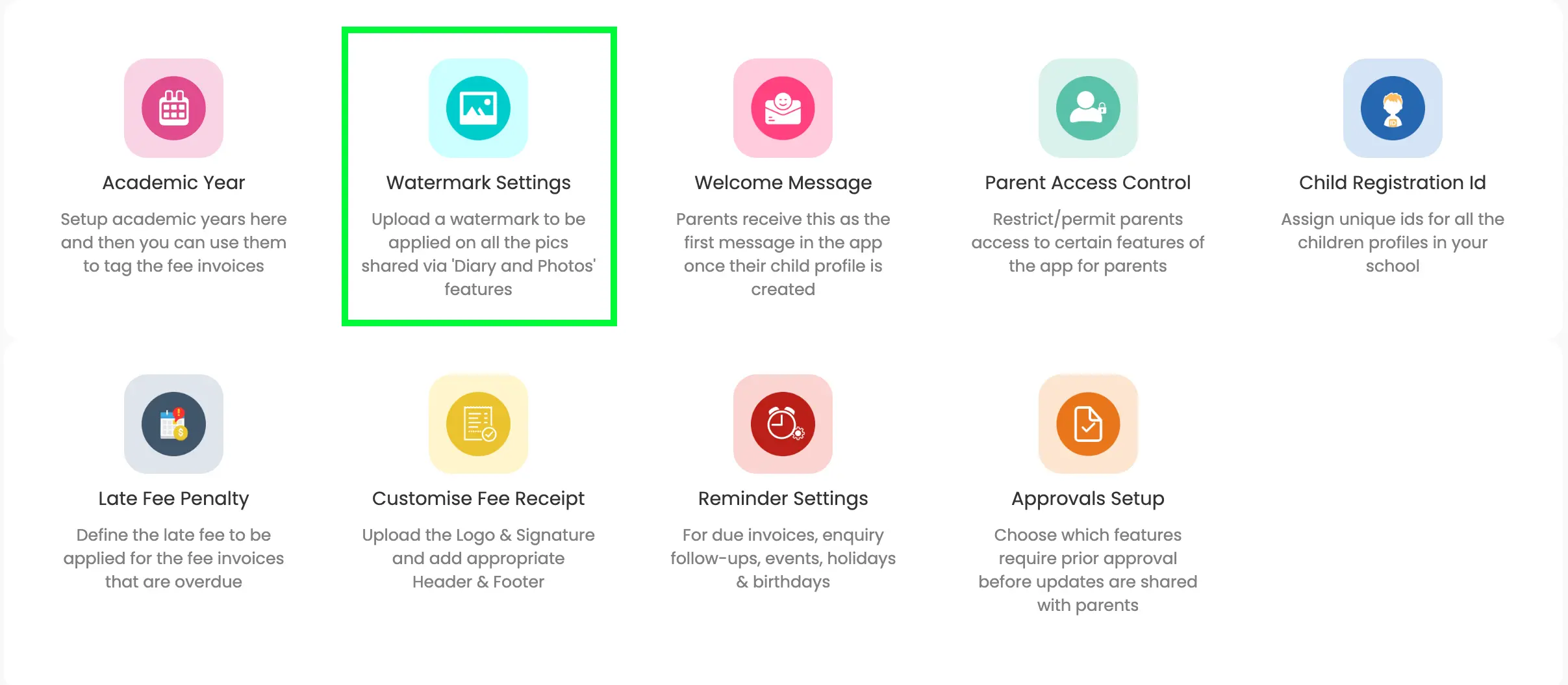
Where to Find Watermark Settings
- Open Kriyo Web and go to Admin Tools
- Click Configurations and select Watermark Settings
Uploading a Watermark
In the Watermark Settings screen:
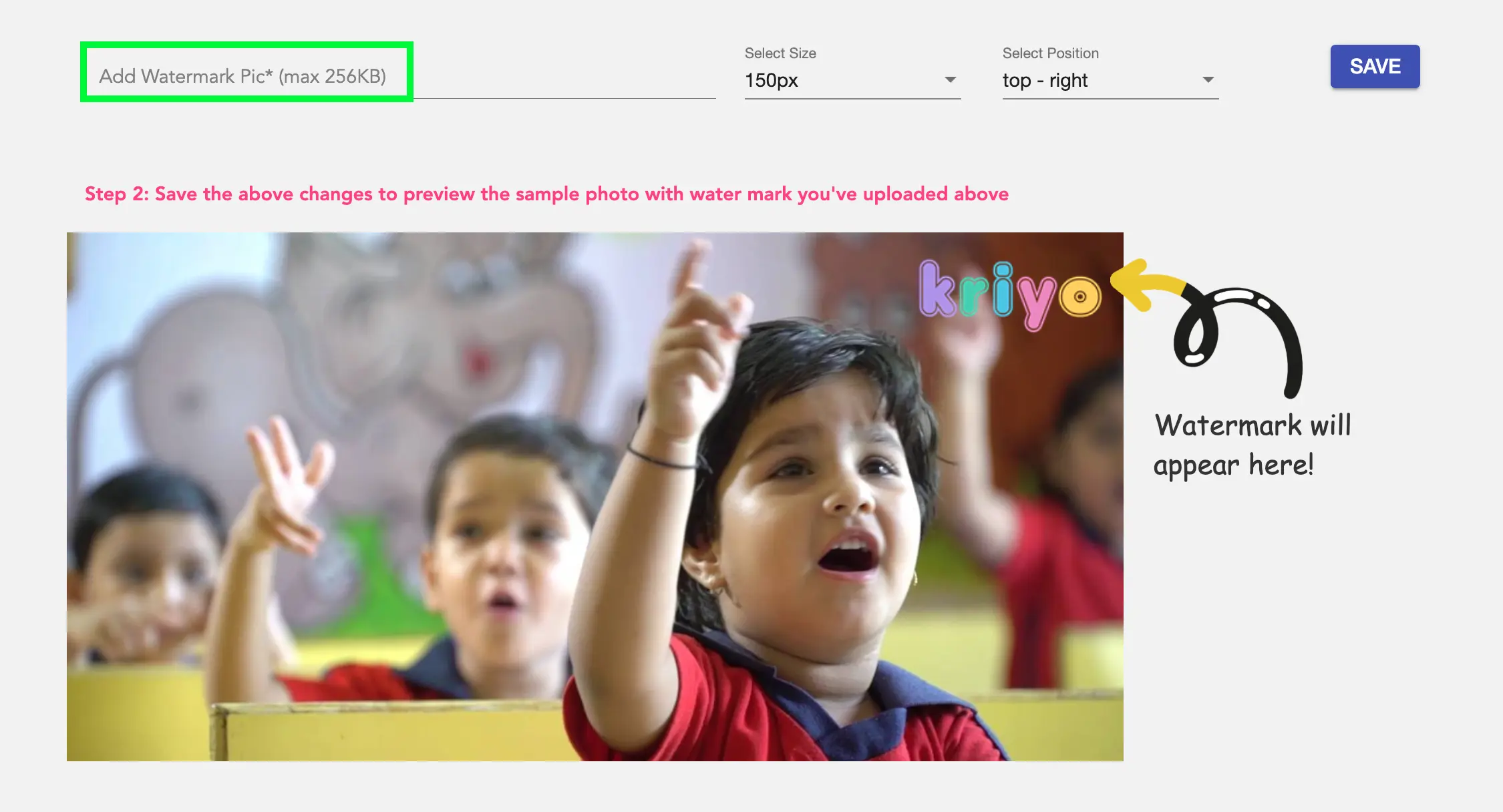
- Upload your school logo or branding image
- Supported formats: PNG or JPEG
- Maximum file size: 256 KB
Once uploaded, the watermark preview will appear on a sample image.
Adjusting Watermark Size and Position
After uploading the watermark, you can customise how it appears on photos:
- Size options:
- Actual size
- 100 px, 150 px, 200 px, or 250 px
- Position options:
- Top left
- Top right
- Bottom left
- Bottom right
Use the preview to confirm how the watermark will look on shared photos.

Saving and Applying the Watermark
Once you are satisfied with the size and position:
- Click Save
From this point onward:
- All new photos shared via Diary and Photos will automatically include the watermark
- Photos shared earlier will remain unchanged
Refreshing the Account (If Watermark Does Not Appear)
If the watermark does not appear immediately in the mobile app:
- Go to the top left menu
- Click Refresh Account
- Try sharing photos again
This helps sync watermark settings across all devices linked to the school.
Changing or Removing the Watermark
To update the watermark:
- Remove the existing watermark using the cross (×) icon
- Upload a new watermark
- Adjust size and position
- Click Save

To remove watermarking entirely:
- Delete the uploaded watermark
- Save the settings
New photos shared after removal will not have a watermark.
Important Things to Know
- Watermarks are applied only to photos, not videos
- Watermarking does not reduce photo quality
- Parents cannot download photos without the watermark
- Only one watermark can be applied to a photo
- Watermarks apply automatically to all photos shared after setup