How to Configure the Welcome Message in Kriyo?
What Is the Welcome Message in Kriyo?
The Welcome Message is the first message parents see in the Kriyo Parent App when their child’s profile is created. It helps parents understand how to use the app and what to expect from it.
Kriyo provides a default welcome message, which schools can customise based on their communication style.
Default Welcome Message in Kriyo
If a school does not customise the message, parents receive the default message shown below:
Dear Parent,
Welcome to the Kriyo for Parent App. Now you can receive all the updates about your child Ria from Kriyo Demo School here.
You can also pay school fees, track school bus and a lot more in this app. Please check this video to know more!
This message introduces the Parent App and includes a short tutorial video.
Where to Configure the Welcome Message
Welcome Message configuration is available only on Kriyo Web.
To access it:
- Go to Admin Tools
- Click Configurations
- Select Welcome Message
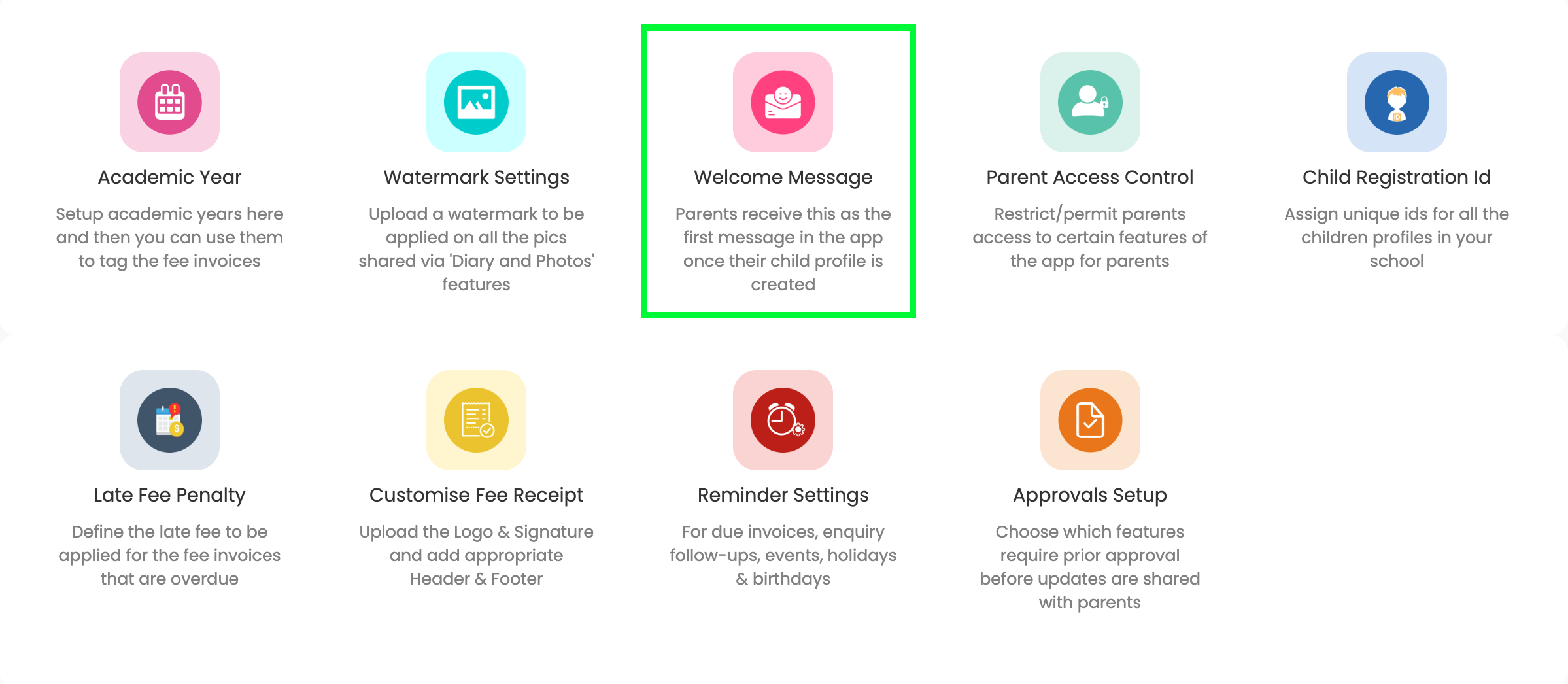
Customising the Welcome Message
To customise the message:
- Enter your preferred welcome message in the text box
- The maximum allowed length is 400 characters
- Click Save
Once saved:
- All new child profiles created after this point will receive the updated welcome message
- Child profiles created earlier will continue to see the default message
Important Things to Know
- The welcome message is sent only once, when a child profile is created
- Changes apply only to future profiles, not existing ones
- Schools can update the message anytime from Configurations
- If the custom message is cleared, the default message will be used