How to use the Food feature in Kriyo?
The Food feature in Kriyo helps schools, preschools, and childcare centers keep parents informed about their child’s mealtime routine — what they ate, how much, and when. It replaces paper reports with timely, digital updates, ensuring parents are always in the loop and teachers can communicate with ease.
1. Open the Food Feature
- On the home screen, tap See All Features.
💡 Tip: You can add Food to your favourite features for quick access if you use it often.
See article: How to Customize Your Favorite Features.
- Under the Activities section, click on Food.
2. Select Children
- Choose one or multiple children for whom you want to send the same meal update.
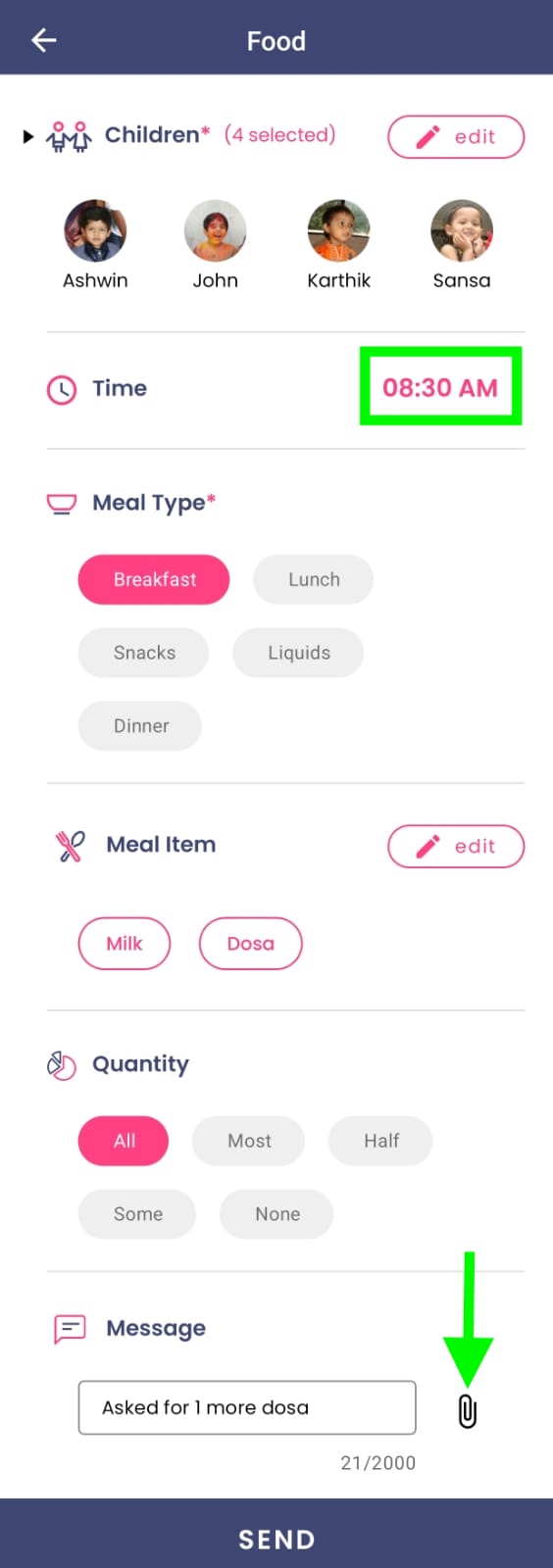
3. Select the Time
- By default, the current time is selected.
- If the child had their meal earlier, select a past time to record when the meal actually happened.
4. Choose the Meal Type
- Select the type of meal — Breakfast, Mid-morning Snack, Lunch, or Evening Snack.
- These fields are mandatory to send the update.
5. Add Meal Items (Optional)
- Choose from your pre-saved list of meal items.
- This helps teachers save time and avoid typing the same items repeatedly.
- If a meal item is missing, tap the + button at the bottom right corner to add a new meal item instantly.
.jpeg.jpg)
6. Describe How well the Child Ate (Optional)
- Indicate how much the child ate — Finished all, Ate most, Ate half, Ate little, or Didn’t eat.
- This gives parents a quick understanding of their child’s appetite.
7. Add details and Attachments (Optional)
- Add specific details such as “Didn’t like beetroot rice” or “Asked for more banana.”
- You can attach a photo, voice message, or document if you want to share additional details.
8. Send the Update
- Click Send to share the details.
- Parents will instantly receive a notification, and the meal update will appear on their Parent App home page.