How to Use the Health Feature in Kriyo
Timely health communication is essential in preschools, daycares, and early learning environments. Whether it’s an early sign of sickness, a medication reminder, a growth update, or a minor incident, sharing accurate information at the right time helps parents stay informed and reassured. Kriyo’s Health feature is designed to make this process simple, quick, and intuitive for teachers — without interrupting their routine.
Here’s how you can use the Health feature effectively.
- Accessing the Health Feature
- On the home screen, tap See All Features.
- Under the Activities section, tap Health.
- Select Children
- Choose one or multiple children for whom you want to send the same health update.
- The update will be personalized for each child based on their name and the selected health category.
- Choose the Time of the Update
- By default, the current time is selected. However, you do not need to send updates on the spot.
- If the observation or event happened earlier, simply select the past time and proceed.
- Pick the Health Category
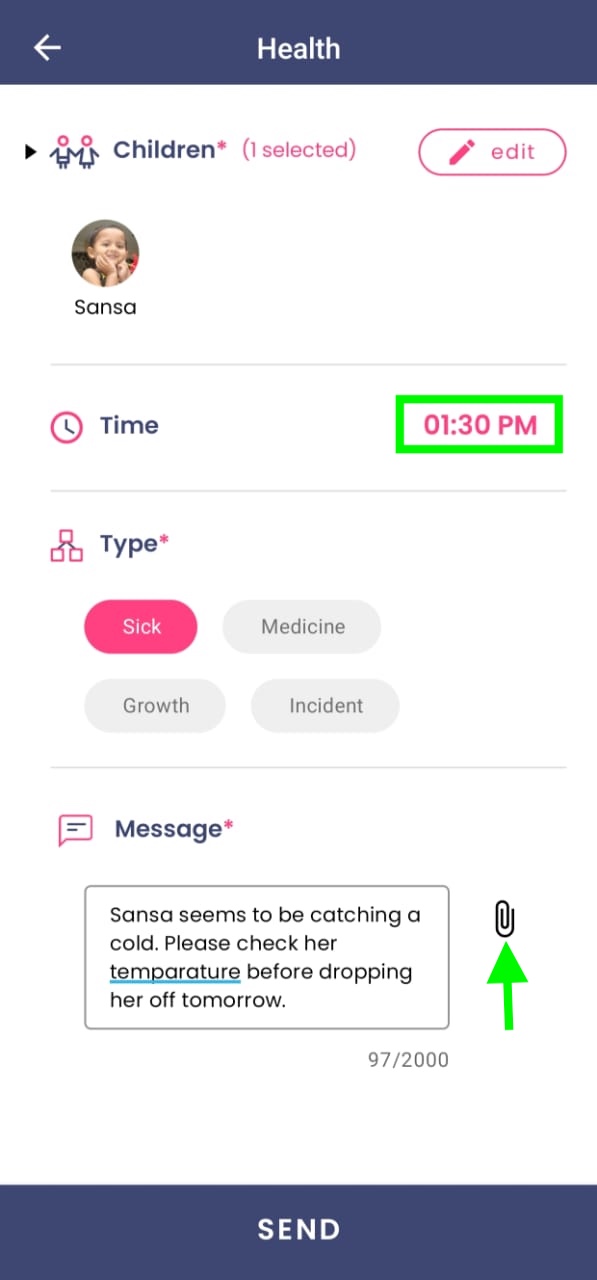
- Use this to inform parents about early symptoms like fever, cold, cough, tiredness, or any discomfort.
- You can type a brief message and attach photos, documents, or a voice note if needed.
- Record the medicine name, time administered, dosage, or any special instructions followed.
- This eliminates guesswork for parents and reassures them instantly.
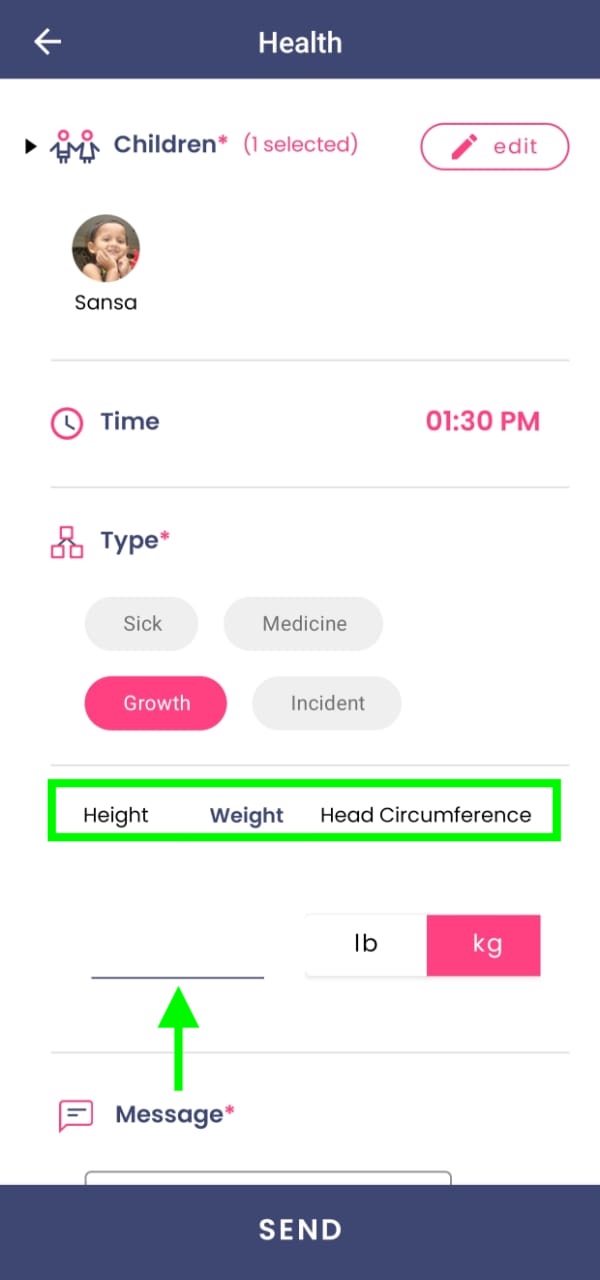
- Height (in centimeters or inches)
- Weight (in kilograms or pounds)
- Head circumference (in centimeters or inches)
- Photos (before and after first aid)
- A completed incident form
- Any other supporting documents
- Attach Supporting Files (Optional)
- Photos
- Voice messages
- Documents (like an incident form or doctor’s note)
- Send the Update
- View Past Health Updates
Kriyo offers four options under Health:
Sickness
Medicine
Growth
You can record:
You may record one metric at a time or multiple measurements together. Additional notes and photos can also be attached if relevant.
Incident
Share details of what happened, how the child is doing, what first aid was given, and any follow-up instructions. You can attach:
This brings transparency and clarity to sensitive situations.
In any of the four categories, you may attach:
Attachments help parents understand the situation better.
Once you tap Send, the parent receives a personalized health update instantly. Kriyo automatically frames the sentence using the health option you selected (sickness, medicine, growth, incident) to keep communication clear and professional.
Schools can review previous health entries by going to History and selecting School Activity Log. This helps maintain internal records and track patterns over time.