How to set up and use approvals with my tasks in Kriyo
What Is My Tasks in Kriyo?
My Tasks is the central place where approvers (admins or staff with Approvals permission) can review updates submitted by teachers before they are sent to parents.
It helps schools:
- Distribute work across teachers
- Maintain quality control
- Avoid dependency on one person
- Ensure updates are not delayed
Step 1: Configure Approval Settings (Web Only)
Approvals are configured from the Kriyo Web App.
To enable approvals:
- Log in to Kriyo Web and scroll to Admin Tools
- Click Configurations and open Approval Setup
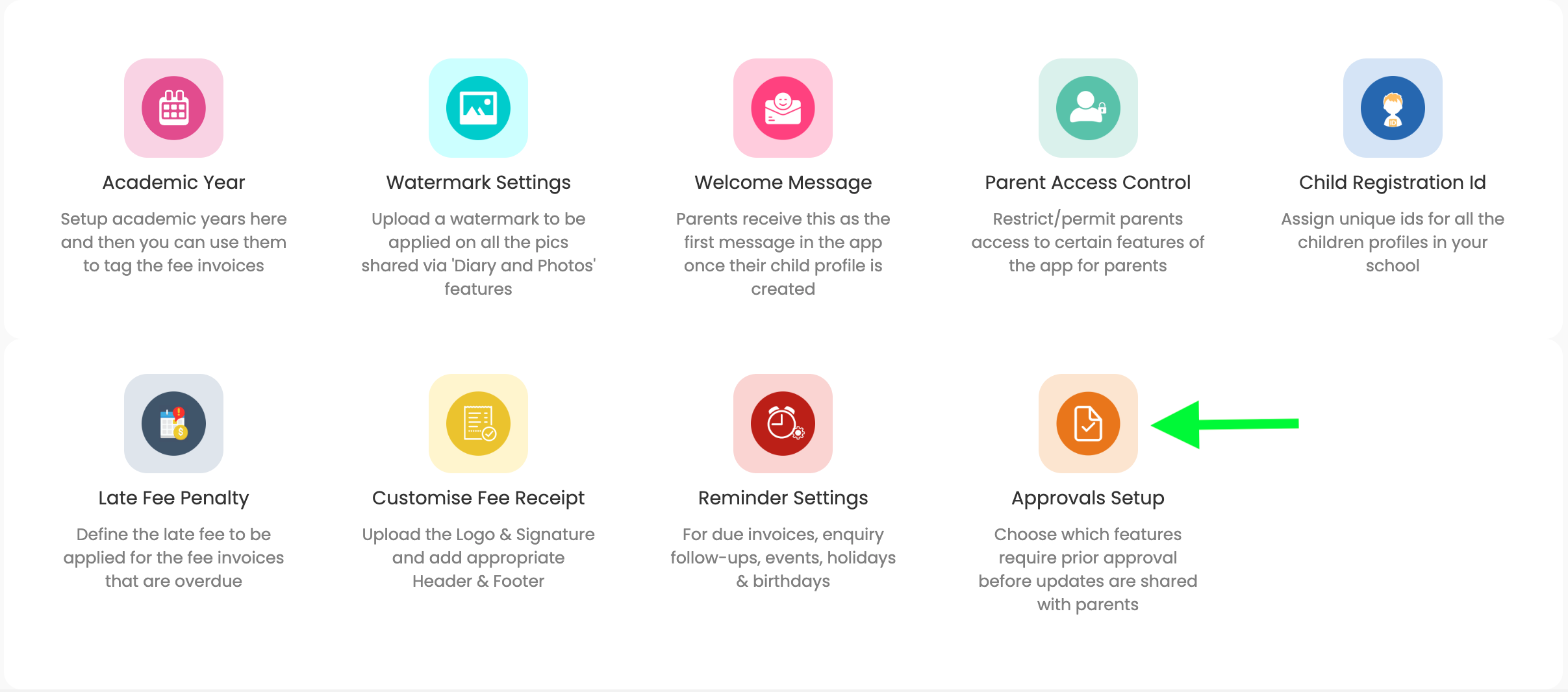
Here, you can:
- Enable approvals for specific activity types
- Decide which activities need approval and which can go directly to parents
- Set up auto-approval rules
💡 Approvals can be enabled for all activity features except Observations, Parent Notes and Albums.
Auto-Approval Settings
For each approved activity, you can configure:
- Auto-approval after a set number of minutes or hours, or
- Auto-approval at a fixed cutoff time
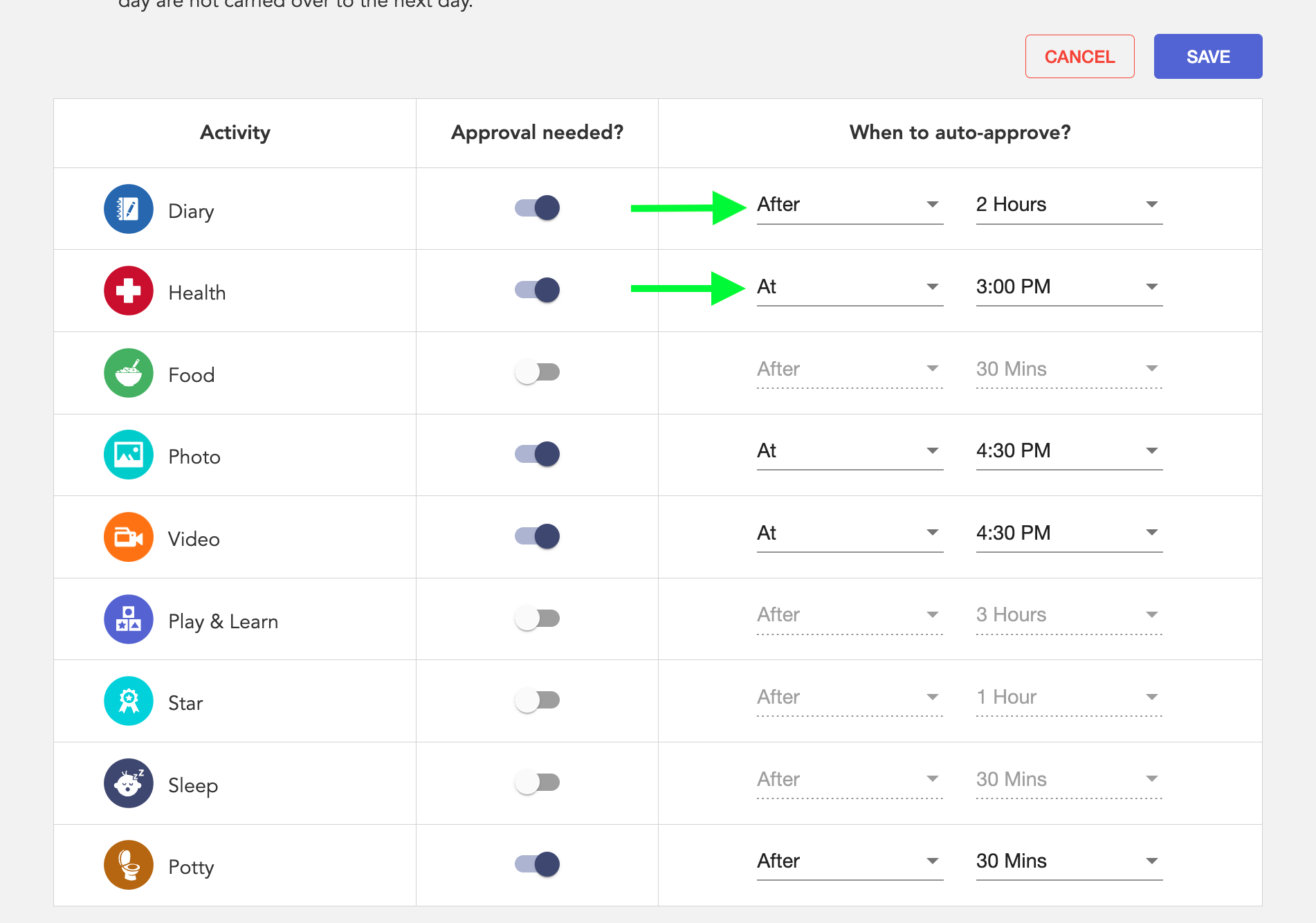
Important rule:
- All pending updates are sent on the same day.
- If an update is submitted late at night, it will be auto-approved at 11:45 PM local time, ensuring daily updates are not carried over to the next day.
Step 2: How Teachers Submit Updates for Approval
When approvals are enabled:
- Teachers create updates as usual (Diary, Photos, etc.)
- On submission, the update is sent for review, not directly to parents
Until approval:
- The update remains in Pending status
- Teachers can edit or delete the update from History -> School Activity Log
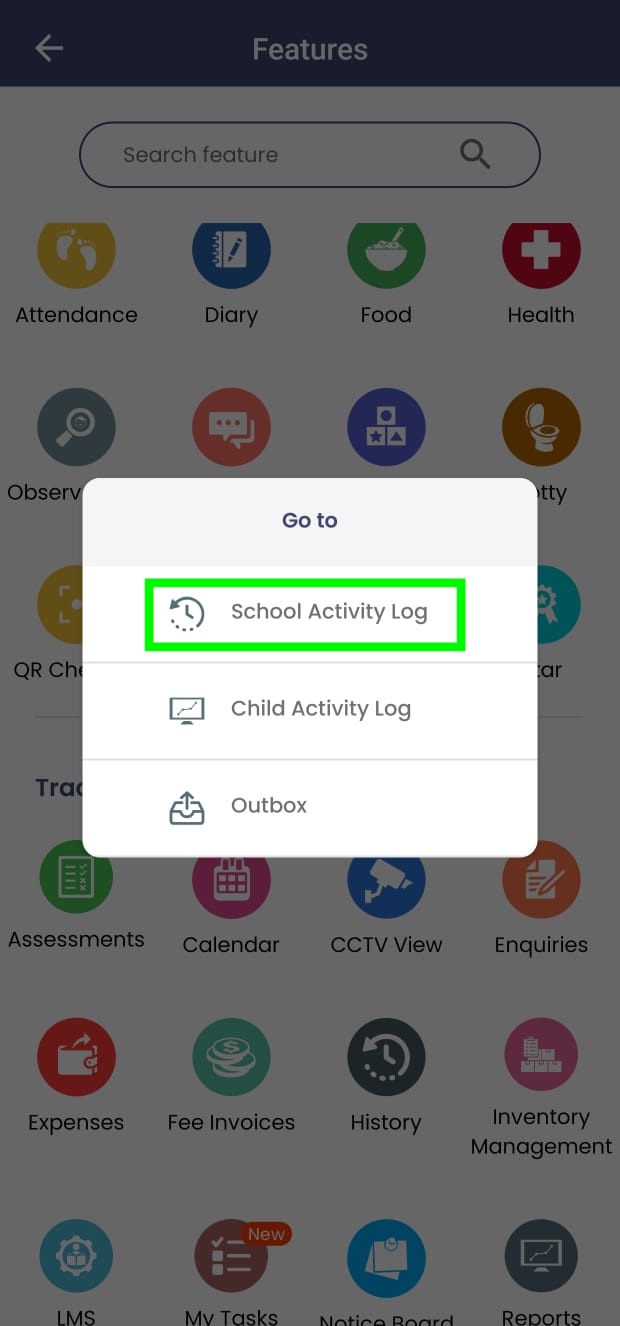
Once approved:
- Teachers can no longer edit or delete the update
- Only approvers can make further changes if needed
Step 3: Reviewing Updates in My Tasks (Approvers)
When a teacher submits an update:
- Approvers and admins receive a notification
- The update appears in My Tasks under Track & Act
To review updates:
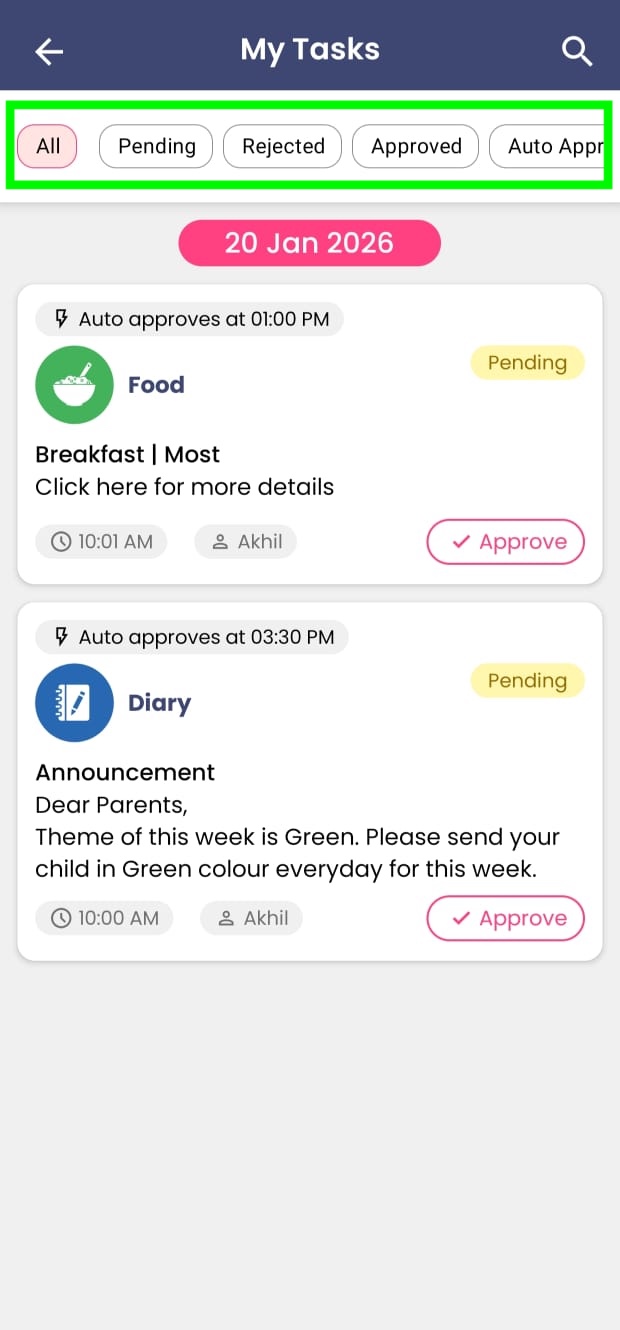
- Open My Tasks
- You’ll see a list of all tasks, with the approval status clearly shown on each update
- If an update is pending approval, an Approve button will be visible on the update card
- You can tap the Approve button directly, or tap anywhere on the card to view the full details
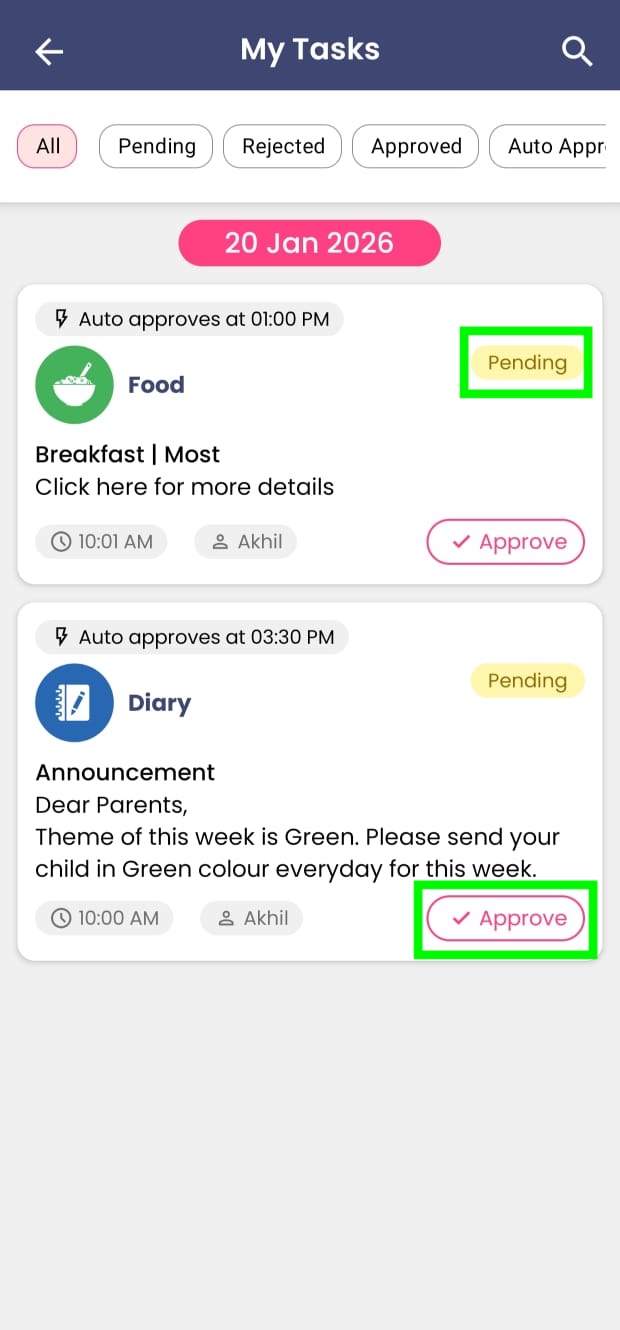
Inside the update details:
- You can review the complete content the teacher intends to share with parents
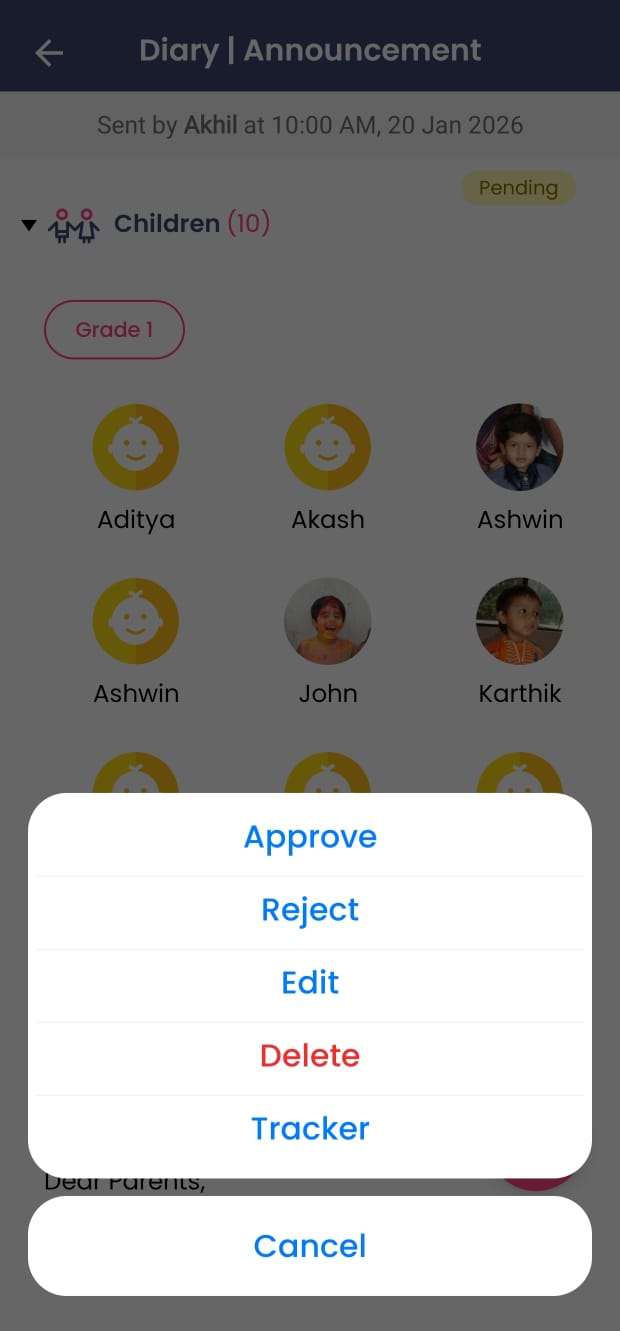
- Tap the Actions button at the bottom-right to:
- Approve the update
- Reject it with comments
- Edit the content
- Delete the update
- View the tracker (audit trail)
On the My Tasks home screen, you can also use filters to:
- View only Pending approvals
- See Auto-approved updates
- Review Rejected or Approved updates
Step 4: Approving or Rejecting Updates
Approving an Update
- Sends the update to parents instantly
- Parents see the approval time as the sent time (not submission time)
Rejecting an Update
- Approvers must add a reason
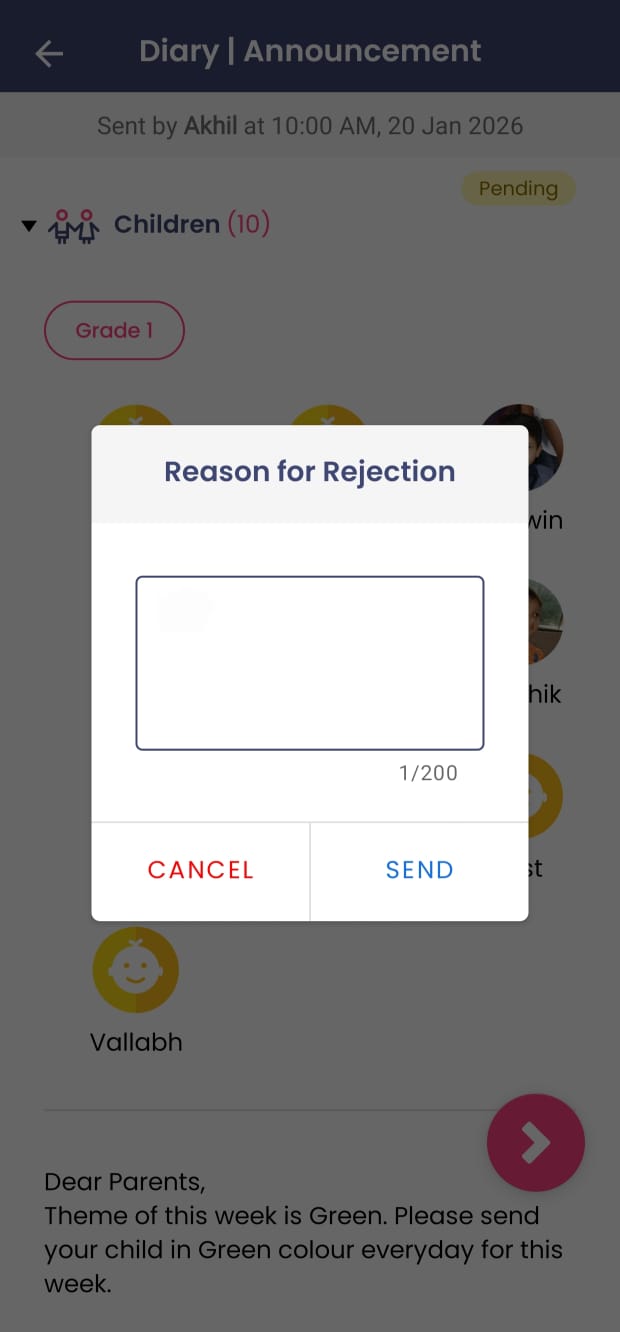
- The teacher gets notified and sees the rejection comments in the tracker by clicking on the actions button
- The teacher can edit and resubmit the update for approval
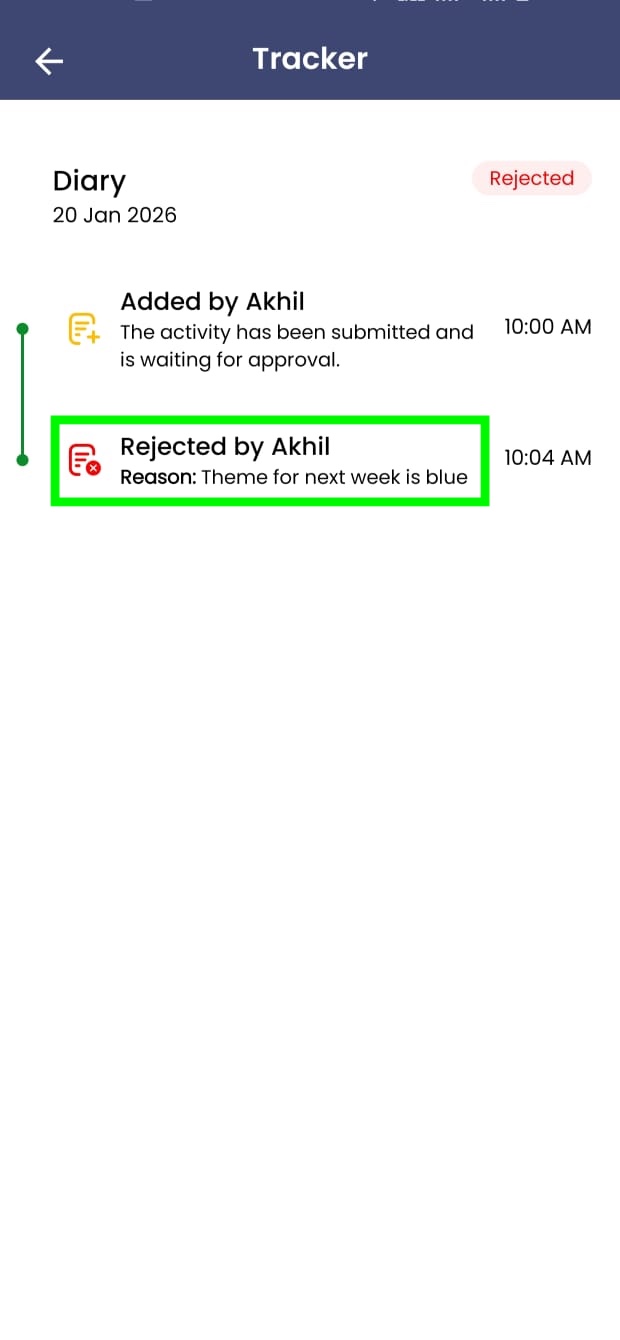
This feedback loop helps staff learn and improves communication quality over time.
Step 5: Tracking Status in History (Staff View)
Teachers can track their submitted updates from:
- History → School Activity Log
Here, they can see:
- Pending
- Sent
- Rejected
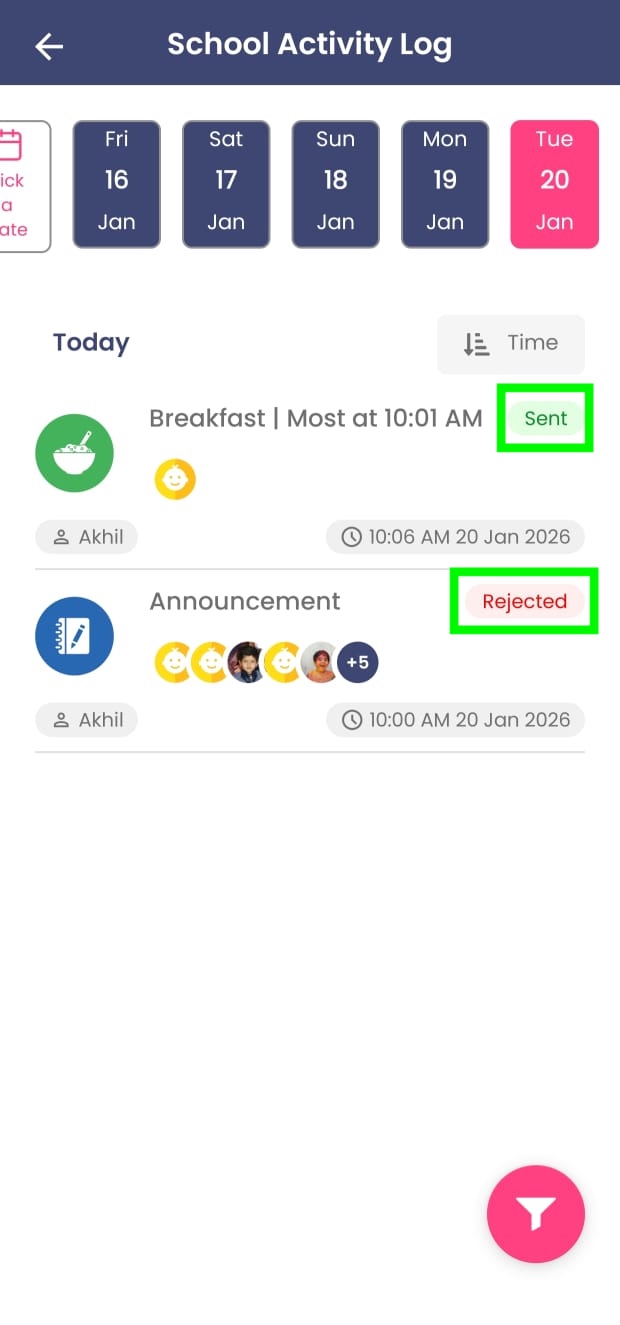
If rejected, teachers can:
- Read the comments
- Edit the update
- Submit it again for approval
Step 6: Understanding Auto-Approval Behavior
If an approver does not act before the configured auto-approval time:
- The update is approved automatically
- It is delivered to parents without delay
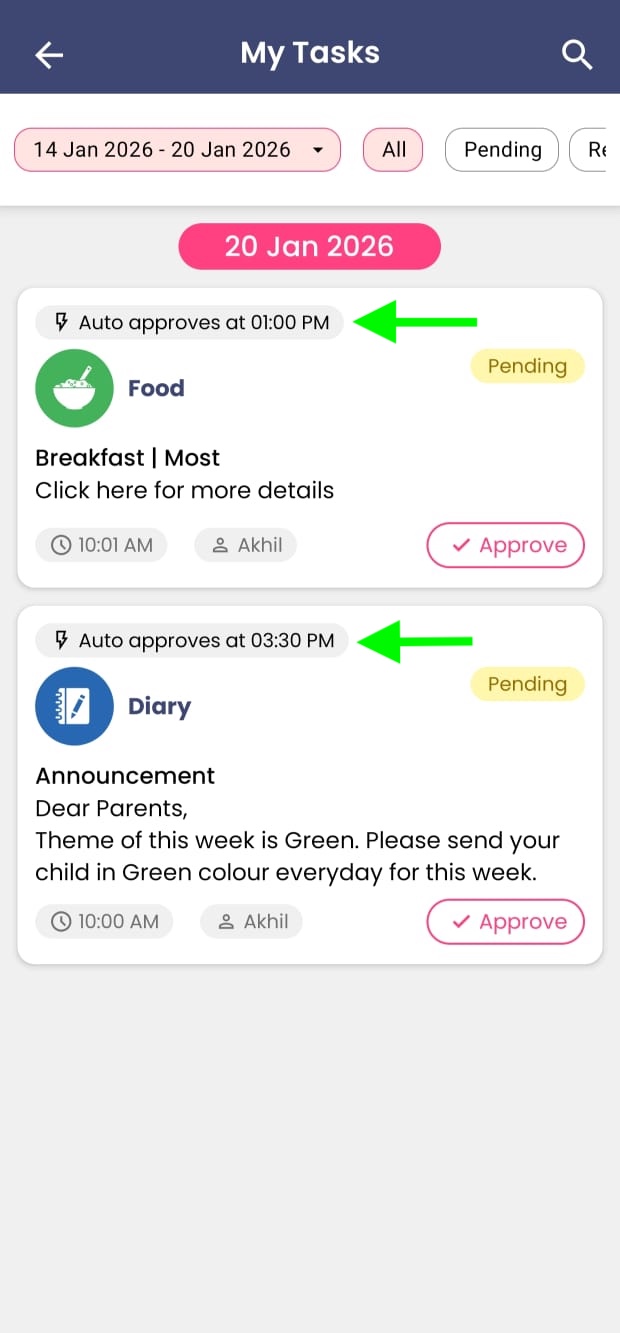
This ensures:
- Parents receive timely updates
- School communication does not stall due to availability issues
Step 7: Permissions and Control
- Only admins or staff with Approvals permission can review updates
- Admins can assign Approvals permission to:
- Center heads
- Senior teachers
- Operations staff
- Delete and edit permissions depend on:
- Whether approvals are enabled
- User role (admin, approver, staff)
- Whether the update is already approved
- Whether the update was sent today or on a previous day
This keeps control flexible but secure.
Why Schools Use My Tasks for Approvals
Using My Tasks with approvals helps schools:
- Maintain communication quality
- Scale operations without bottlenecks
- Reduce dependency on a single decision-maker
- Create accountability with a full audit trail