How to record and manage child observations in Kriyo
Kriyo’s Observations feature allows teachers and school management to privately document key insights about a child’s learning, behaviour, development, and progress over time. These observations help staff prepare confidently for parent-teacher meetings and maintain continuity even if teachers change during the year.
Here’s how to record and manage observations in Kriyo:
Recording a New Observation
- Select the children
- Open Observations and select one or more children for whom you want to record an update.
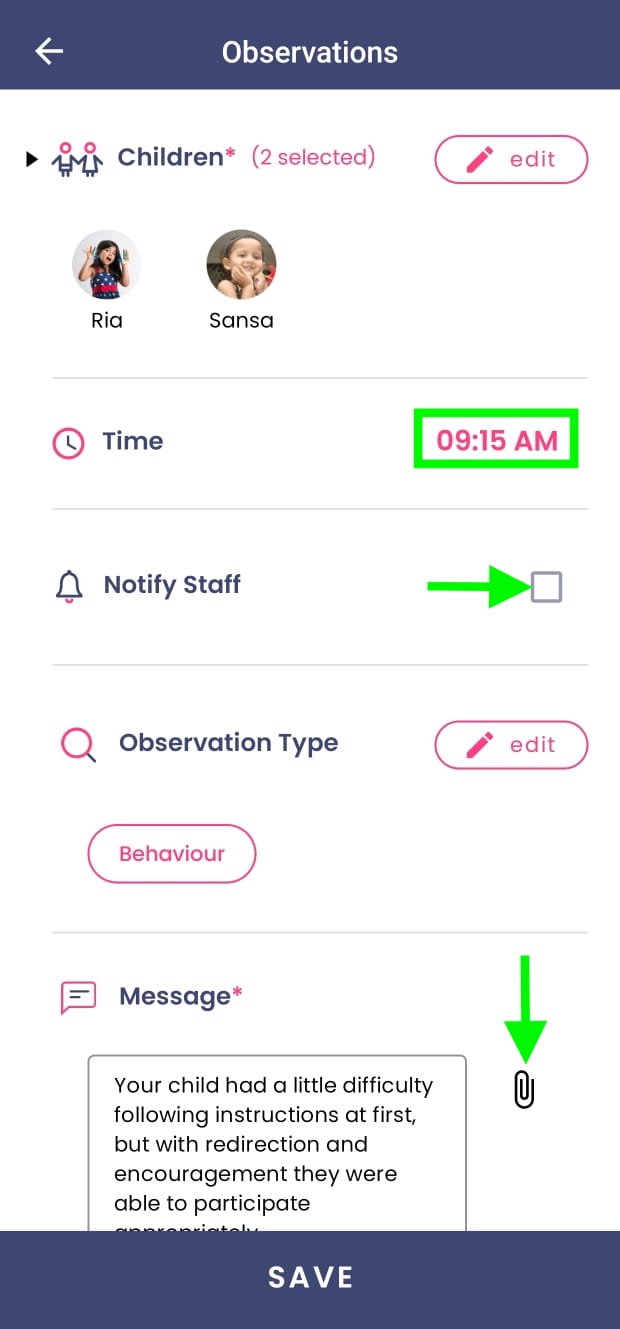
- You can also choose a past time if the observation occurred earlier.
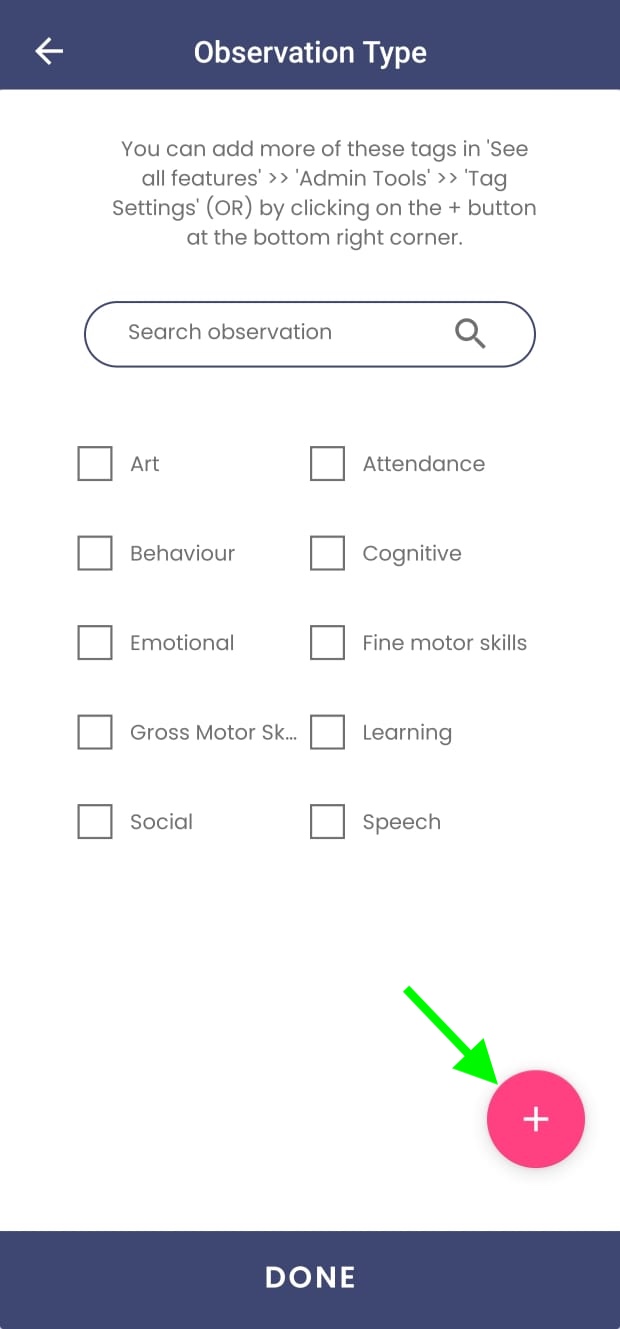
- Choose the observation type
- Schools can fully customise observation types based on their requirements.
- Kriyo provides a few types by default, and schools can add new types or modify the list whenever needed.
- Add details
- Photos
- PDFs or scanned observation sheets
- Voice messages
- Notify school staff (optional)
- If you want the school management to be alerted immediately about a concern, tick the Notify Staff option.
- If this is not selected, the observation is still saved and visible to management—just without a notification.
- Save
- The observation is stored privately under the child’s profile.
- It is not visible to parents unless the school chooses to download and share it.
Type your observation clearly. You can also attach:
Managing and Reviewing Observations
To view all observations recorded for a child:
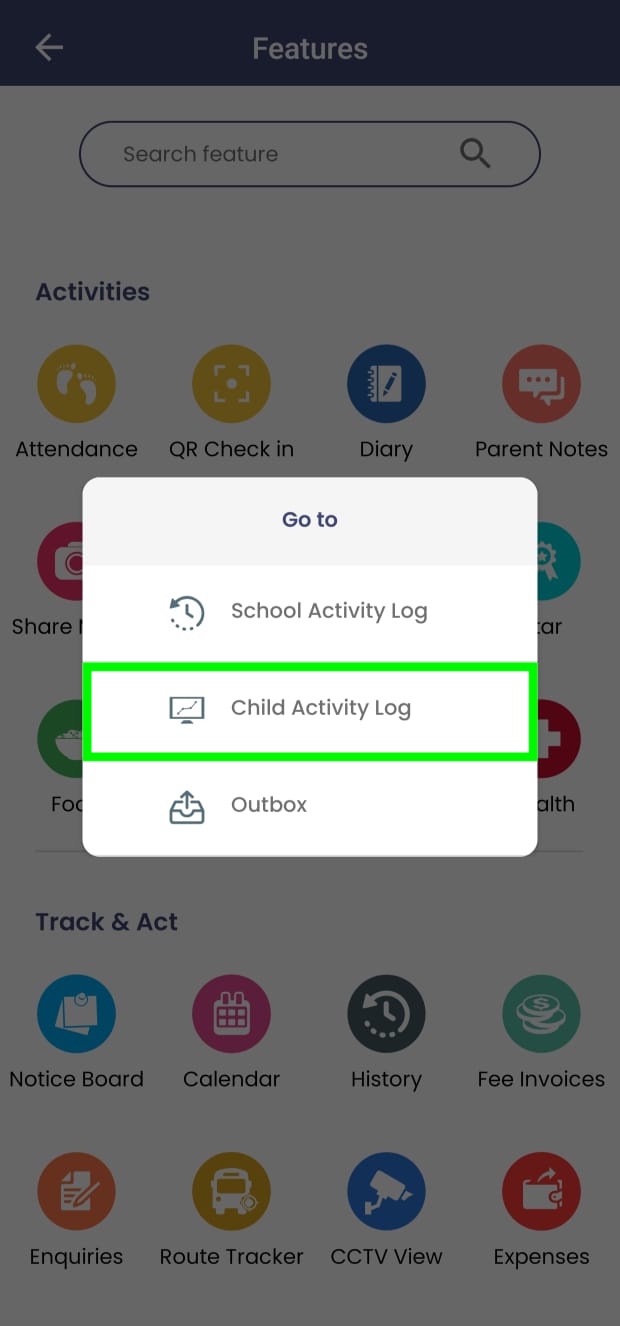
- Go to Track & Act. Tap History
- In the pop-up, select Child Activity Log
- Open the child’s profile
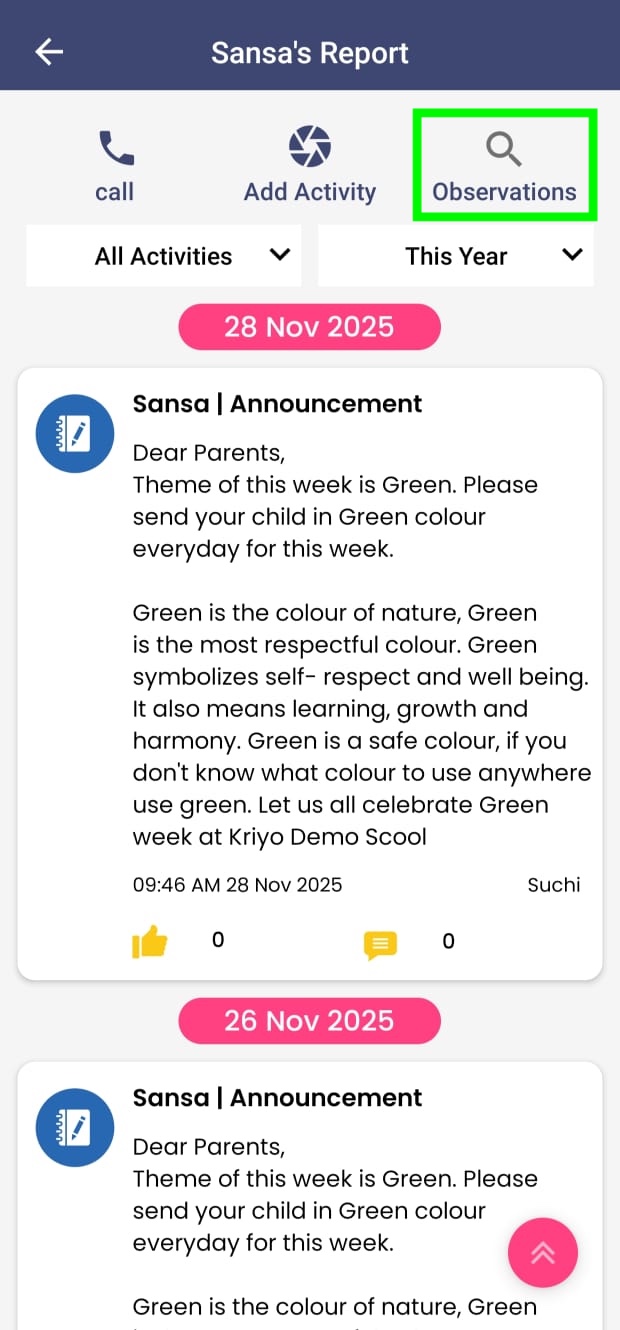
You will now see a screen similar to what parents see—showing all updates shared with the parent. In addition to this, on the top-right, you’ll find an Observations button.
Tap Observations to:
- View all observations added over time
- Scroll through chronological records
- Check the details entered by different teachers
- Download the observations if needed
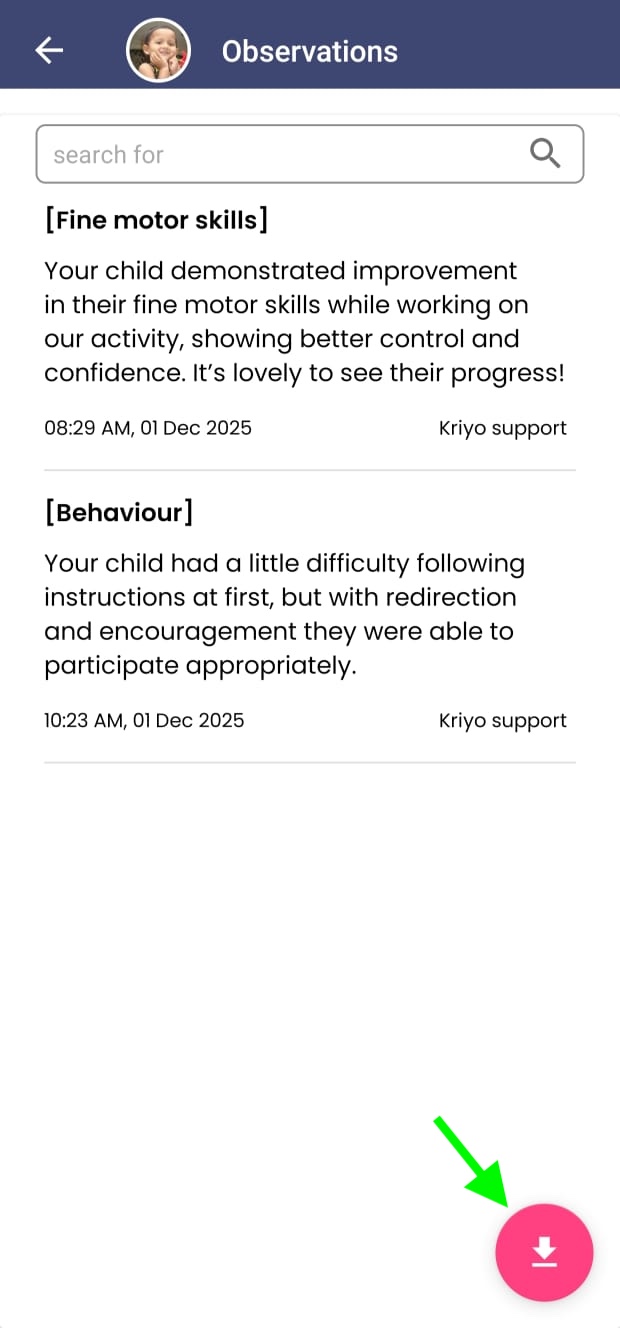
This provides staff and school leadership with a complete, well-organised timeline of the child’s development and any actions taken throughout the year.