How to share photos, videos, and albums in Kriyo
Kriyo’s Share Media feature allows schools to share photos, videos, and albums with parents in an organized, secure, and beautifully branded format.
Here’s how to use each option effectively.
Sharing Photos
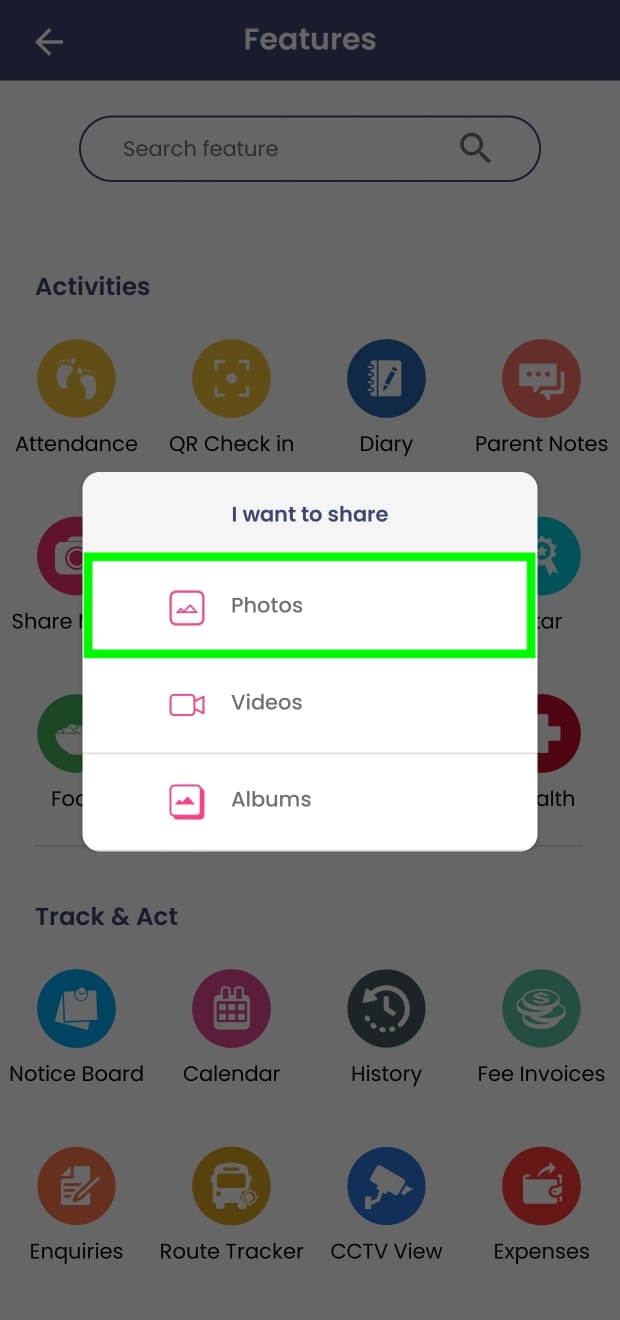
- Go to See All Features → Share Media and select Photos from the pop-up.
- Choose Gallery to share existing photos, or Camera to capture photos on the spot.
- Select one or multiple photos.
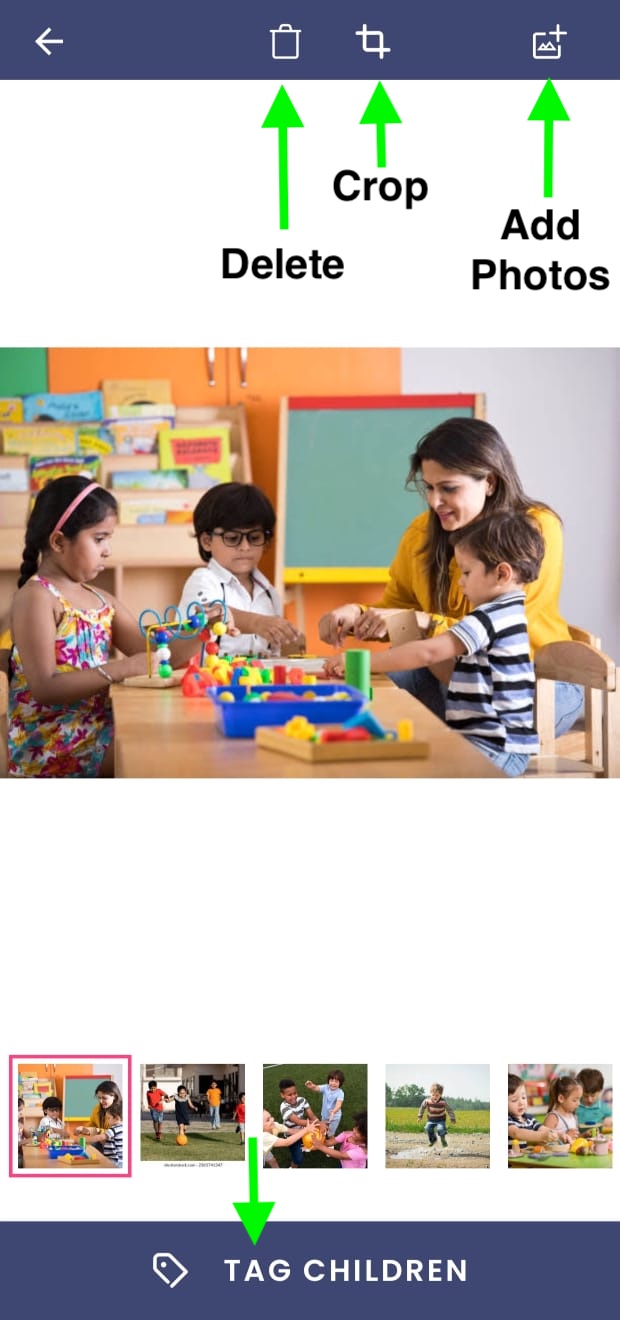
- You can:
- Crop photos
- Delete any selected photo
- Add more photos using the Add Gallery option
- Tap Tag Children at the bottom.
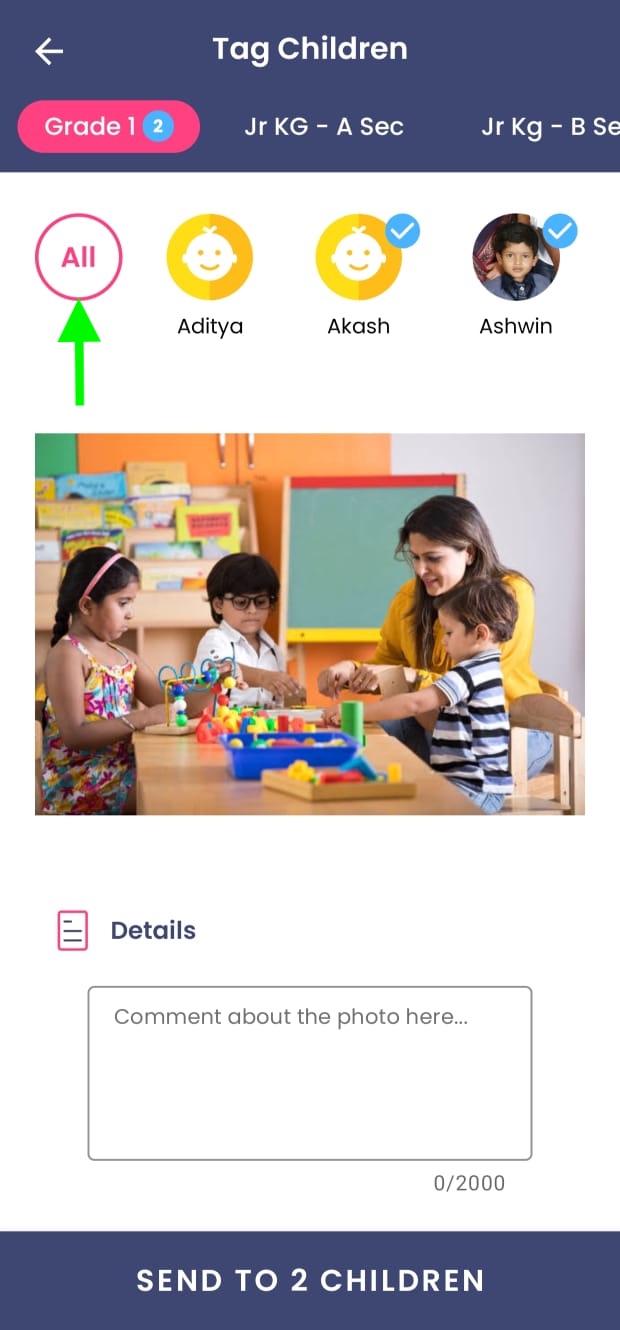
- Look at the selected photos and choose the children who appear in them.
- For group photos, use the All button.
- For specific photos, select only those children using the name-to-face list.
- Add comments if you want to give context (e.g., Gardening Activity, Coloring Time).
- Tap Send.
Parents of the selected children will instantly receive the photos in their Kriyo parent app.
Sharing Videos
- In Share Media, select Videos.
- Choose Gallery to upload an existing video or Camera to record a new one.
- Select the required video.
- Tap Tag Children.
- Select one or multiple children as needed.
- Add comments to describe the video (optional).
- Tap Send.
Parents will immediately receive the shared video in their app.
Creating and Sharing Albums
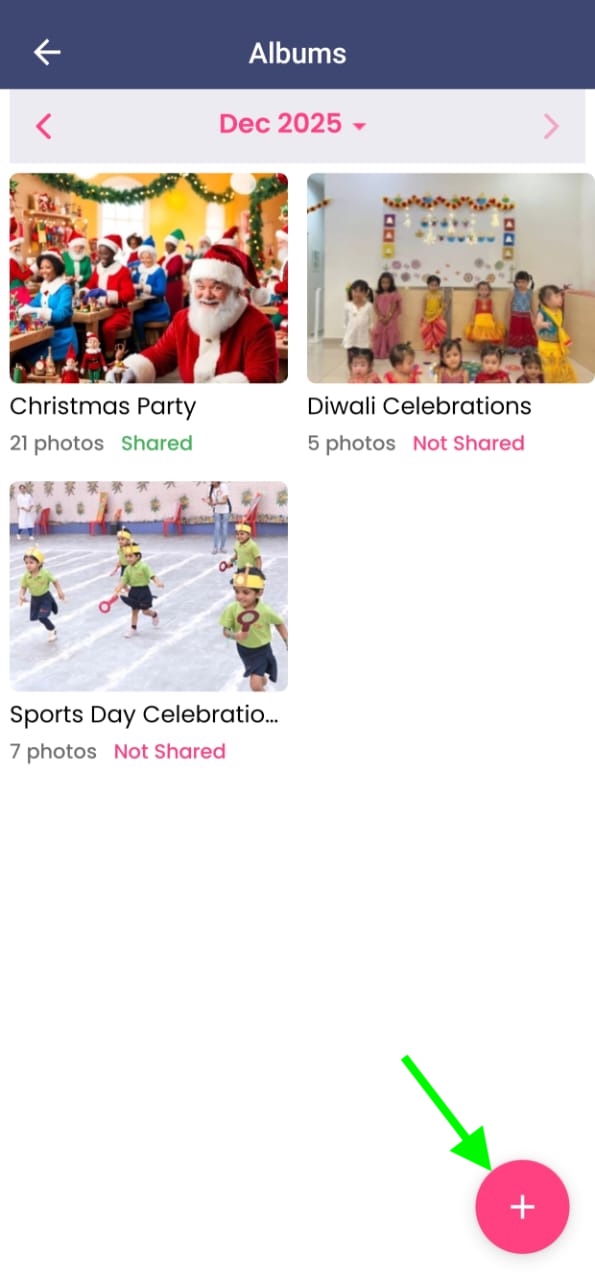
- In Share Media, select Albums.
- To create a new album:
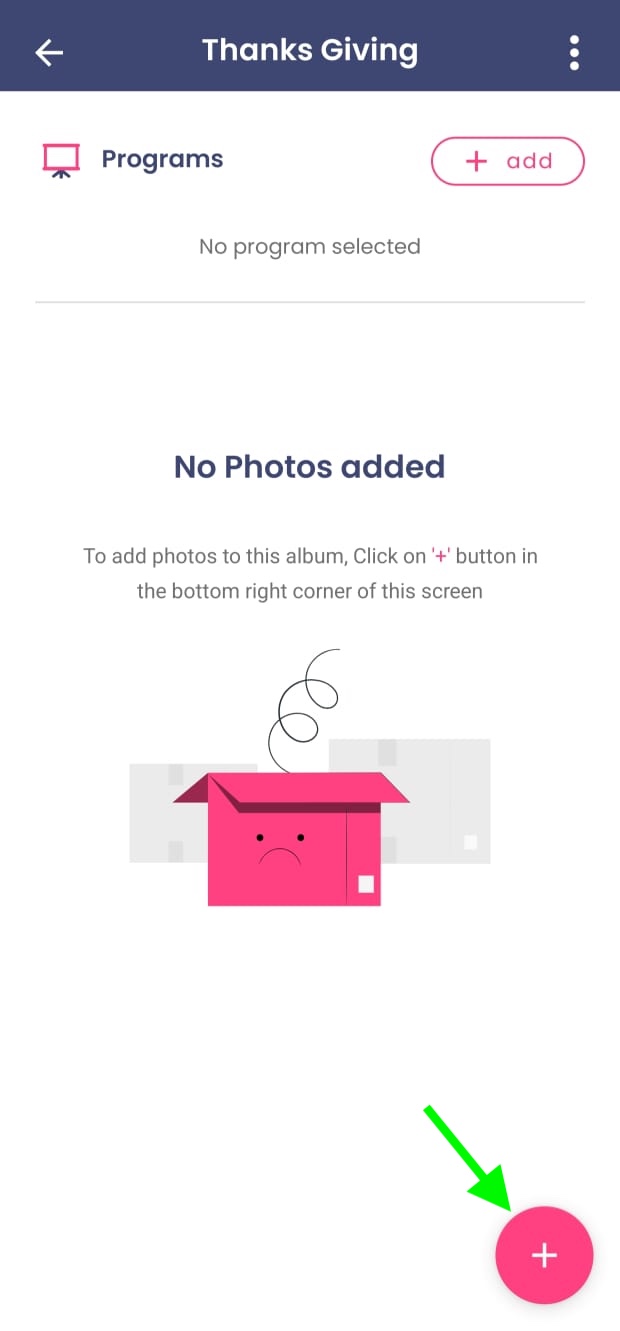
- Tap the pink + button at the bottom right.
- Give the album a meaningful name (e.g., Annual Day 2025, Field Trip – Zoo).
- Tap OKAY to create it.
- To add photos to the album:
- Open the album.
- Tap the + button on the bottom right.
- Choose Gallery or Camera.
- Select one or multiple photos and tap Done.
- All teachers can contribute their photos from their own devices.
- Once all photos are added, the center administrator/principal can:
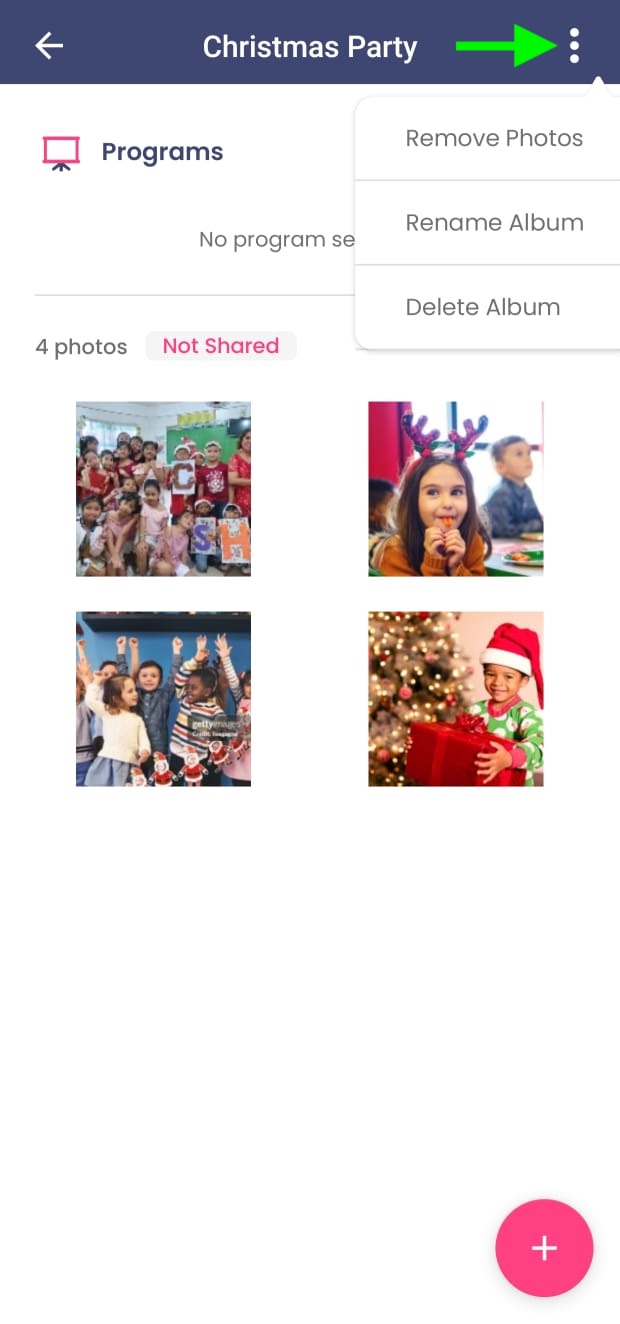
- Remove any photo
- Rename the album
- Delete the album
- You can even set any photo from the album as the cover photo.
- To share the album:
- Tap Add next to Programs.
- Select one or multiple programs.
- Tap Share.
using the three-dot menu on the top right corner.
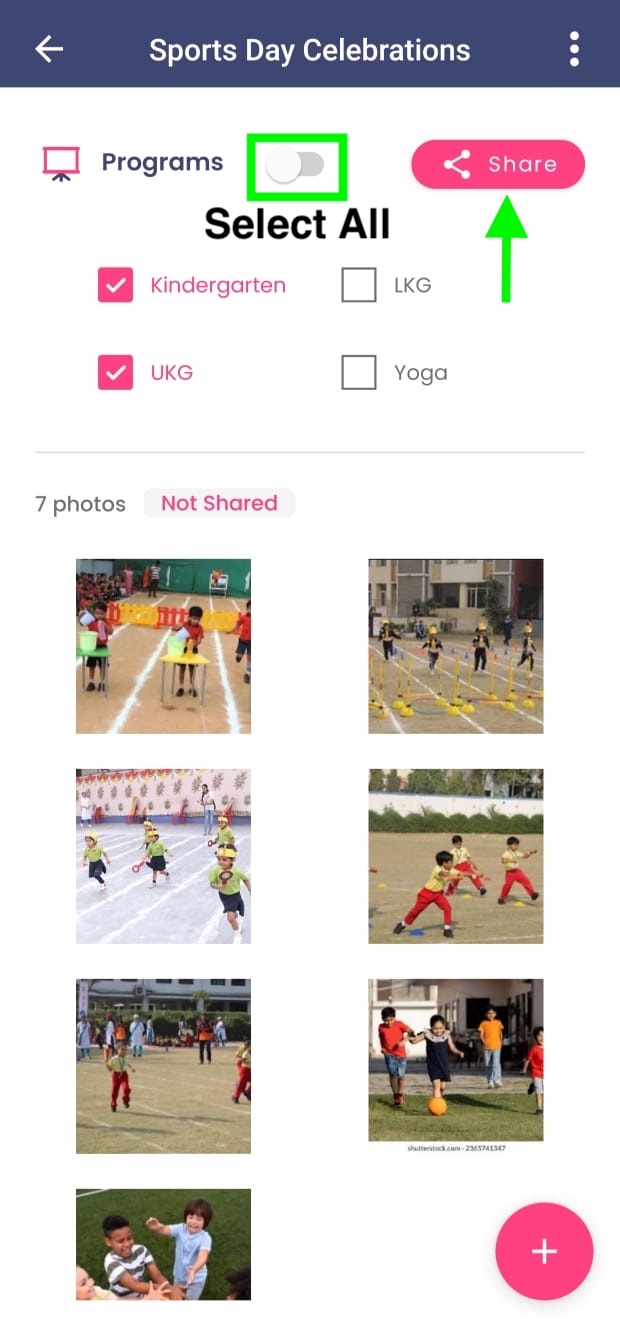
Albums can be shared only at a program/class level, not with selected children.
Parents will receive a notification and can view the album under Albums in the parent app (top-left menu).