How to use Staff Communication in Kriyo for internal school messaging
The Staff Communication feature in Kriyo is designed to simplify and streamline internal communication among teachers, principals, management, and other school staff. This product guide walks you through how to access the feature, start conversations, choose the right communication type, and manage messages effectively.
Where to Find Staff Communication in Kriyo
To access Staff Communication:
- Log in to the Kriyo School App or Web
- Navigate to the Track & Act section
- Select Staff Communication
Here, you’ll see all your previous staff conversations in one place.
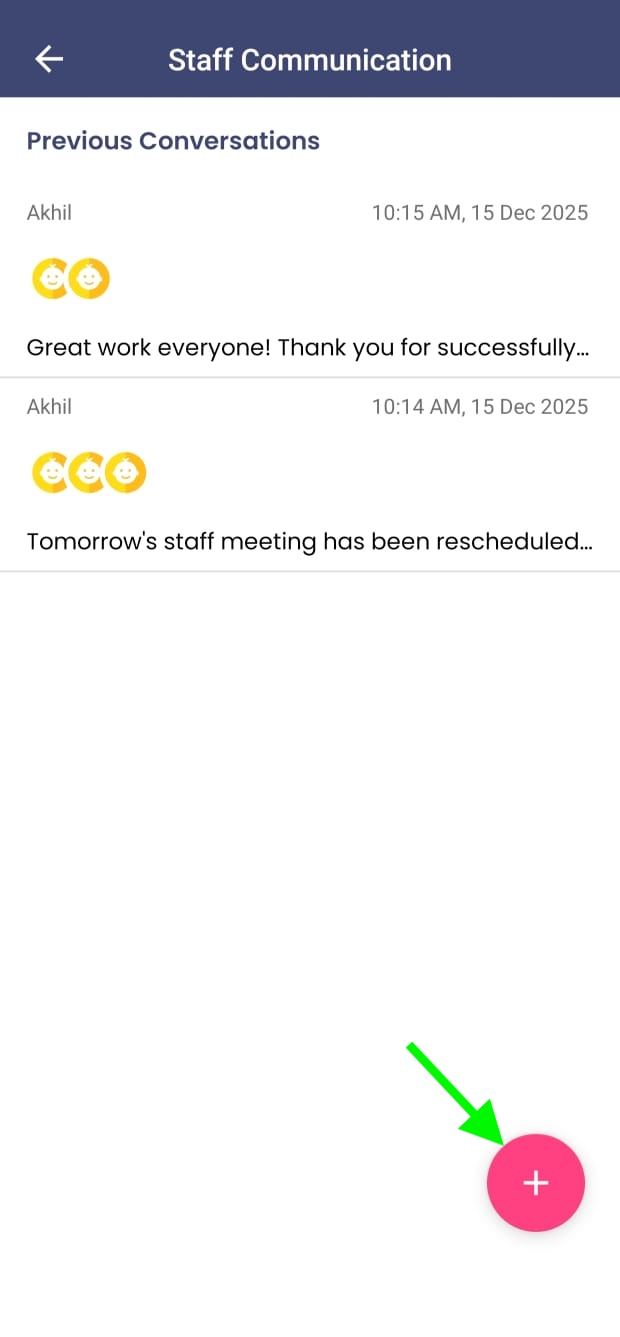
How to Start a New Staff Conversation
To create a new conversation:
- Click on the “+” (Plus) button
- Select one or multiple staff members from the list
Once staff members are selected, you can decide how the message should be delivered.
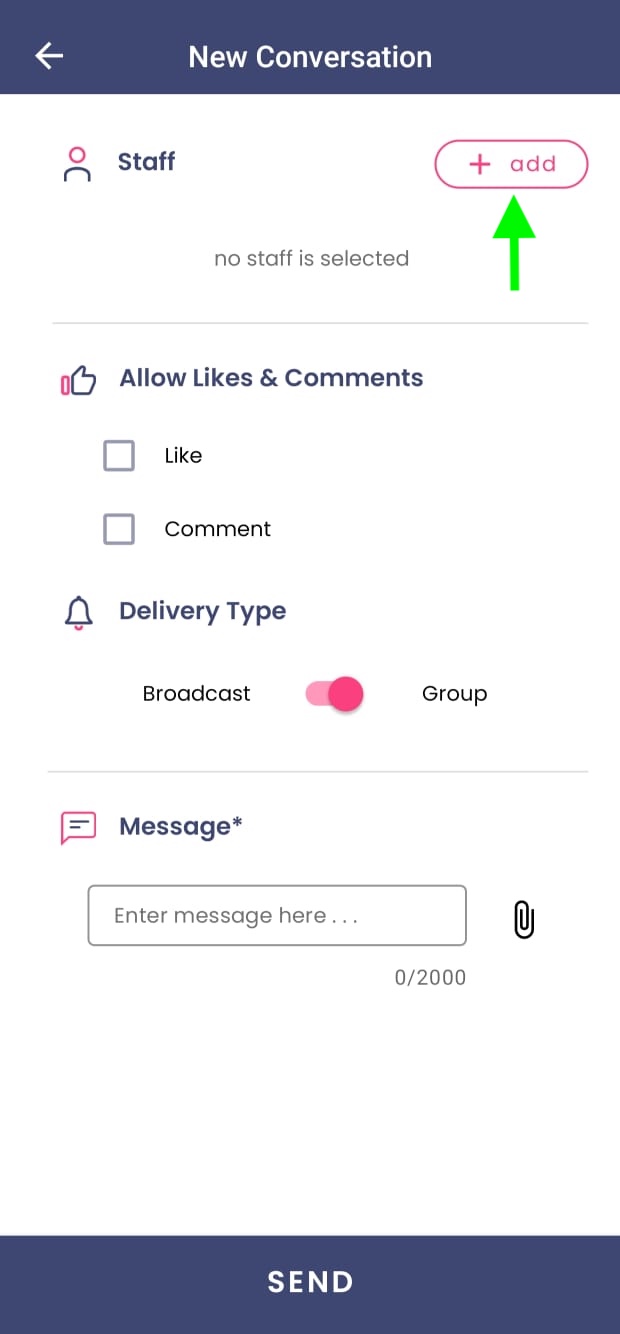
Choosing Between Group and Broadcast Communication
Kriyo allows you to choose the most suitable communication type based on your requirement.
- Group Communication
- Broadcast Communication
Select this option if you want an open discussion where selected staff members can see and respond to each other’s messages.
Choose broadcast if you want to send the same message privately to multiple staff members. Each recipient receives the message individually, without seeing others’ responses.
Unlike informal messaging tools such as WhatsApp, broadcast messages in Kriyo are delivered reliably to all selected staff members irrespective of the sender’s mobile number saved or not by the recipient, and the sender has full clarity on message delivery.
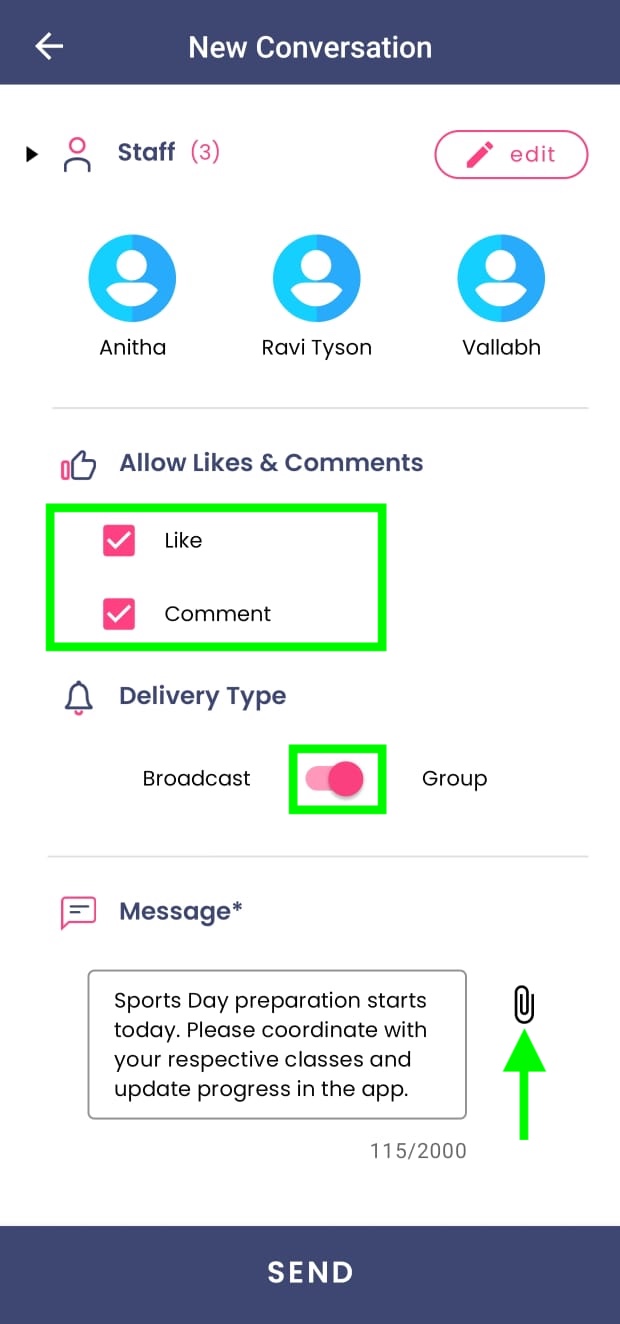
Enabling Two-Way Interaction (Likes and Comments)
Before sending the message, you can enable or disable two-way communication:
- Turn on Likes to allow staff to acknowledge the message
- Turn on Comments to allow staff to respond with questions or inputs
This flexibility helps schools decide whether a message is informational or discussion-based.
Adding Message Content and Attachments
After setting the communication type:
- Type your message in the text field
- Optionally attach:
- Photos
- PDFs
- Voice notes
This makes Staff Communication suitable for sharing instructions, documents, circulars, or quick voice updates.
Sending the Message
Once everything is set, click Send.
- All selected staff members are instantly notified
- The message appears in their Staff Communication section
- Responses and engagement are visible based on the options you enabled
Editing Recipients or Message Content After Sending
Kriyo gives you control even after a message is sent:
- Edit recipients: Click the edit icon next to the staff list to add or remove recipients
- Edit message content: Click the Edit option on the message to modify the text or attachments
Note: The delivery type cannot be changed (Group messages remain group messages; broadcast remains broadcast)
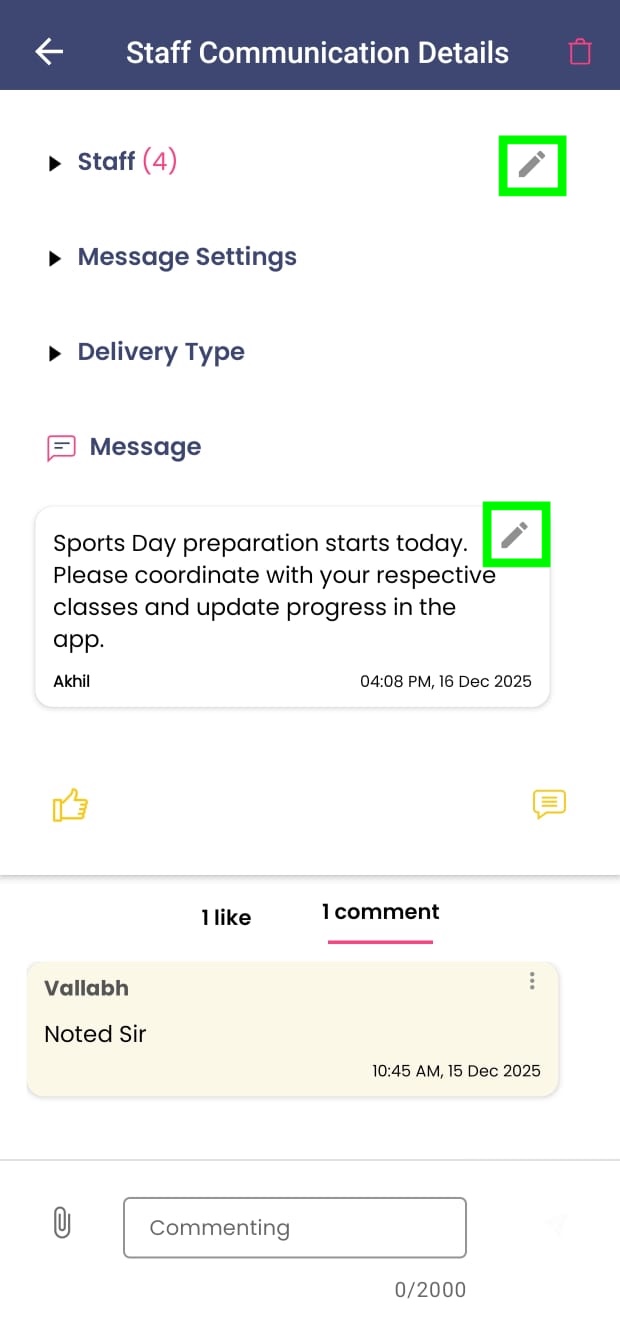
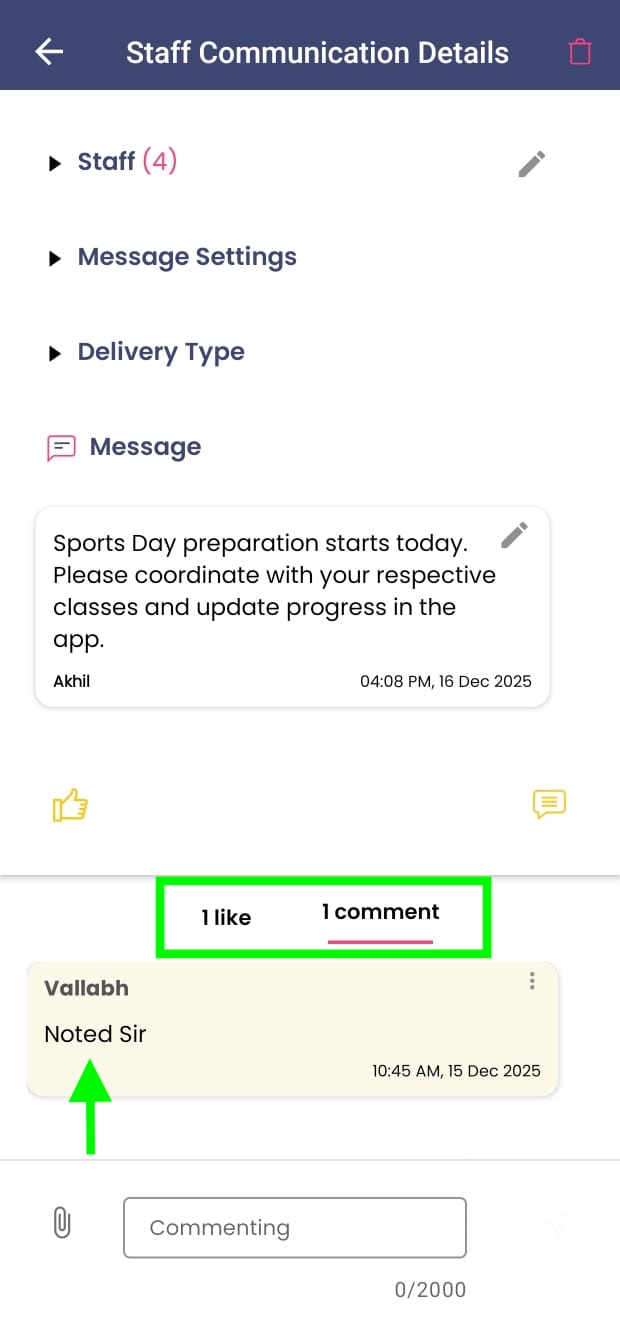
Viewing Likes and Comments
Below each message, you can:
- See how many staff members have liked the message
- View and respond to comments, if enabled
This helps track engagement and ensures important updates are acknowledged.
Deleting a Staff Communication
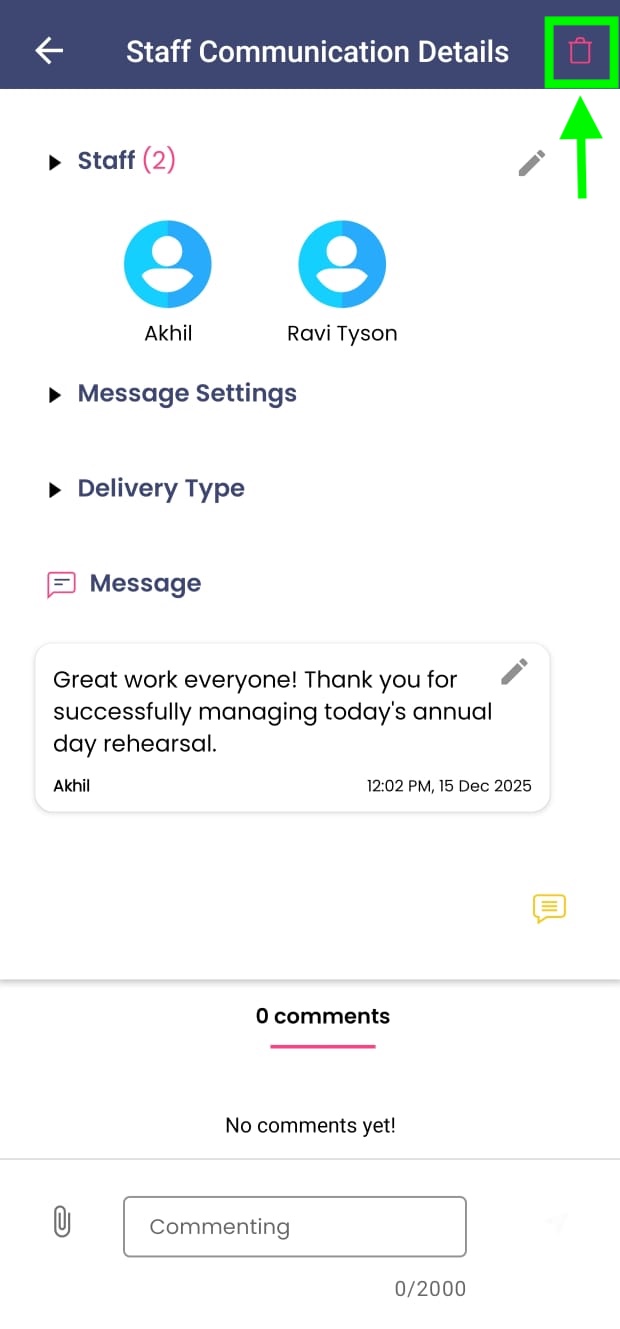
If you need to discontinue a conversation:
- Click the Delete option on the top-right corner of the conversation
- Initiate a new conversation if required
This is useful when information changes or a message needs to be re-sent with updates.
Best Practices for Using Staff Communication
To get the most value from this feature:
- Use broadcast messages for announcements and instructions
- Use group communication for discussions and coordination
- Enable comments only when responses are needed
- Keep messages clear and concise
Staff Communication in Kriyo helps schools move away from scattered internal messaging and adopt a more structured, transparent, and reliable way to collaborate internally.