How to use STAR in Kriyo?
The STAR feature in Kriyo makes it easy for teachers to recognize and celebrate good behavior, helpfulness, or achievements — right from the app.
In addition to giving children a physical star or smiley at school, teachers can now send a digital star to parents, making appreciation more meaningful and collaborative.
Giving a Star
- Open the STAR Feature
- Tap on See All Features from your Kriyo home screen.
- Under the Activities section, select STAR.
- Select Children
- Choose one or multiple children from one or more programs who deserve the same star.
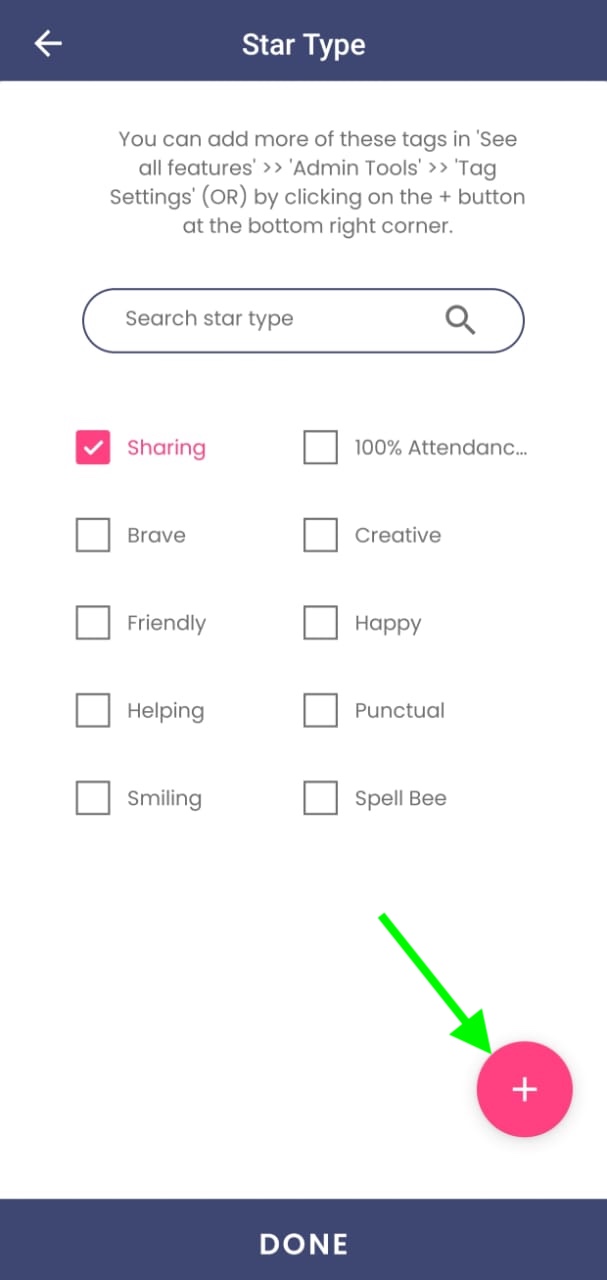
- Choose a Star Type
- Select the type of star (for example, Helping Star, Happy Star, Super Listener Star, etc.).
- You’ll see some default star types already available.
- To create a new star type, click the + button at the bottom right corner, enter the star name, and save.
- Manage Star Types
- If you want to add, modify, or delete existing star types, go to Admin Tools → Tag Settings → Star Settings.
- From there, you can organize your list of reusable stars that match your school’s culture and curriculum.
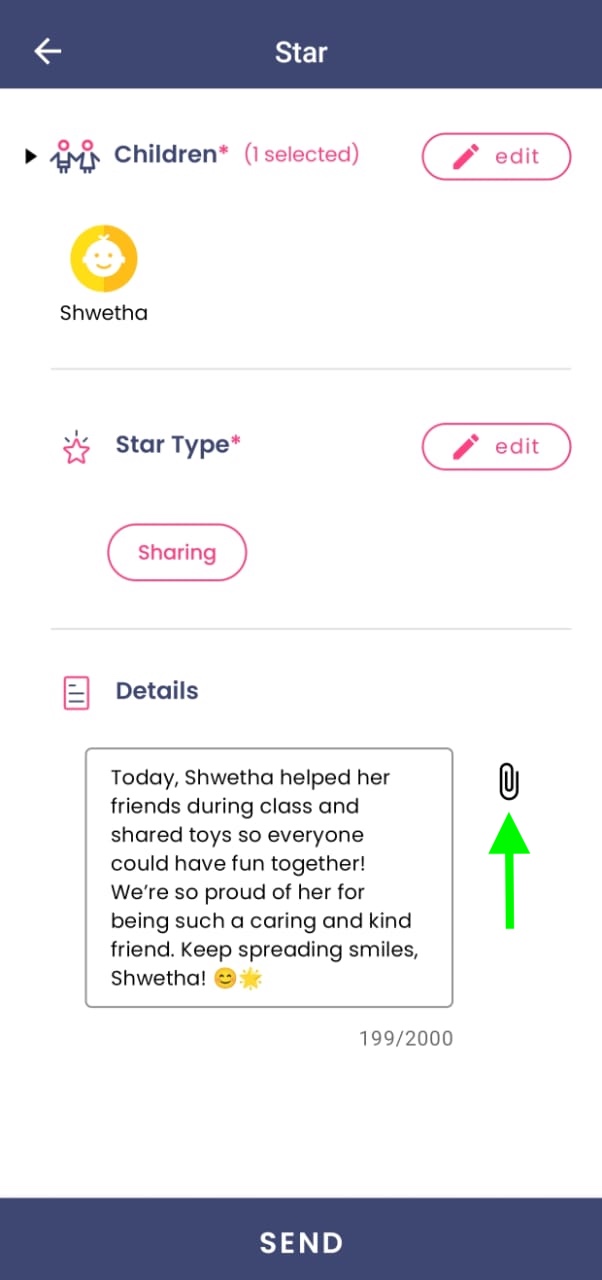
- Add Details and Attachments
- After selecting the star type, add a short note explaining why the child is receiving it (for example, “Ria helped her friend on the playground”).
- You can also attach a photo, voice message, or document to make it more personal.
- Send the Star
- Click Send.
- Parents will instantly receive a notification, and the digital star will appear on their Parent App home page.
- It’s a wonderful way to keep parents informed and help them join in celebrating their child’s positive actions.
Using STAR on Web
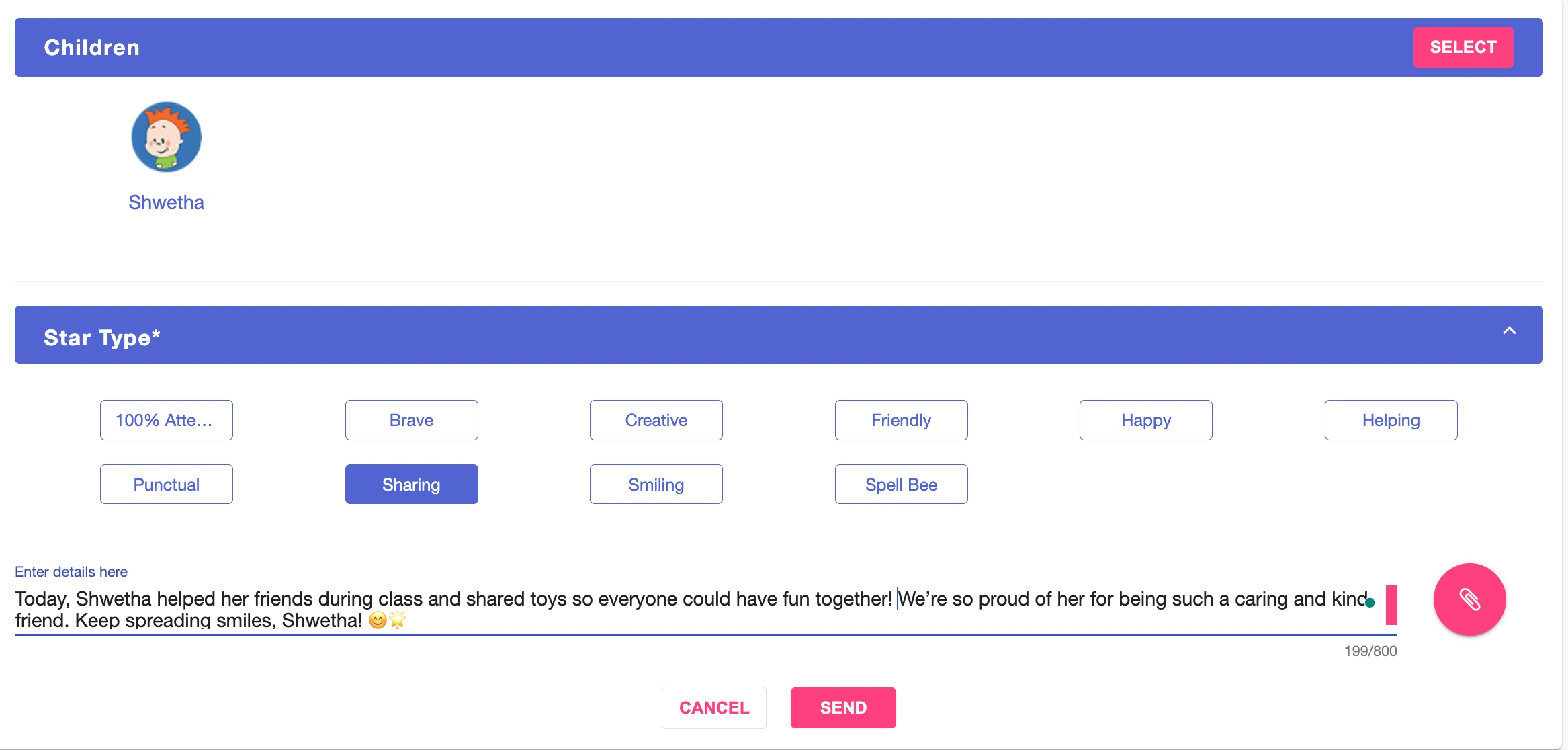
The process is almost the same on Kriyo Web, with one key difference:
While sending a STAR update from the web, you cannot add a new star type on that screen.
To add a new star type from web:
- Go to Admin Tools → Tag Settings → Star Settings.
- Add or modify the star types you want (for example, Kindness Star or Curiosity Star).
- Once you’ve added them, they’ll appear instantly when you use the STAR feature next time.
All updates shared from the web or mobile will stay fully in sync, so parents receive the same notifications instantly.
Pro Tips
- 💡Create all your Star Types in advance from Admin Tools to save teachers’ time.
- 💡Use clear, encouraging language in your STAR descriptions to help parents understand what their child did well.
- 💡Add photos whenever possible — parents love seeing their child’s happy moments.
- 💡Keep STAR updates consistent across classrooms to build a culture of appreciation throughout your school.