How to mark attendance for children in Kriyo?
Kriyo makes attendance tracking simple, flexible, and completely digital.
Teachers can mark attendance in just a few taps, and parents receive instant, personalized updates in their Parent App — without any extra effort from the school.
You can manage attendance for children in three ways:
- Manual attendance
- QR code attendance
- Self check-in kiosk
Option 1: Manual attendance
Step 1: Open the Attendance feature
- On your mobile app home screen, you’ll usually see Attendance listed as one of your favorite features.
- Simply tap the Attendance button to open it.
- If your favorite options have been customized or changed, tap See All Features on the home page.
- Then, select Attendance in the Activities section.
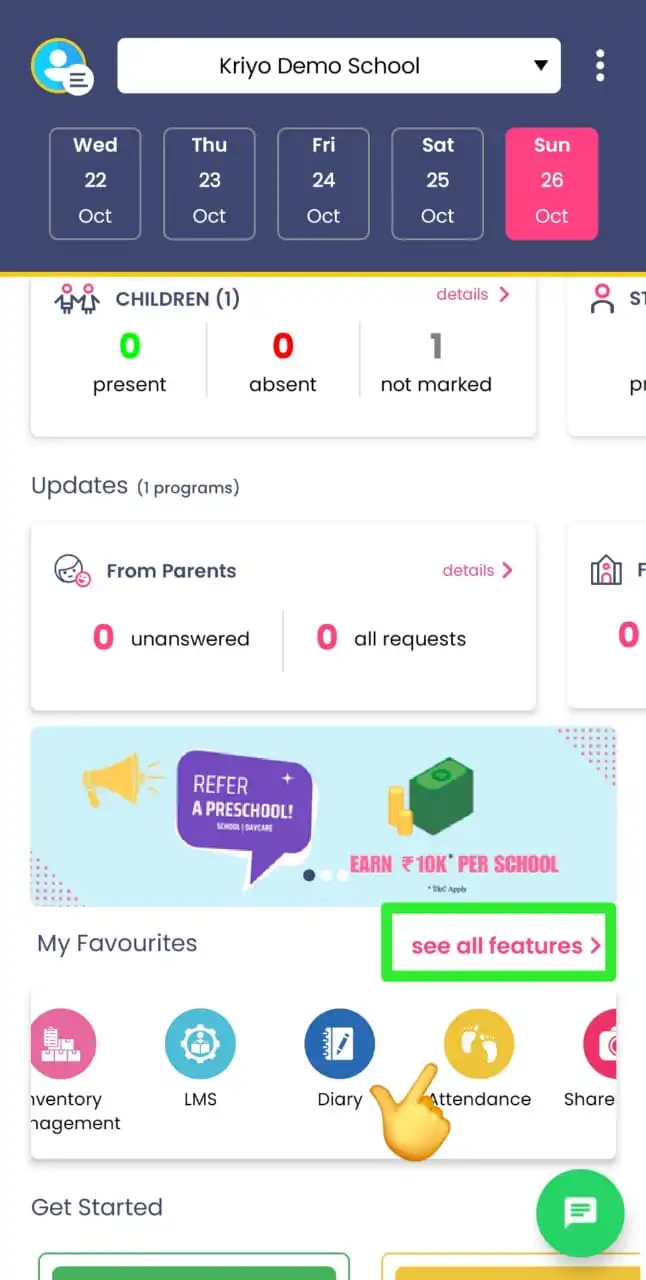
💡 Tip: For new users, Attendance is set as a favorite by default, making it easy to access directly from the home screen.
Step 2: Select children and mark attendance
Tap on the children’s photos in the program to select them.
At the bottom of the screen, select the suitable option — In, Absent, or Leave.
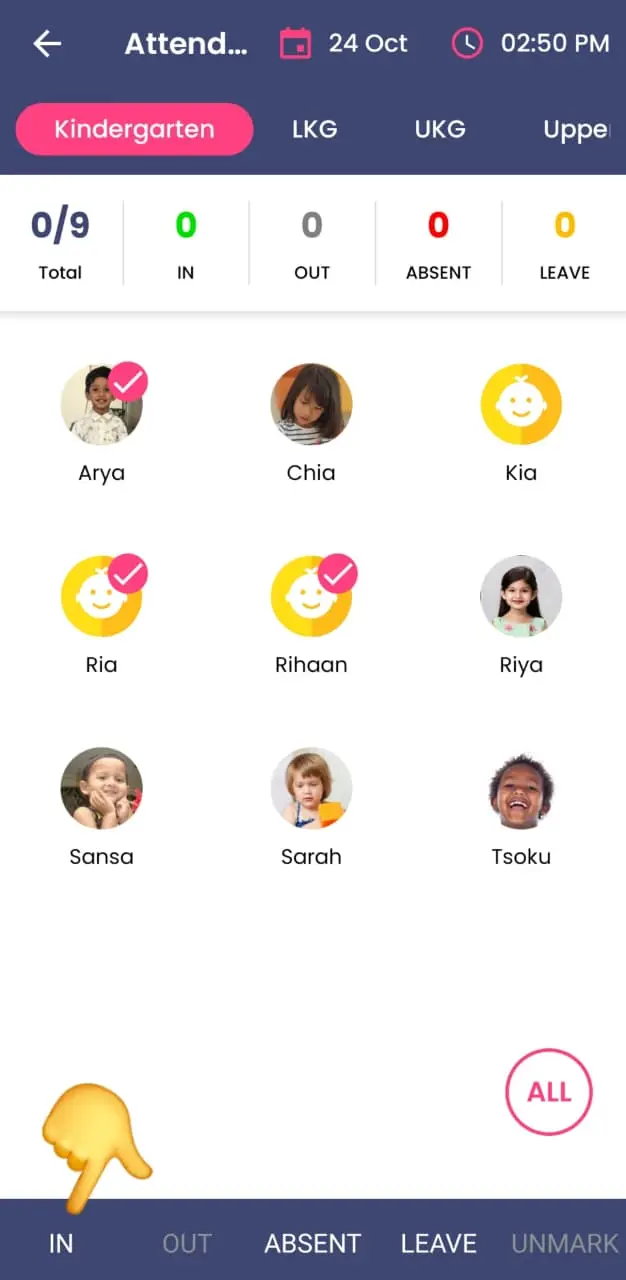
When you tap IN, attendance is instantly updated for all selected children. Each parent receives a personalized notification such as “Ria checked into Kindergarten.”
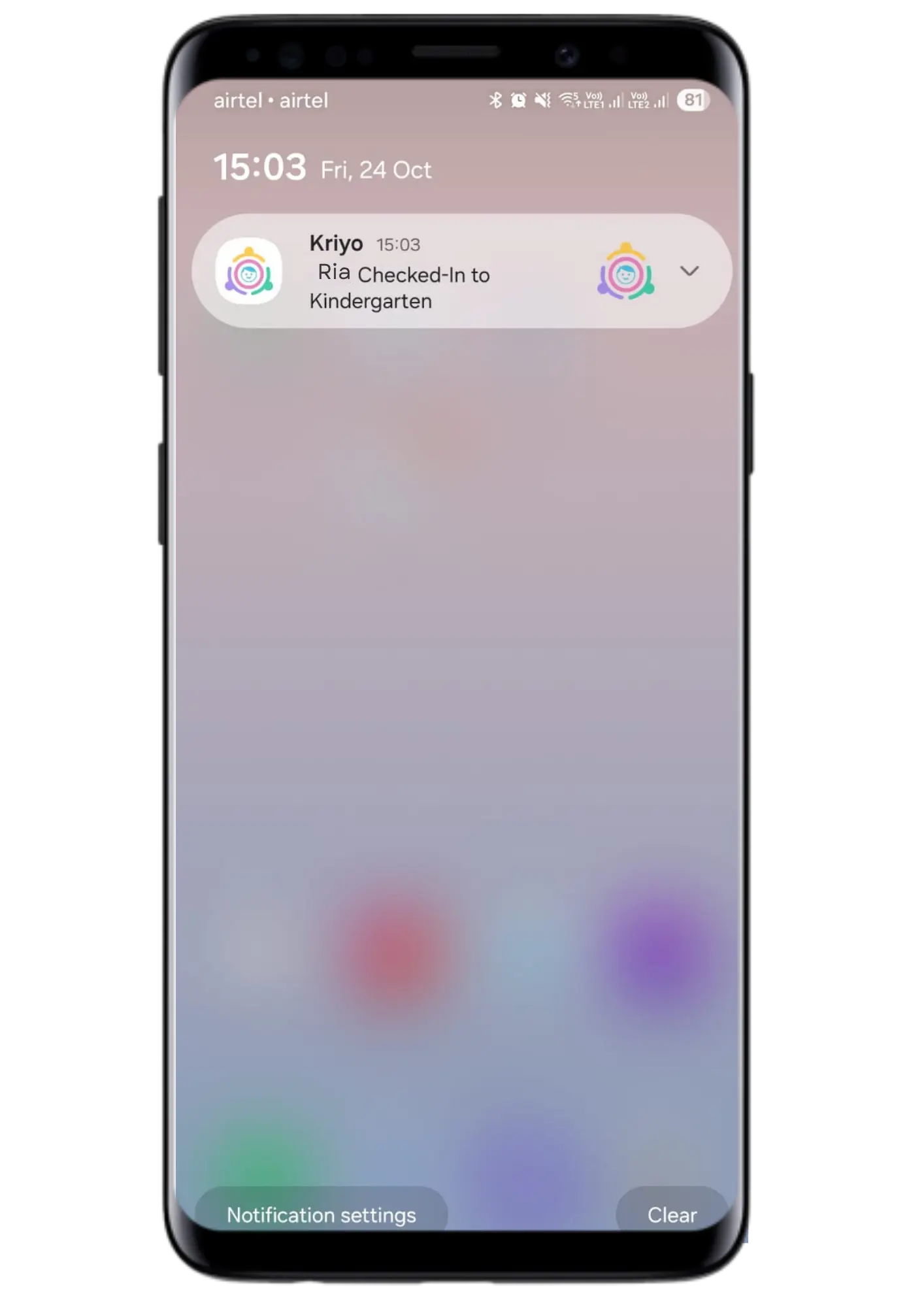
👉 The best part? Teachers don’t have to type anything manually — Kriyo automatically personalizes and sends updates privately to each parent.
💡 Missed marking attendance on time? No problem!
If you couldn’t mark attendance when the child checked in,don’t worry.
You can mark the attendance for a past date or time anytime later.
See the article How to Mark Past Attendance for Children for detailed steps.
👀 Want to see how it looks for parents? Try it firsthand.
When your school account is created, a demo child named Riya is automatically added. For this child, the admin’s mobile number is set as the guardian’s number — so you can access both the school app and the parent app using the same login.
This lets you:
- Mark attendance or send updates from the school app, and
- Instantly see how it appears on the parent app.
It’s the easiest way to experience what parents will see when you mark or correct attendance — giving you full confidence before you start using it for real students.
Understanding attendance buttons
At the bottom of the screen, you’ll find several quick-action buttons used to mark attendance statuses:
- In: When a child checks in or arrives at school (Present).
- Out: When the child is leaving school for the day (Checked Out).
- Absent: When the child is not attending that day.
- Leave: For pre-approved or informed absences, such as vacations or medical leave.
- Unmark: If you’ve marked attendance incorrectly and need to undo it before updating the correct status.
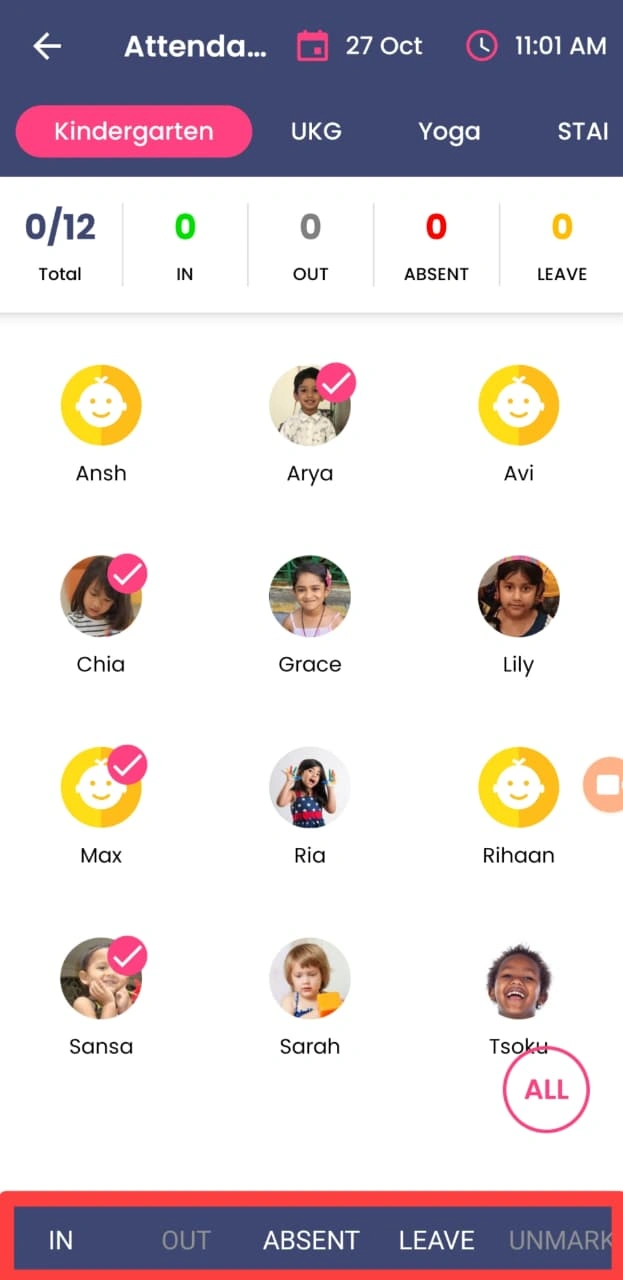
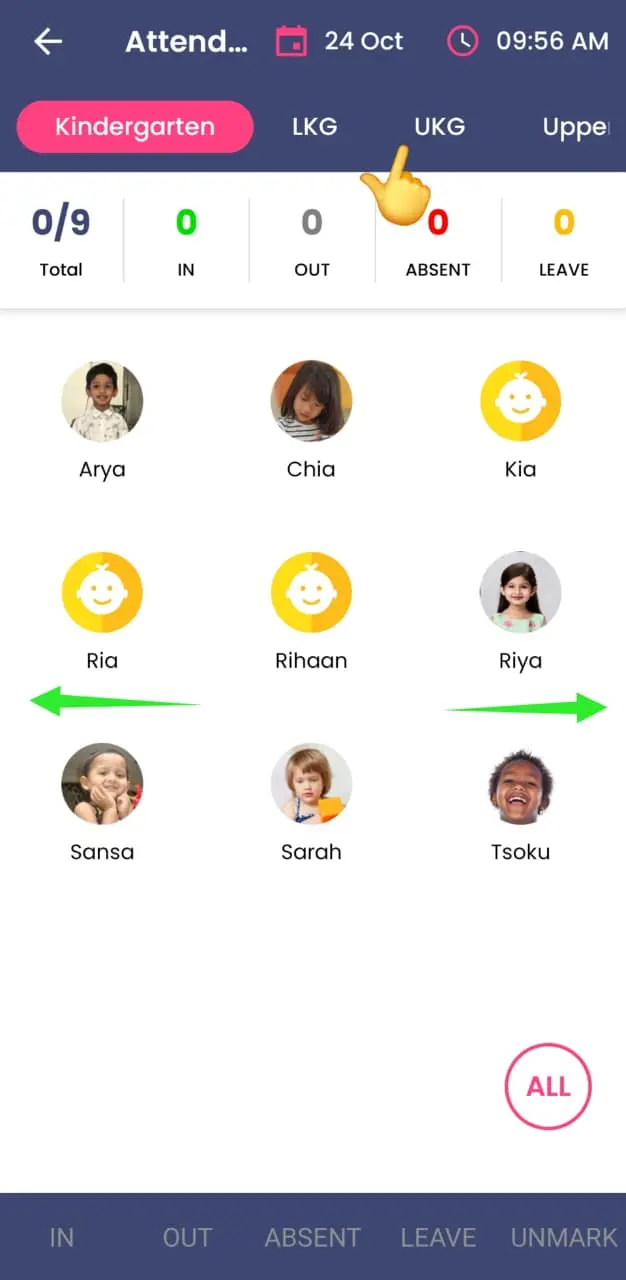
Navigating between classrooms or programs
If you want to mark attendance for another classroom or program, simply swipe the screen left or right to move between sections.
Alternatively, you can scroll through the program names displayed at the top and tap on the specific program to switch instantly.
Reviewing attendance
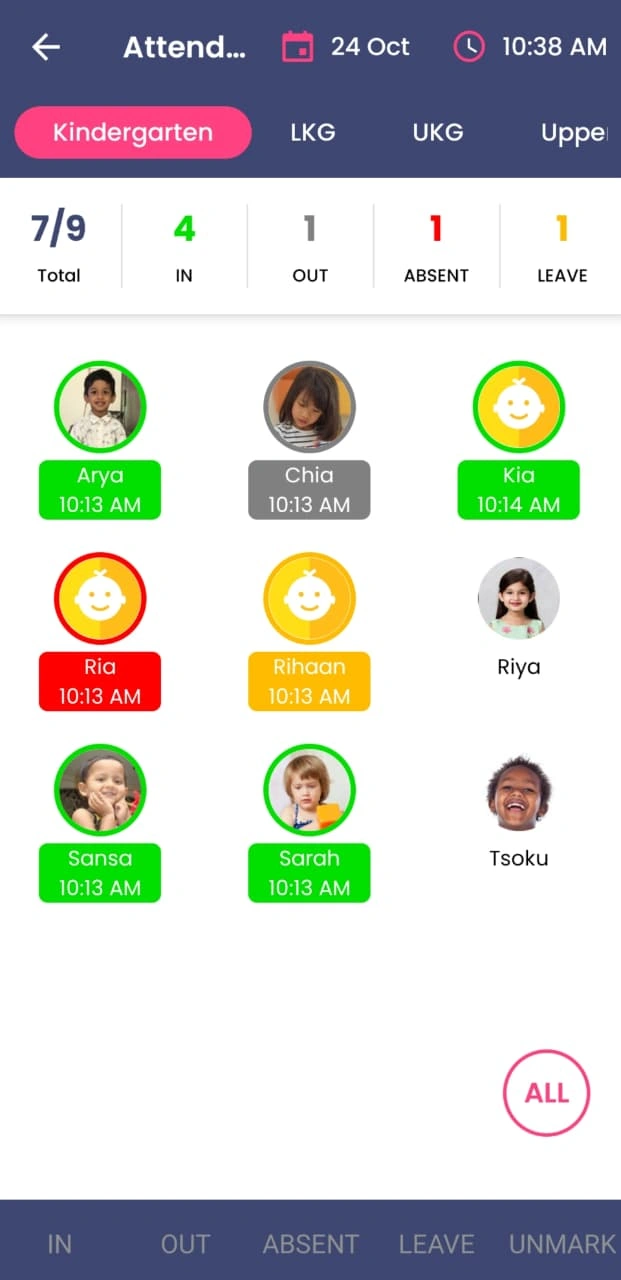
Once attendance is marked, a colored ring appears around each child’s photo, indicating their status:
- 🟢 Green – Present / Checked In
- 🔴 Red – Absent
- 🟠 Orange – On Leave
- ⚪ Grey – Checked Out
Attendance summary
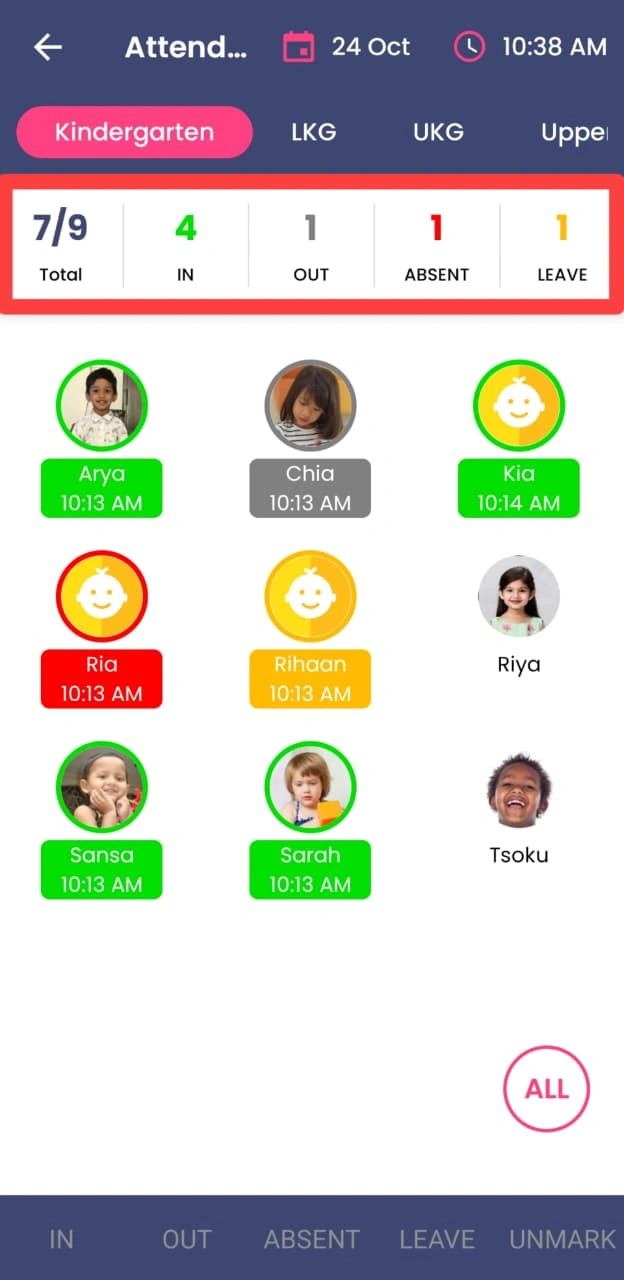
At the top of the attendance screen, you’ll see a rectangular summary bar showing a quick overview of the day’s attendance for that program.
- The first box displays the total attendance count — for example, 7/9, meaning attendance has been marked for 7 out of 9 children.
- The following boxes show a color-coded breakdown of how many children are In (green), Out (grey), Absent (red), and on Leave (orange).
This helps teachers instantly track attendance progress for the class at a glance. The summary updates in real time every time attendance is marked or changed.
Option 2: QR code attendance
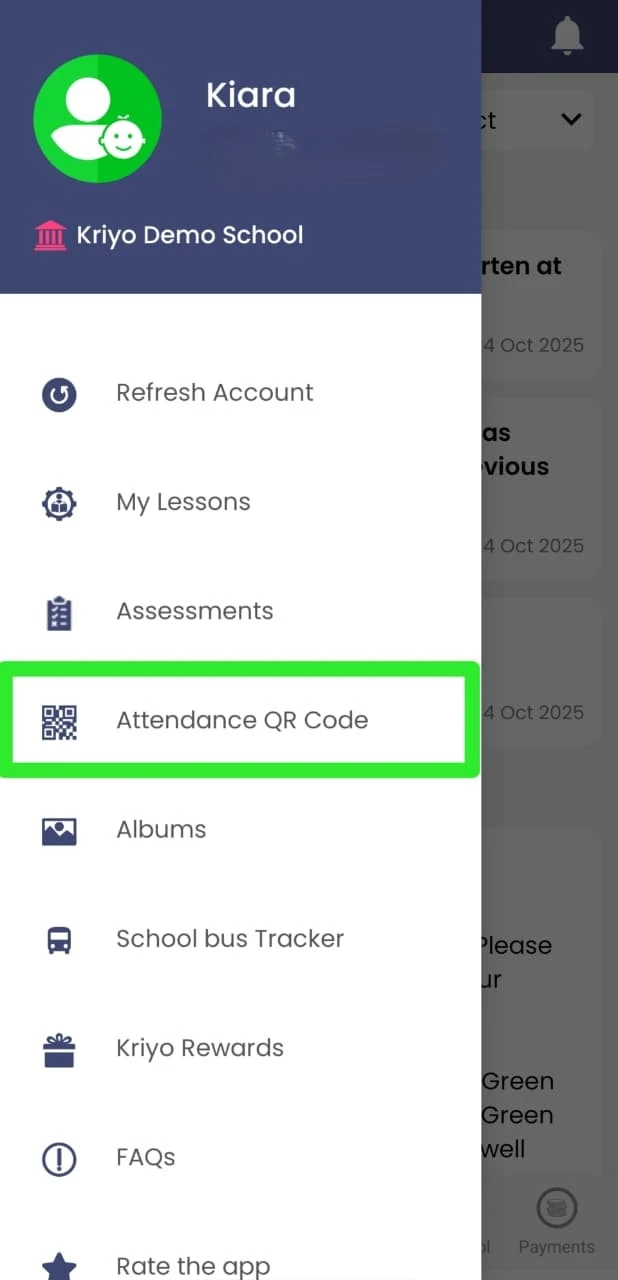
Any authorized staff member, such as a teacher or even a security guard, can mark attendance using QR scanning.
Open the Kriyo app, tap QR Check In.
.webp)
Scan the child’s QR code — either from their ID card or the Parent App — to mark check-in or check-out.
Option 3: Self-check-in Kiosk
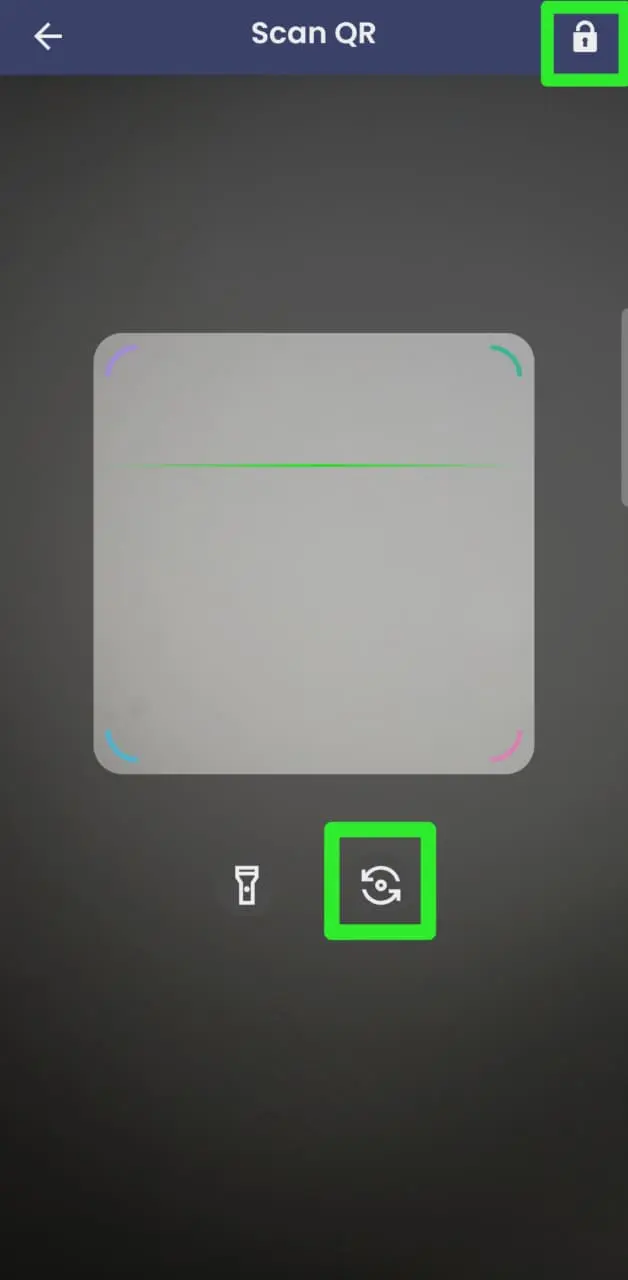
Schools can set up a mobile device or tablet with the QR Check In screen open. Turn on the front camera and tap the Lock icon on the top-right corner to secure the screen — preventing access to other modules.
Parents dropping off their children, or the children themselves, can scan the QR code on their ID card or in the Parent App to record attendance instantly.
See all attendance updates in one place
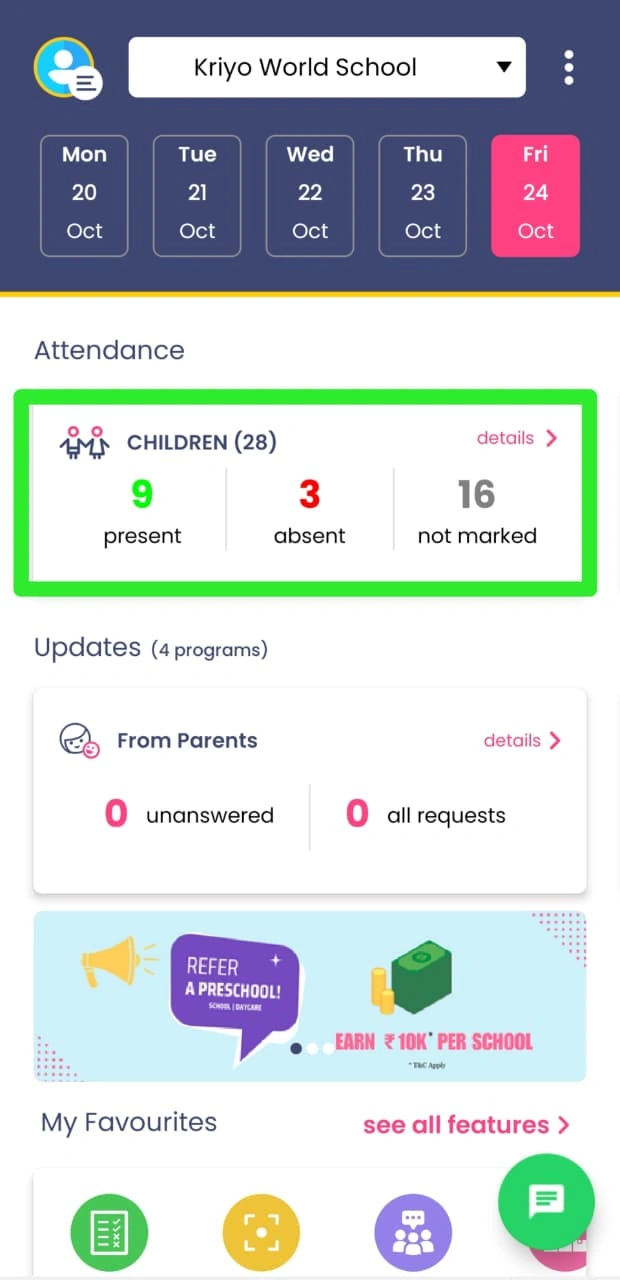
Once attendance is marked for one or multiple programs using any of the above options, the attendance dashboard on your Kriyo School App homepage gets updated instantly as well.
The dashboard summary reflects the attendance data for all the programs you have access to, giving you a quick snapshot of daily attendance across the school.
Parent notifications and real-time sync
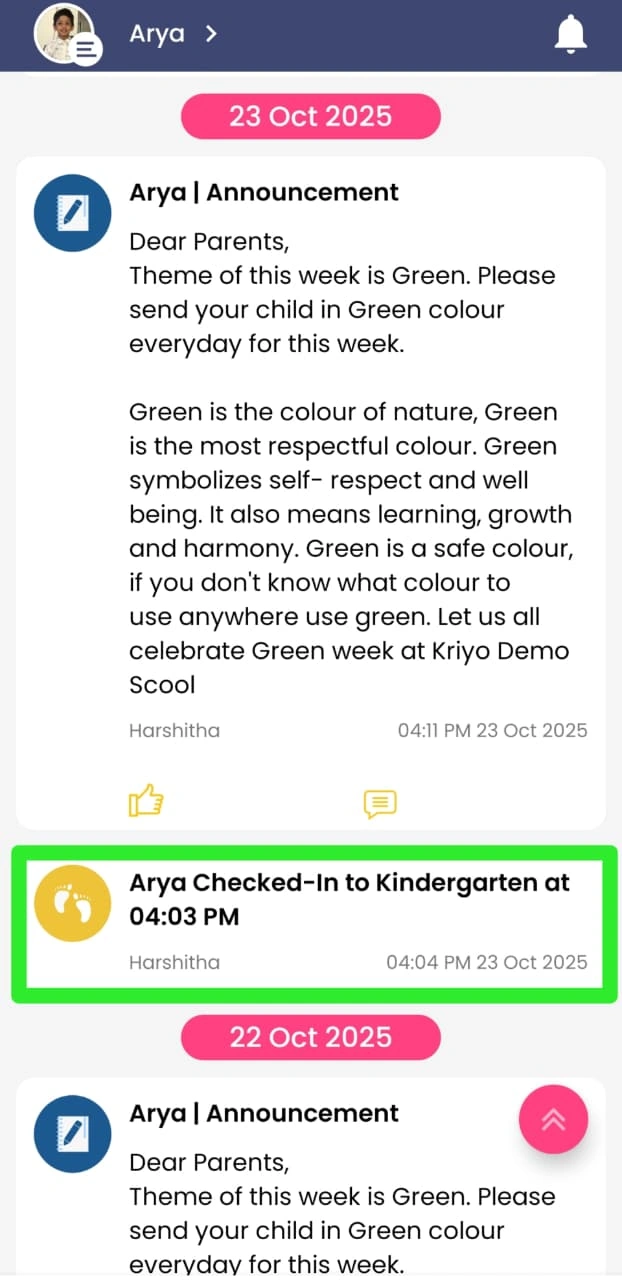
Every attendance action triggers instant notifications to parents, such as “Ria checked into Kindergarten.
Parents can view this update in real time on their home feed in the Parent App.
All attendance data is synced immediately to school reports,ensuring real-time accuracy and transparency.
Flexible and error-free attendance management
We understand that schools often need flexibility — attendance doesn’t always have to be marked on the spot.
Kriyo allows teachers to mark or edit attendance for past dates or times, and even undo or correct entries when needed.
See article: How to Mark Attendance for a Past Date or Correct Attendance in Kriyo.
💡 Tips
- You can switch between different programs using the tabs at the top.
- Attendance marked on the web and mobile stays perfectly in sync in real time.
- All updates automatically reflect in the attendance reports and mobile app dashboard.