How to mark staff attendance in Kriyo?
Easily manage staff attendance — no biometric devices or manual registers needed.
Kriyo simplifies how schools, preschools, and childcare centers record attendance for their teachers and non-teaching staff.
Track multiple shifts, enable contactless check-ins, and view real-time reports — all from your phone, without investing in expensive biometric or RFID systems.
You can mark staff attendance in <b>four flexible ways:
- Manual attendance
- QR Code attendance
- Self check-in kiosk
- Geo-fenced QR check-in
Option 1: Manual attendance
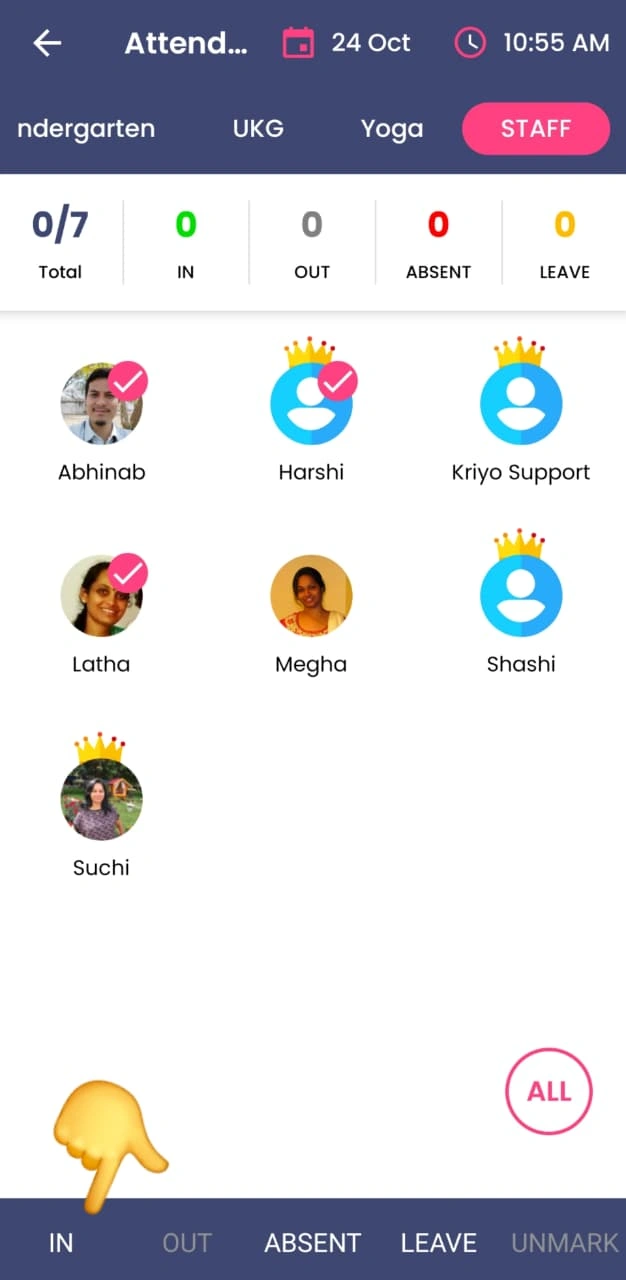
- Go to See All Features › Attendance.
- By default, the child programs are shown first. Swipe right/left or scroll to the end until you see the Staff program (this is created automatically by Kriyo).
- Tap the staff photos to select the team members whose attendance you want to mark.
- Select the suitable status at the bottom — In, Absent, or Leave.
- Kriyo instantly records the attendance and updates your reports in real-time.
- Unlike children’s attendance, no one is notified when staff attendance is marked. These records are maintained only for management reference and reporting accuracy.
💡Tip:
- You can also manage attendance for non-teaching staff such as helpers, cleaning assistants, or security guards in the same place.
Create their profiles but don’t assign them to any child program — give them access only for QR Check-in so they can mark entry without seeing children’s details.
Create their profiles but don’t assign them to any child program — give them access only for QR Check-in so they can mark entry without seeing children’s details.
Option 2: QR code attendance
Instead of marking attendance manually, any authorized staff member can record another staff’s attendance using a QR code.
- Open the QR check-in option in the Kriyo App.
- Scan the staff member’s unique QR code — either from their ID card or from their Kriyo school app account.
- Attendance is logged instantly in real-time.
Option 3: Self check-in kiosk
Schools can set up a dedicated kiosk device (mobile or tablet) for contactless check-ins.
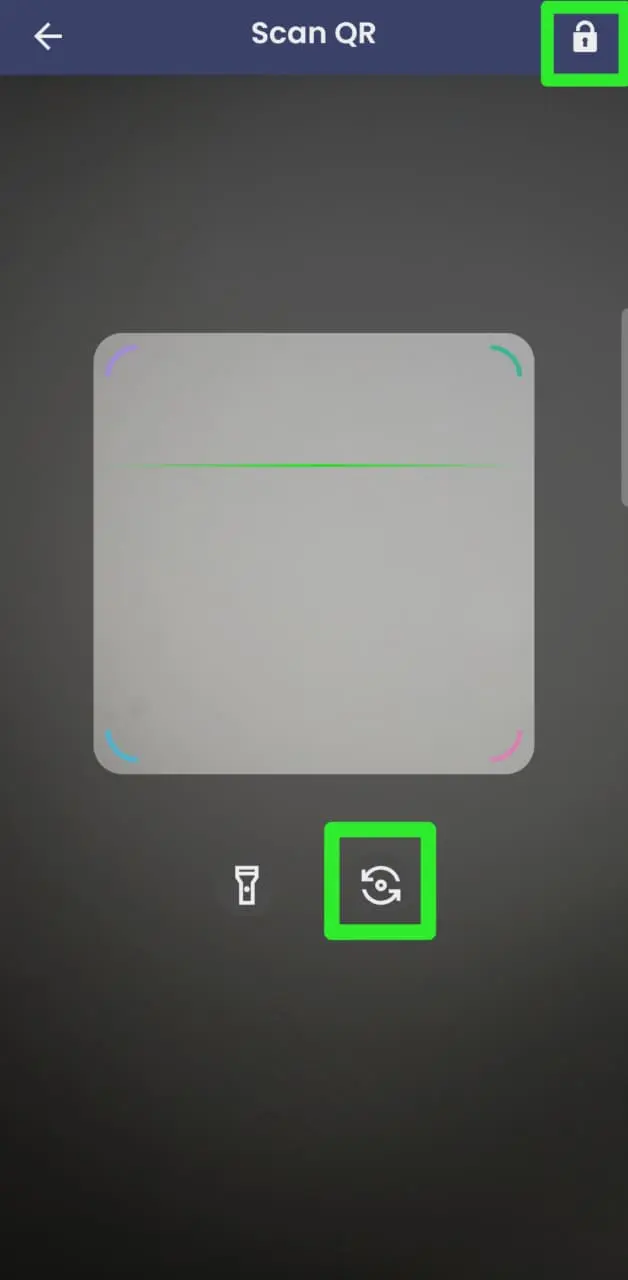
- Open the QR check-in screen on a tablet or phone placed at the reception.
- Turn on the front camera and tap the lock icon at the top right to prevent access to other modules.
- Staff members can scan their unique QR codes (from their ID card or App account) to mark their entry or exit.
- Each action is timestamped, logged instantly, and reflected in real-time reports.
Option 4: Geo-fenced QR check-in
Geo-fencing adds an extra layer of authenticity and security for staff attendance.
- Once Geo-location based QR Check-in is enabled, Kriyo generates a single unique QR code for the entire school.
- Print and paste this code near the reception or office area.
- When staff members arrive, they open their Kriyo App, select QR Check In, and scan the school’s code to mark their attendance.
- Kriyo verifies the GPS location to ensure the scan happens within the school premises, preventing misuse.
- Multiple check-ins and check-outs during the day are supported for flexible scheduling.
🔗 See article: How to enable Geo-location based QR Check-in in Kriyo.
💡 Tips
- Attendance marked for staff on the web and mobile are fully synchronized in real time.
- All updates automatically appear in the Attendance Dashboard and Reports.
- You can also generate detailed attendance reports for staff from the Reports section under Track & Act.
See article – How to Generate Staff Attendance Reports.