How to Generate Staff Attendance Reports in Kriyo
Kriyo makes it simple for schools to track staff attendance and analyze attendance trends — whether you need a quick summary or a detailed downloadable report for payroll or compliance.
All reports are generated in real time on Kriyo Web, ensuring accurate data with no waiting or sync delays.
🔗 Log in to Kriyo Web using the same credentials as your mobile app.
Steps to Generate Staff Attendance Reports
Step 1: Open the Reports Section
- In Kriyo Web, scroll down to the Track & Act section and click Reports.
Step 2: Select Staff Attendance
- On the Reports page, choose Staff Attendance.
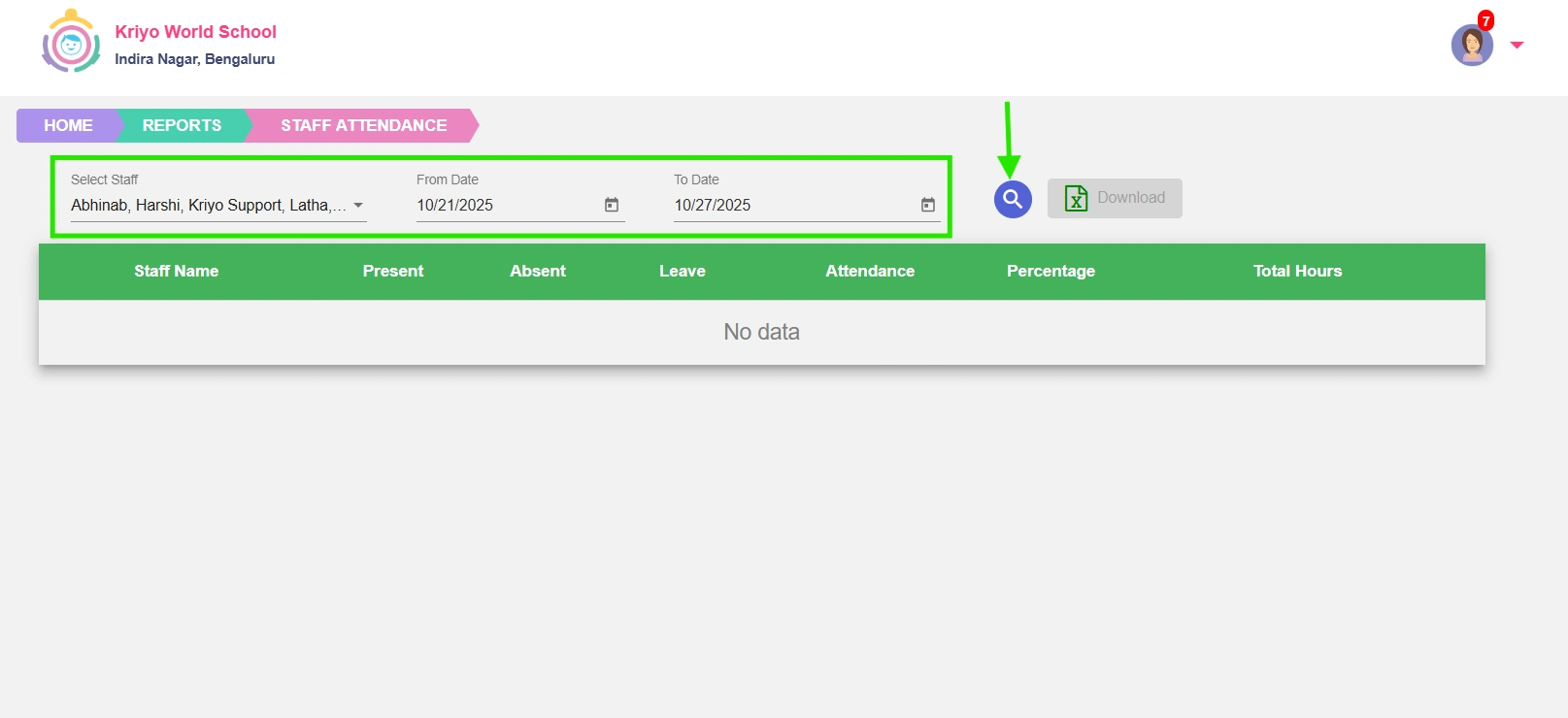
- Apply the filters as needed:
- Staff Members: Select one or multiple staff.
- Date Range: Choose the time period you want to review.
- Click Search to generate the report.
Step 3: View and Download the Report
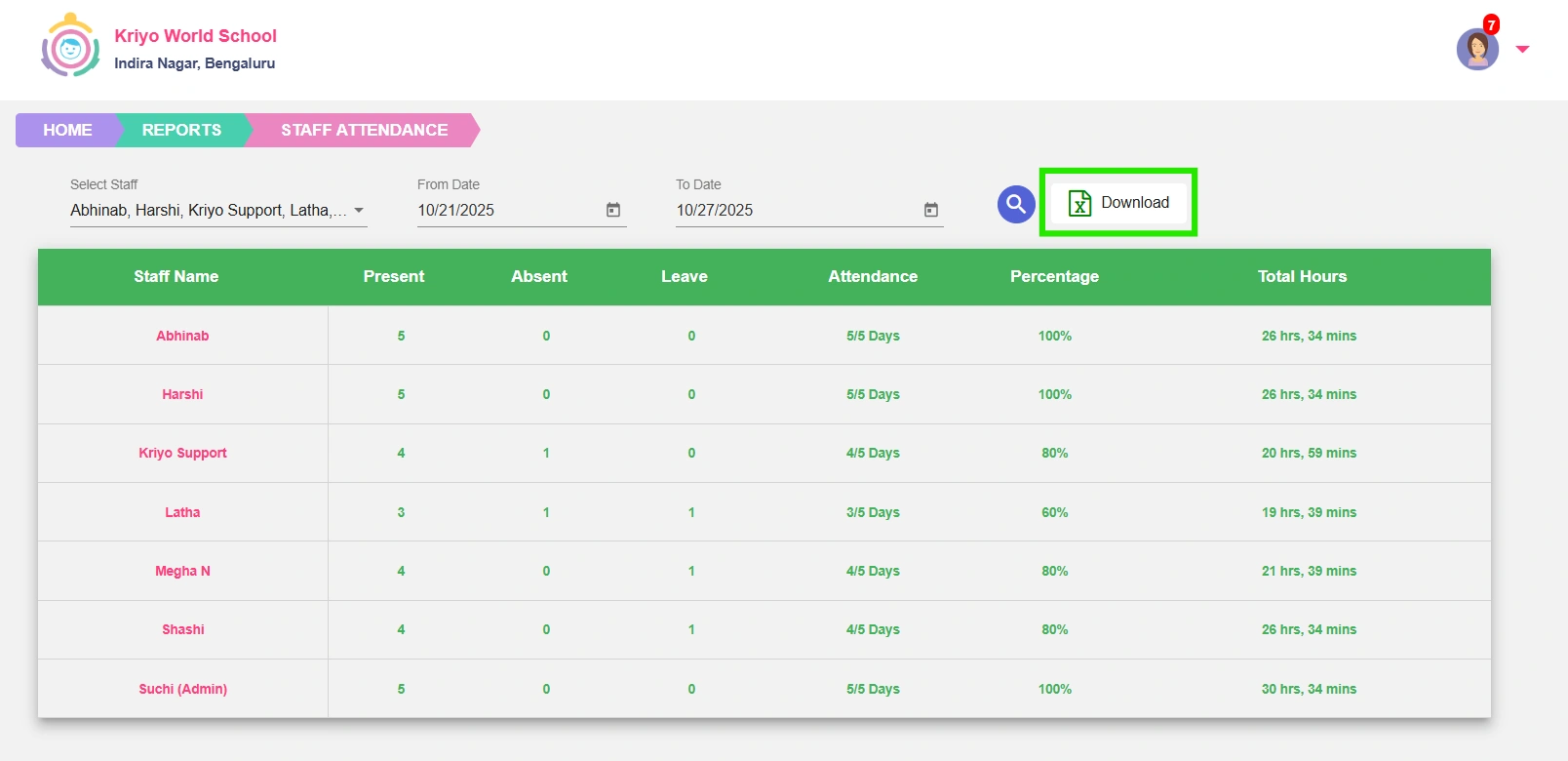
- The results table will display:
- Total days Present, Absent, or on Leave
- Attendance percentage and total hours worked
- Click the Download button to get an Excel file with the report details for your records.
🌟 Why It’s Useful
Kriyo’s real-time staff attendance reports help schools:
- Maintain accurate, transparent staff attendance data
- Simplify payroll, HR, and compliance processes
- Monitor attendance patterns and working hours efficiently