Calendar FAQs
Quick answers to 11 common questions. Pick a question to jump to its answer.
How to share event and holiday details with parents?
- To share an event or holiday, click on See All Features and tap on Calendar under the Track & Act section.
- Click on the + button at the bottom right corner, select whether it’s an event or a holiday, and fill in the details.
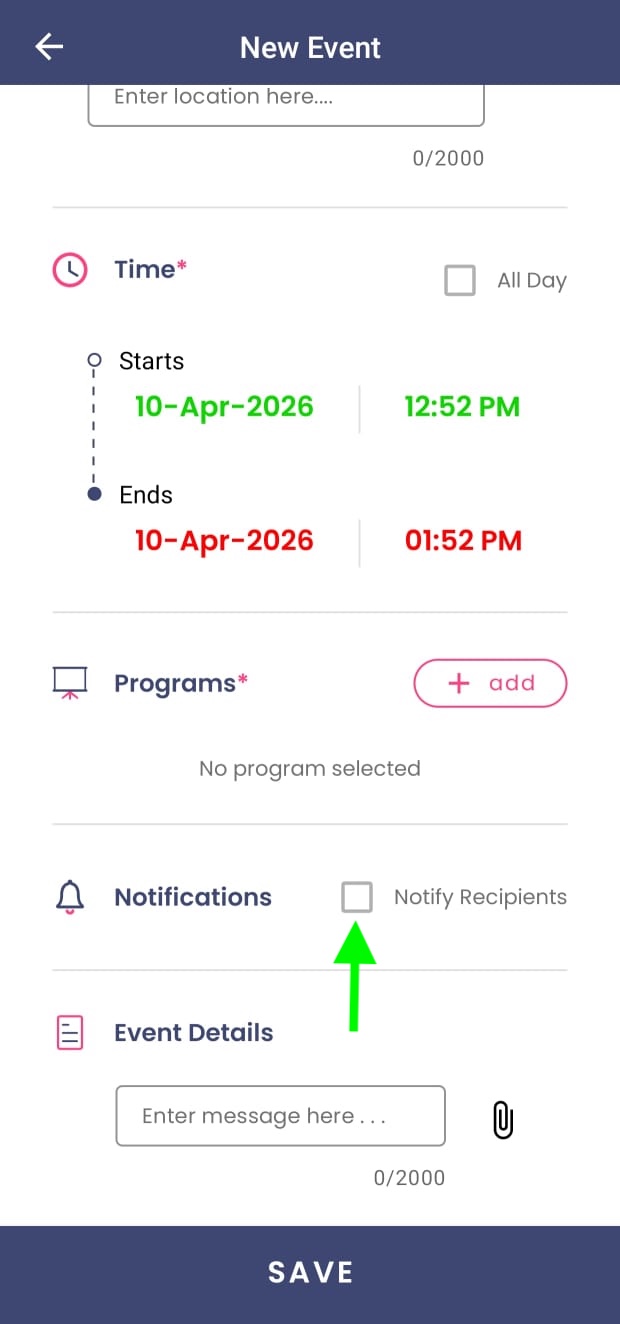
- Choose the relevant programs and, if needed, select Notify Recipients to instantly alert parents. If you’re adding several items together, skip selecting this option to avoid multiple notifications.
- Parents and teachers will still receive automatic reminders closer to the date.
- You can also add attachments, mention the event location, and click Save. The details instantly appear in the Calendar section of the parent app.
Will parents get notified automatically when a calendar event is added?
Parents are notified only if you choose to notify them while creating or editing an event.
When you select “Notify Recipients”:
- Parents receive a push notification
- They stay updated instantly
If you skip this option:
- The event still appears in the Parent App calendar
- No notification is sent
Adding multiple events or holidays at once?
You can skip notifications while adding them. Parents will still see all events in the calendar — without receiving multiple alerts.
This helps you keep communication clear without overwhelming parents.
Can I set up reminders for calendar events or holidays?
No manual setup is needed.
Kriyo automatically sends reminders to both parents and staff of the selected programs — at 6 PM on the day before and again at 7.30 AM on the event or holiday date.
Reminders are time zone–adjusted so they reach recipients at the right local time.
How to add birthdays to the Calendar?
When you enter the date of birth while creating a student or staff profile, birthdays automatically appear in the Calendar.
Staff assigned to that class will get a reminder before each child’s birthday, and parents will receive an automated birthday wish on the day.
How does Kriyo help schools manage and celebrate birthdays?
Kriyo automatically creates a digital birthday calendar based on the date of birth added in student and staff profiles.
Class teachers receive upcoming birthday reminders, helping them plan celebrations in advance and make every child feel special.
The system also highlights milestones clearly — for example, “Arya’s 6th Birthday” — making celebrations more personal and meaningful.
On the child’s birthday, Kriyo sends personalised birthday wishes to parents through the app, on behalf of the school.
There’s nothing to set up or manage — everything works automatically in the background.
No reminders to track.
No manual messages to send.
No birthdays missed.
Sometimes, it’s the smallest gestures that build the strongest bonds.
How to edit an event or holiday?
Printed calendars are useful at the start of the year, but when plans change, they can quickly become outdated. With Kriyo’s Calendar, you can make changes anytime, updates are instant and everyone stays on the same page.
To edit an event or holiday:
- Tap on the event or holiday you want to modify
- Click on the Edit button at the bottom right corner
- Make the required changes
- Click Save
Once updated:
- Parents are automatically notified
- Automated reminders are sent for the updated event
- Changes reflect instantly on both mobile and web
How to delete an event or holiday?
Tap on the event or holiday you want to remove, click on the Edit button, and then tap the Delete (bin) icon on the top right corner.
Confirm deletion in the popup.
The item will instantly be removed from the Calendar for both parents and staff.
Can I share the event location in the Calendar?
Yes, you can add the location link (URL) in the Event Location field.
For events happening outside the campus — like Annual Day, Sports Day, or cultural programs — sharing the exact location helps avoid confusion.
Simply paste the Google Maps link in the event.
Parents can tap on it and navigate directly from the app.
This reduces back-and-forth calls and ensures everyone reaches the venue on time.
What do the colored lines or dots in the Calendar mean?
Each Calendar entry has a small color indicator to help you identify its type:
- 🟡 Golden Line/Dot – Birthday
- 🔵 Navy Blue Line/Dot – Event
- 🩷 Pink Line/Dot – Holiday
On the mobile app, these colors appear as vertical lines beside each card.
On Kriyo Web, they appear as colored dots on the calendar grid.
Can I add multiple events or holidays together?
You can add several events or holidays one after another, but bulk upload is not available
Each event or holiday needs to be added individually to ensure accurate scheduling and reminders.
Can I delete multiple events or holidays in one go?
Yes, you can delete multiple events or holidays in bulk from Kriyo Web.
When starting a new academic session, removing old events one by one can be time-consuming. Bulk deletion makes this quick and simple.
To delete in bulk:
- Click on Delete Events from the Calendar homepage
- Select the Program
- Set the From and To dates
All events and holidays within the selected range will be deleted together.
This helps you clean up past data efficiently and keep your calendar ready for the new term.