How to create and manage Programs (Classes) in Kriyo?
Where to Create Programs
You can create programs in two ways:
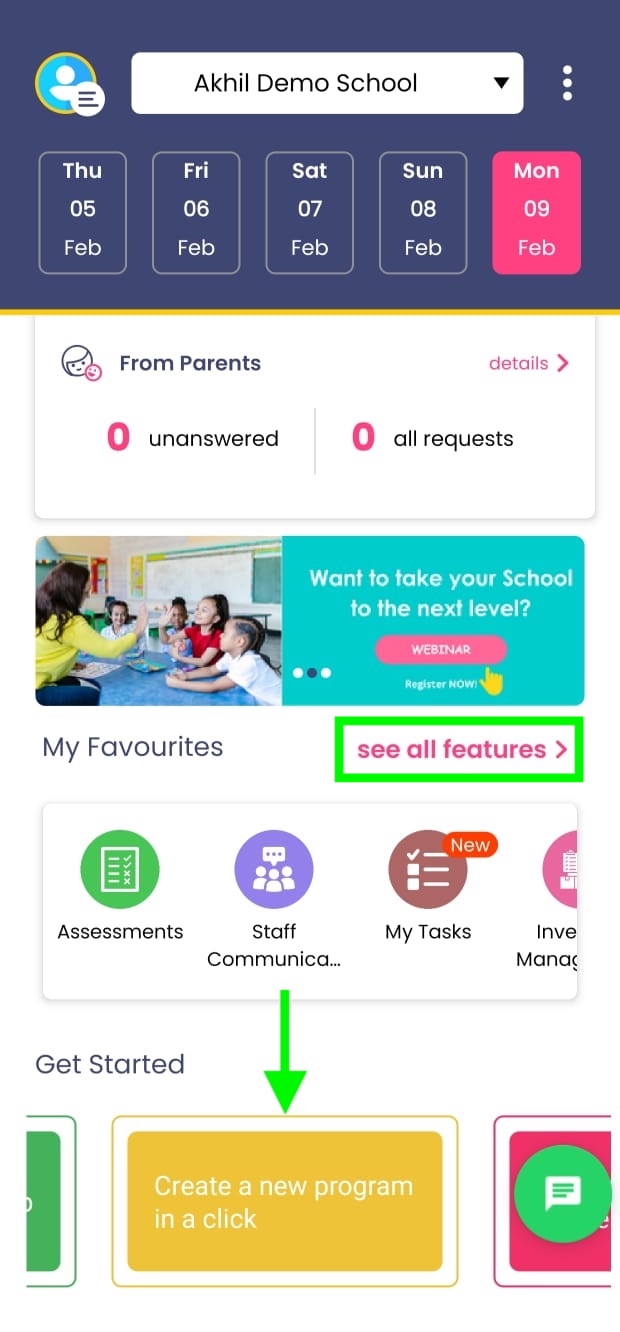
Option 1: From Get Started
- On the home screen, scroll down to the Get Started section
- Tap Create a New Program
Option 2: From Programs Section
- In My Favourites section, click on See All Features
- Scroll to Profiles
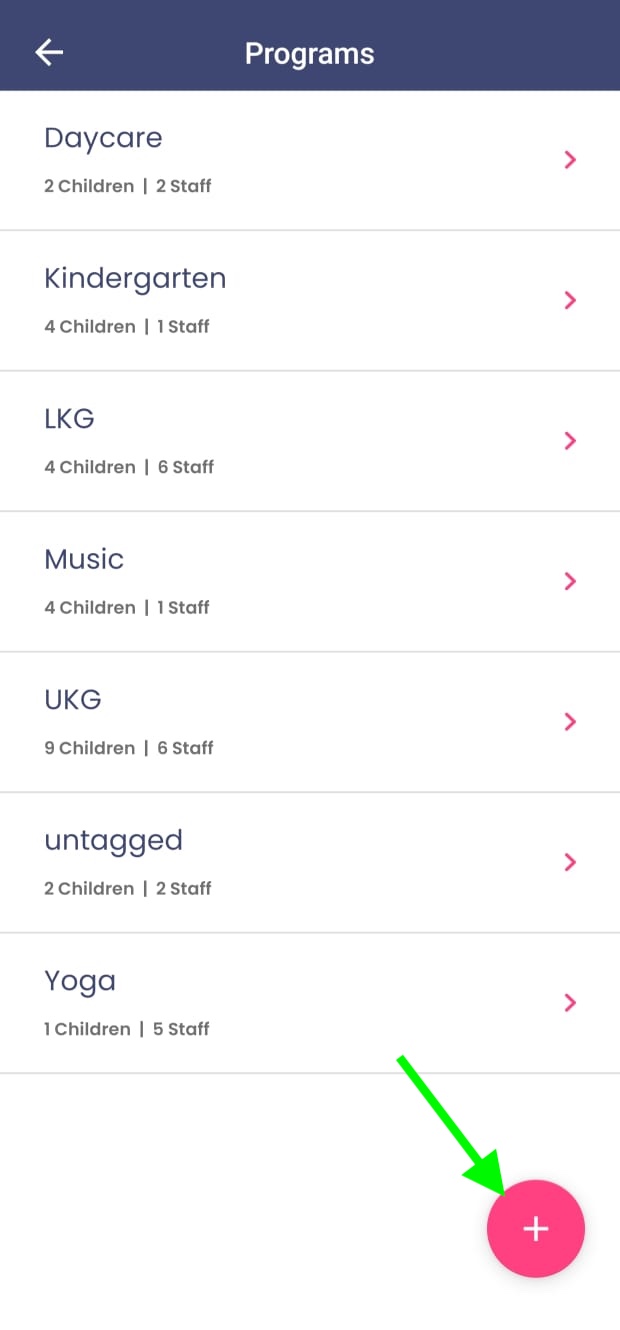
- Open Programs
- Tap the + (Add Program) button
Creating a Program
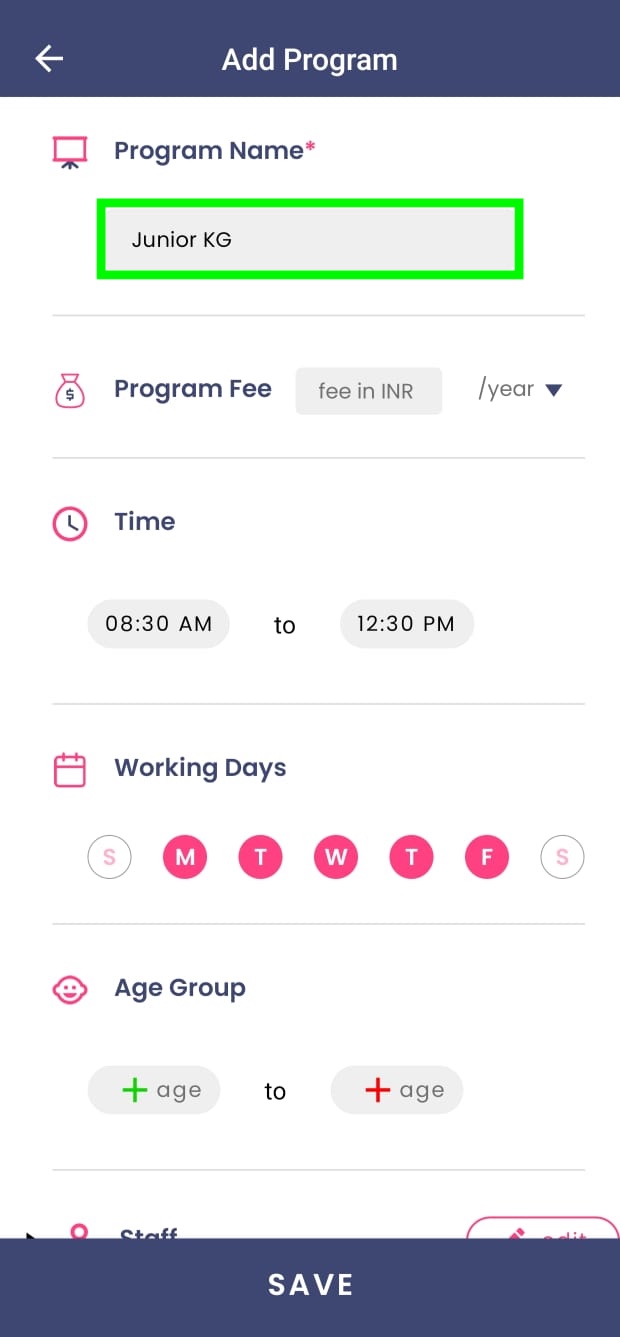
When creating a program:
- Program name is mandatory
- All other details are optional:
- Timings
- Working days
- Fees
- Age group
You can skip optional details and update them later.
Assigning Children and Teachers
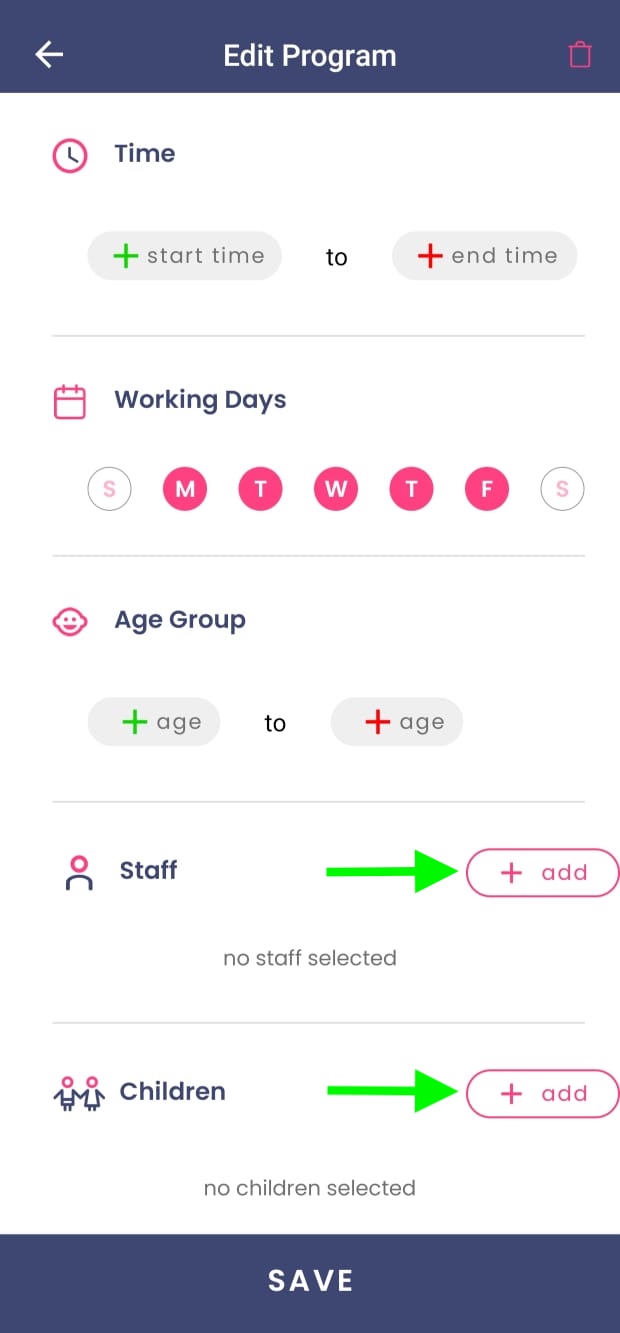
- Children and staff can be added later
- You can edit a program anytime to:
- Add or remove children
- Assign or change teachers
- Update timings or working days
Editing, Renaming, and Deleting Programs
- Programs can be edited anytime
- Renaming is allowed but not recommended, as program names are linked to fees, reports, and the entire school structure
- Delete a program only if it's unused or created by mistake.
💡Best practice: Treat program names as permanent building blocks of your school setup.
Note: We suggest reaching out to Kriyo support via the app chat for guidance before deleting any program that is in use.
Default Program and Demo Child
When a school account is created:
- A default Kindergarten program is added
- A demo child (Ria) is created
- The admin is mapped as both school user and parent This helps you experience both school and parent views before real data is added.
- You can delete this once you get the hang of how to manage your programs in Kriyo.
What Is the Untagged Program?
If a child is created but not mapped to any program, they are automatically placed in an Untagged Program.
- Updates cannot be sent while the child is untagged
- This acts as a safety check to avoid missed mapping
- Once the child is moved to a program, normal operations resume