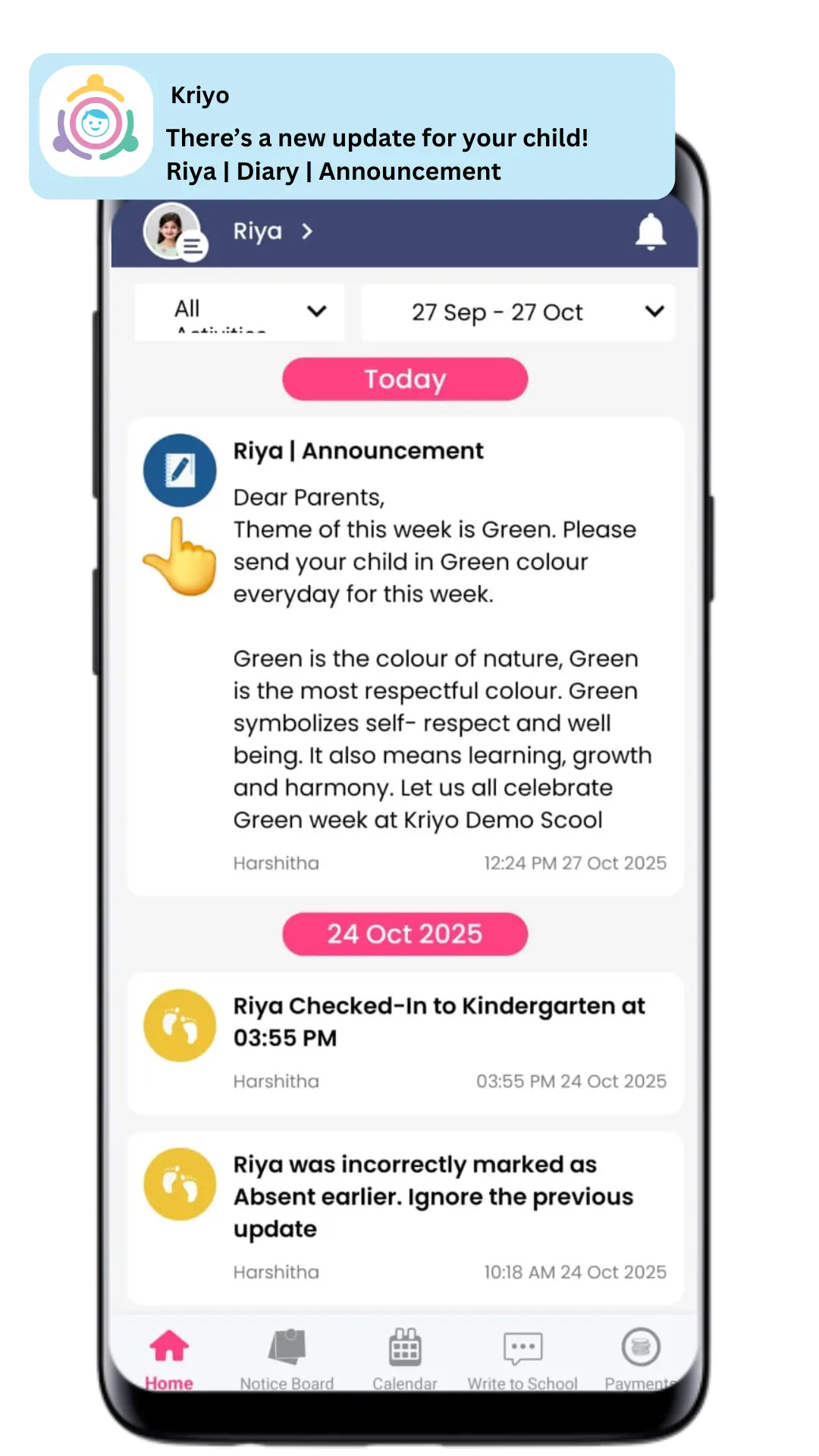
How to Communicate with Parents Using the Diary Feature in Kriyo?
Kriyo’s Diary feature makes school-parent communication simple, quick, and organized. Whether you want to share announcements, circulars, class updates, or photos, you can do it all in just a few clicks — either from your mobile app or through the Kriyo web portal.
The best part? You can send updates to one or multiple parents instantly, and each parent receives it as a personalized message, privately. Let’s see how.
To send an update in Diary, you can watch this simple video or follow the steps below.
Step 1: Open the Diary Feature
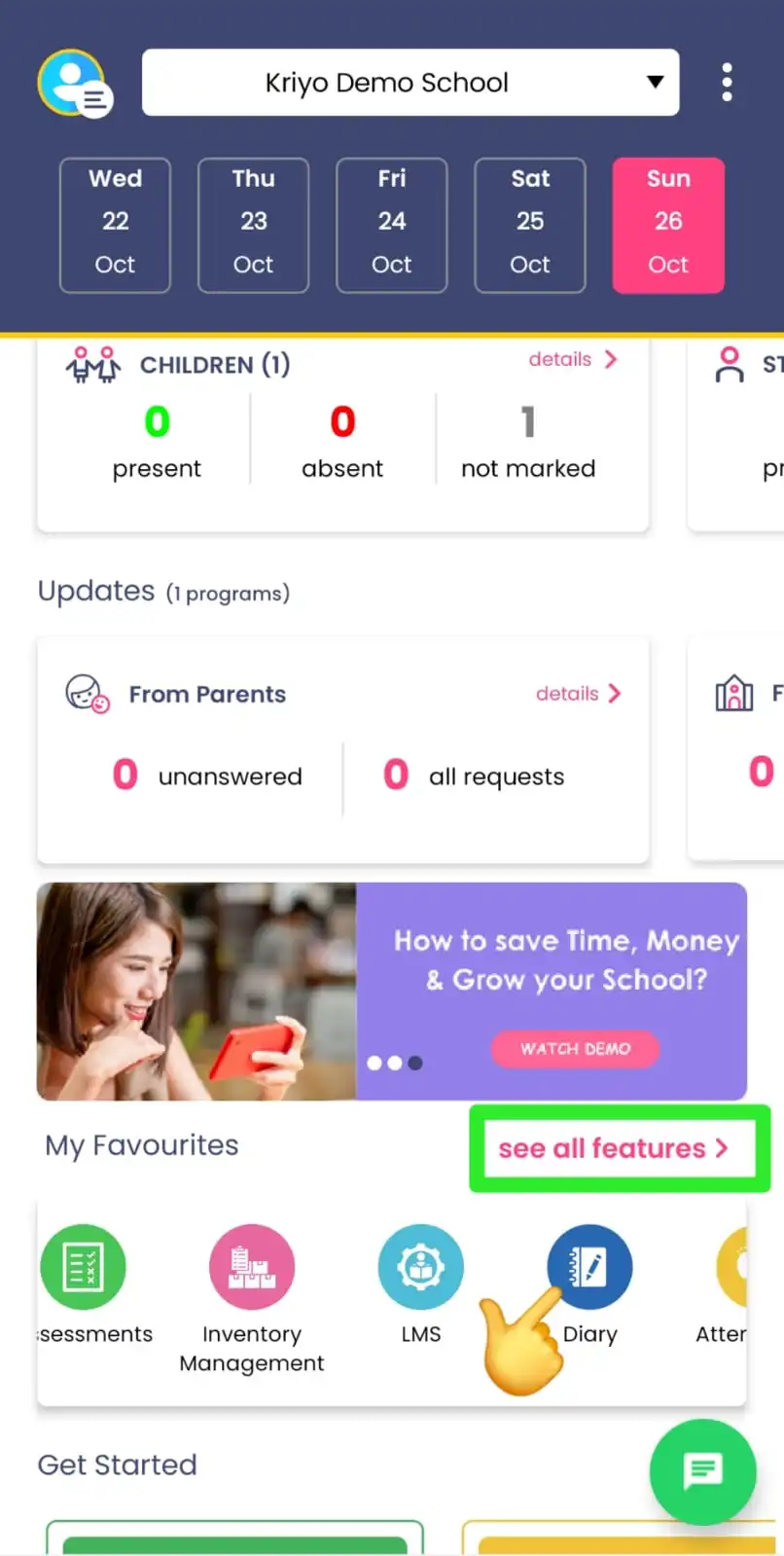
- On the Home page, you’ll usually see Diary listed under your Favorite Features.
- Tap the Diary button to open it.
- If Diary is not visible on the home screen, tap See All Features, then click on Diary in the Activities section.
- Click on the pink plus (+) button at the bottom right corner.
Step 2: Select Students
- Click on the Add button in the Children section.
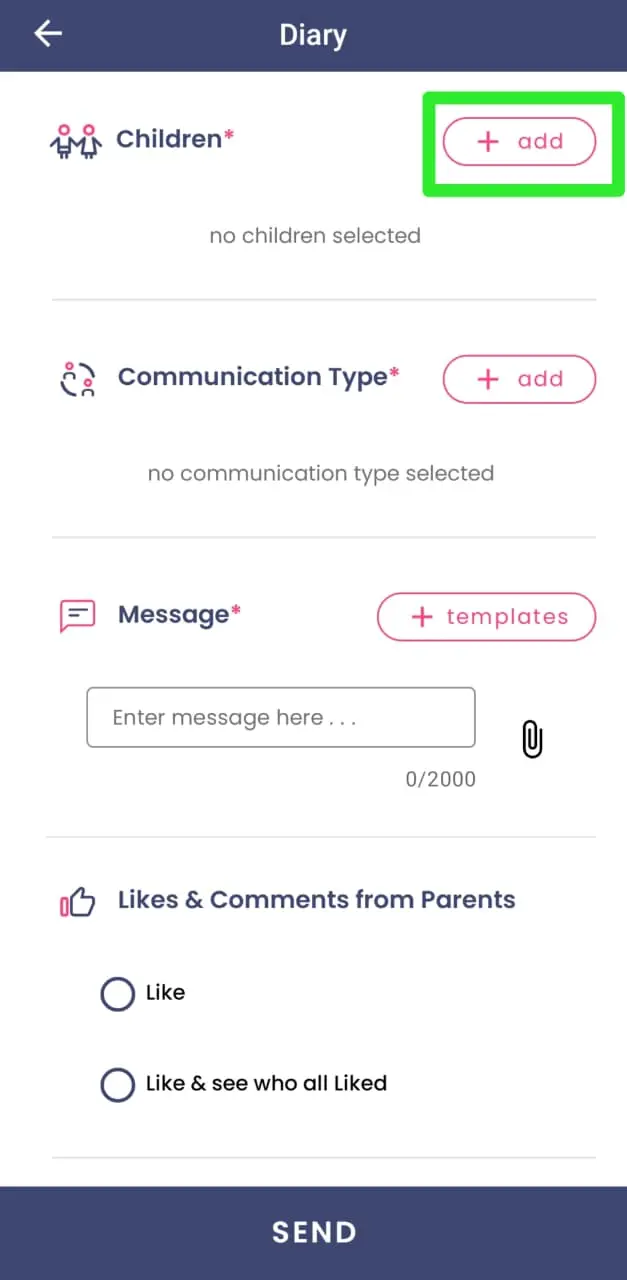
- Choose one or multiple students to whom you want to send the update. If you want to select all students in a class, tap the pink “All” button at the bottom right corner. You can also tap on individual child photos to select one or more students.
- You can select students from one or multiple programs or classes at the same time. To move between programs, simply swipe the screen left or right to go to the next or previous class.
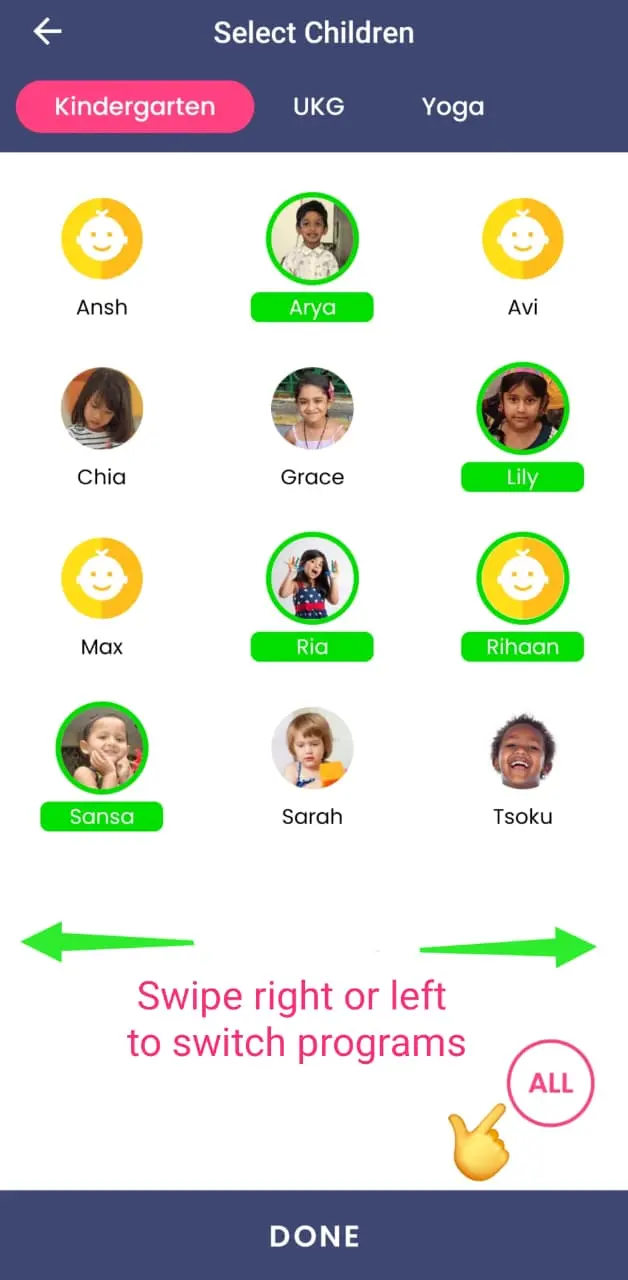
✨ Benefit: You save time by sending one update to multiple parents in a click, while each parent receives it as a private, personalized message — no group chats or privacy concerns.
Step 3: Choose the Communication Type
- Once students are selected, choose what you want to communicate today.
- Kriyo provides some ready-to-use options such as Announcements, Holidays, etc.
- Schools can also customize their own communication types according to their needs (for example: Reminders, Class Activities, Homework, or Projects).
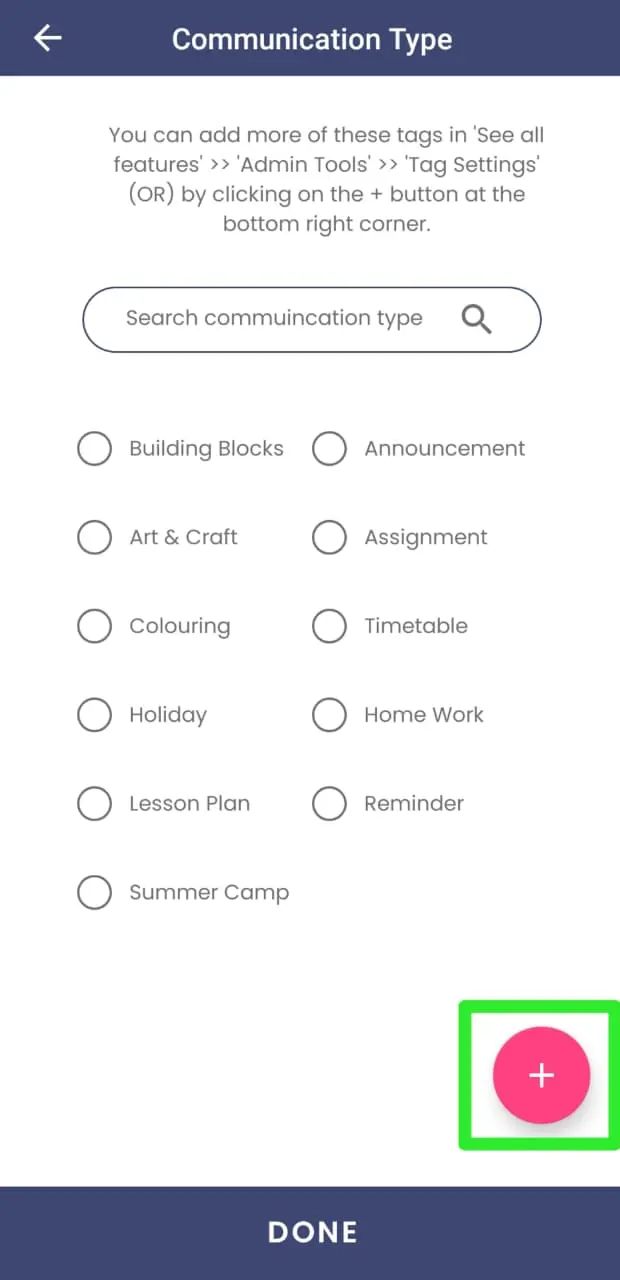
- Click on the pink plus (+) button at the bottom right to add communication types of your choice.
- If you want to modify or delete any of the default options, you can do so from the Tag Settings in Admin Tools.
✨ Benefit: You only set this up once and keep reusing these communication types forever — saving teachers valuable time and ensuring consistency in communication.
Step 4: Type or Select Your Message
- You can type your message directly or choose from your reusable message templates.
- Basic text editing is available on mobile, but if you want to style your message — for example, make parts of it bold, italic, or add hyperlinks — these formatting options are currently available only on the web version of Kriyo.
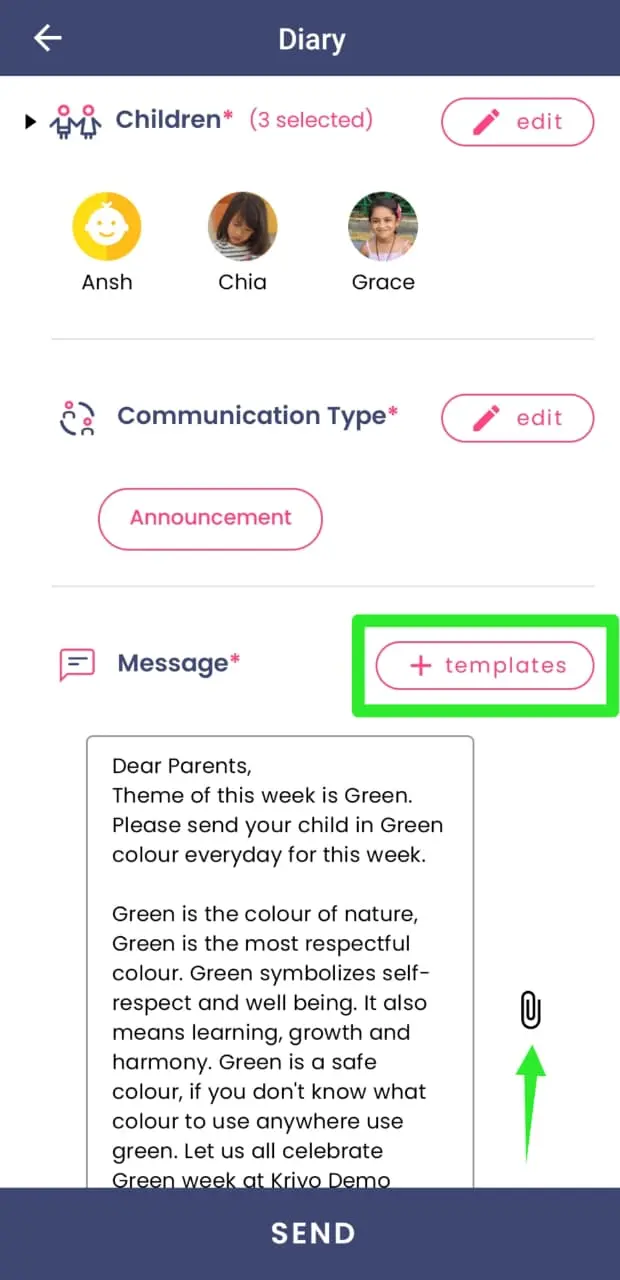
Using Templates for Faster Communication
For commonly sent messages like holiday circulars, exam reminders, or daily schedules, you can create templates once and reuse them anytime with quick, on-the-go edits.
You can also style the text when using Kriyo Web. (This option isn’t available on mobile.)
✨ Benefit: No need to retype the same message every time. Just select the template, make edits if needed, and send — saving hours of manual effort.
To use templates:
- Tap the Templates button and you’ll see a list of all existing templates.
- To create a new one, tap the pink “+” button at the bottom-right corner and enter your message content.
- To edit or delete existing templates, go to Admin Tools → Diary Templates.
💡 Tip: Templates created on Kriyo Web are automatically available on mobile, so you can reuse them anytime, anywhere.
Step 5: Add Photos, Videos, or Attachments
- Along with your message, you can attach photos, videos, voice notes, or documents related to the update.
- This helps make your message more engaging and informative for parents.
- When you share photos through the Diary feature, they are automatically watermarked with your school logo, giving every update a professional and branded look.
- You can enable or modify watermark settings anytime from the Configuration Settings on Kriyo Web.
Step 6: Choose Communication Type – One-Way or Two-Way
- By default, communication is one-way, meaning parents only receive updates.
- To enable two-way communication, simply toggle on the option before sending.
- You can allow parents to like and comment on the updates shared.
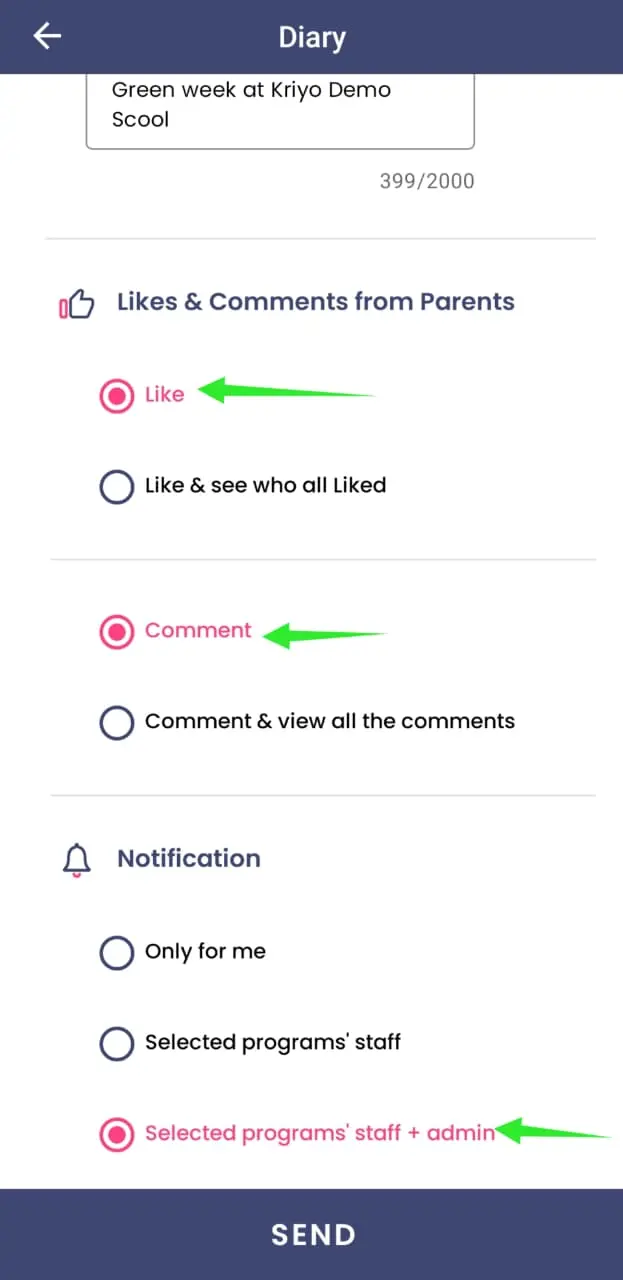
- You can also choose who in the school should be notified when parents respond — it could be you, the staff assigned to the selected programs, or admins.
- Additionally, Kriyo allows you to control how parent comments work in two-way communication.
- If you don’t want one parent’s comments to be visible to other parents, select the first option – Comment. This ensures that each parent’s comment is visible only to the selected school staff.
✨ Benefit: It’s like a private Facebook wall just for your school — fun, interactive, and completely secure. You can engage parents safely, without worrying about data privacy or distractions from group chats.
Step 7: Review and Send
- Review your message before sending.
- Tap Send, and all selected parents will instantly receive the update in their Kriyo Parent App.