How to Review, Edit, or Delete Diary Updates in Kriyo?
So, many a times, teachers — especially in the initial days of using Kriyo or any new software for that matter — might have a few apprehensions:
“Did I select the correct students?”
“Did I type the right date?”
“Were there any typos in my message?”
No problem — you don’t have to worry about it!
Once you send a diary update, you will instantly be able to see the update you’ve just sent, along with all the other diary updates sent that day by you or anyone else in your school.
In case it’s not immediately reflecting, just pull the screen down to refresh, and you’ll instantly see the latest updates.
At the top, you will also find quick filters to view the updates from the last five days. There’s also an option to select any specific date in the past to check what updates were sent on that day.
You can also sort the activities shown for the selected day — by Time, or Sender — to quickly organize and review updates based on your preference.
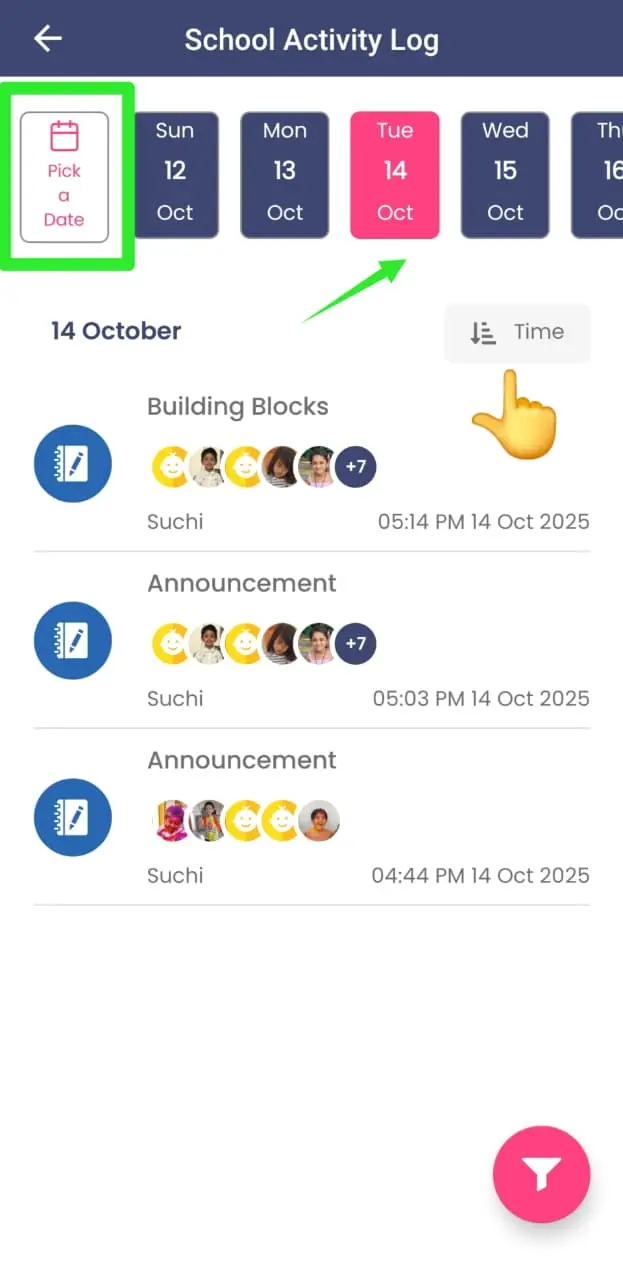
So now, after you’ve sent an update, here’s how you can review it, edit it, or delete it if required.
Step 1: Review the Update
- Tap on the update you want to review.
- You’ll see all its details — including the message, attachments, date, communication type, and recipient list.
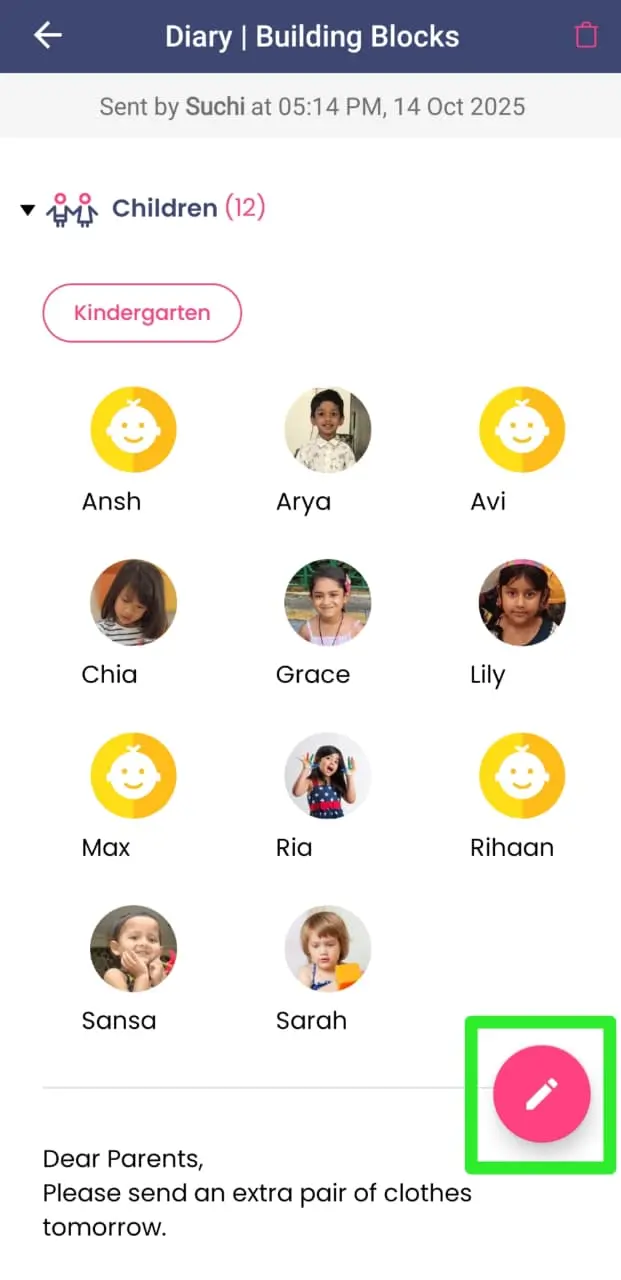
Step 2: Edit the Update
- Tap on the Edit button at the bottom right corner.
- You can:
- Select or unselect children,
- Change the communication type,
- Update the message text,
- Replace or add attachments,
- Or modify two-way communication permissions.
If you had not enabled two-way communication earlier, you can enable it now. You can also choose whether parents can like or comment, and whether one parent’s replies should be visible to others.
Once you make your changes, click Send again. Parents will instantly receive a notification saying “An earlier post is edited.”
Step 3: Delete an Update
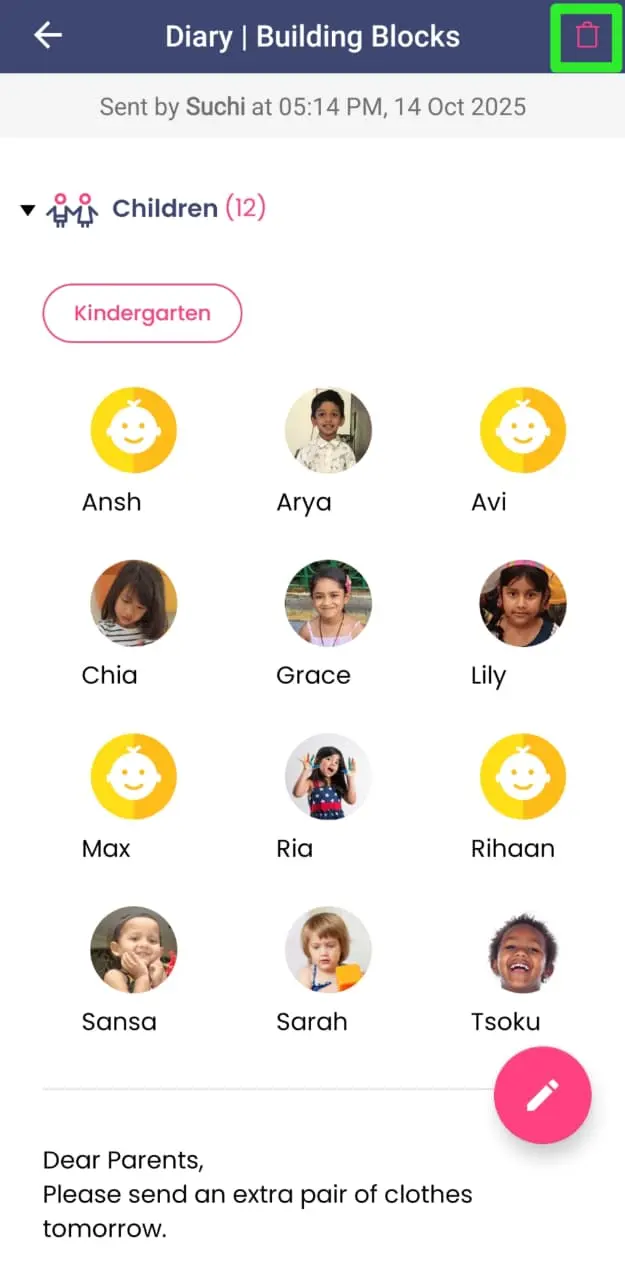
- If a diary message is no longer relevant, tap the Delete icon on the top right corner.
- Confirm when prompted.
- The message will instantly disappear for all parents without any notification.
Step 4: Monitor and Cross-Check Updates
One of the main advantages of Kriyo is that you can smartly share work with your team without losing control or visibility.
You can:
- Cross-check who has sent what updates and to which parents, anytime — right from your mobile.
- If a parent says they haven’t received an update, you can verify it instantly from this section.
- You can even filter by date, class/program, teacher, communication type, or specific child to review all relevant updates.
It’s like a remote tracker that keeps you in full control of your school’s communication, even when you’re on the go.
📎 See Article: [How to View Past Updates Sent to Parents in Kriyo]