How to View Past Updates Sent to Parents in Kriyo?
Kriyo makes it easy for school leaders and teachers to review all the updates sent to parents — whether they were shared today, yesterday, or even weeks ago. You can check past updates by program, staff, or communication type, ensuring complete visibility and control over your school’s parent communication.
In the Kriyo mobile app, there are two ways to check past updates — either from the Diary feature or directly from the History feature. Both routes lead you to the same history view, where you can filter and review updates by date, program, communication type, or staff.
At the top, you can also sort the activities shown for the selected day — by Time, Activity, or Sender — to quickly organize and review updates based on your preference.
Option 1: From the Diary Section
- Tap on Diary and click on the Select More button.
- In the pop-up that appears, select Go to History.
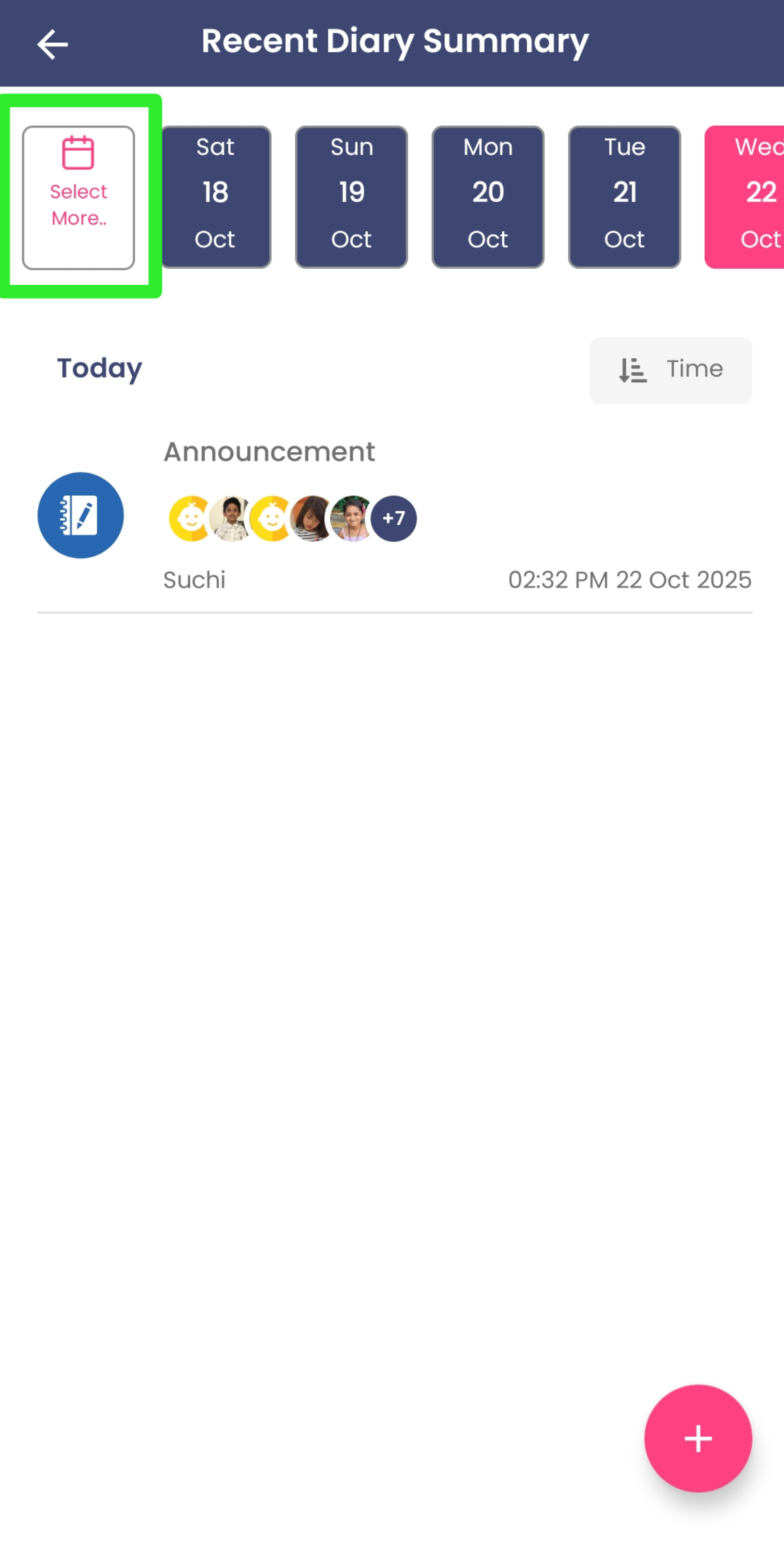
Note: Even if you access History through the Diary feature, you’ll still be able to see all updates sent from other features — not just diary updates.
Option 2: From the History Feature
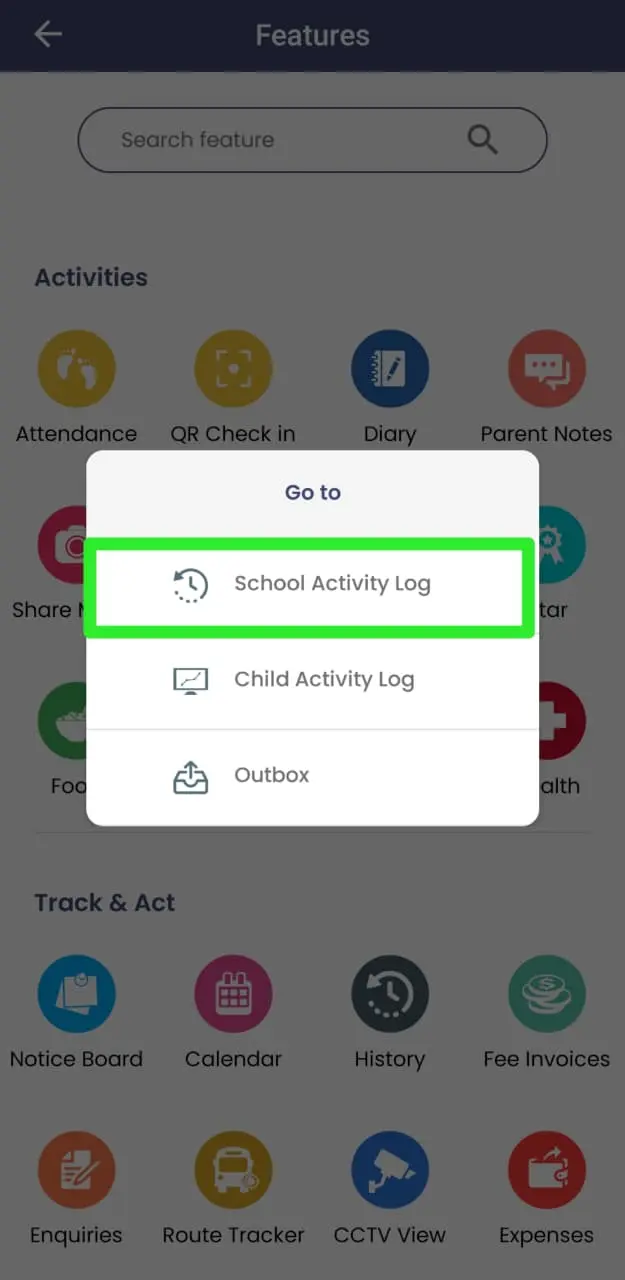
- Click on See All Features and go to the History feature in the Track & Act section.
- A pop-up will appear with three options:
- School Activity Log: Shows all updates sent across the school by you and other staff.
- Child Activity Log: Displays all the activity updates related to a specific child. This view looks very similar to the Parent App interface, making it easy for schools to quickly verify what parents can see.
- Outbox: If your internet connection was unstable, some updates may be stuck here. Check this section to confirm if any messages are pending or undelivered.
Next Steps (Common for Both Options)
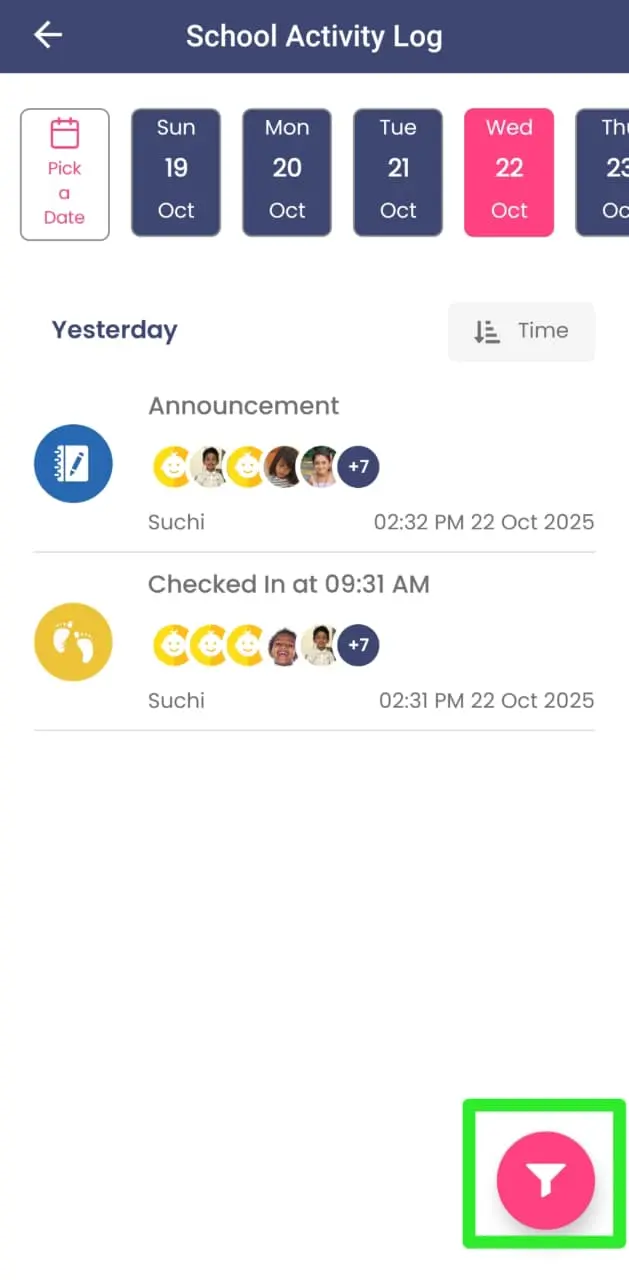
Once you land on the School Activity Log screen — either through the Diary or History route — you can use filters to refine your view:
- Tap on the Filter icon at the bottom right corner.
- Choose the date range you want to review (you can select a maximum of one week at a time).
- Optionally, apply additional filters to narrow your search:
- Program: View updates sent for a particular class or program (e.g., Kindergarten).
- Communication Type: Filter by category such as Announcements, Food Updates, or Diary Updates.
- Staff: View updates sent by a specific teacher or staff member.
- Tap Apply to view the filtered results.
✨ Benefit: This gives you full flexibility to review updates for a specific time period, program, or teacher — all from your mobile, without losing visibility or control.