Diary FAQs
Quick answers to 22 common questions. Pick a question to jump to its answer.
What type of information can I share through the Diary?
You can use the Kriyo Diary to share any kind of daily communication with parents — such as announcements, circulars, reminders, assignments, activity updates, feedback, meal or nap details,lesson plans, and event photos.
While you can send any type of update through the Diary, Kriyo also offers dedicated features for specific needs — such as the Food option for meal updates, LMS for lesson plans, and the Photos option for sharing photos, videos, and albums.
Can I send updates to multiple students from different classes at once?
Yes. With Kriyo’s Diary feature, you can select multiple children, even from different classes or programs, and send updates in one click.
Each parent will receive the update privately and personalized just for their child, and no parent can view the updates meant for another child, ensuring complete privacy.
Are a child’s updates visible to other parents?
No. Each parent can view only their own child’s information. All communication and updates in Kriyo — including Diary messages, Attendance, Fee details, and other activity updates — are completely private. One child’s updates are never visible to other parents, ensuring data privacy and security for every family.
Can I attach files to a Diary update?
Yes. You can easily attach photos, videos, audio clips, and PDFs to any Diary update. This helps you share activity snapshots, circulars, or reports quickly with parents in a secure, organized way.
How do I add or modify a message template in the Diary?
Message templates in the Diary help you save time by reusing commonly shared updates — like attendance reminders, meal updates, or event notes — without retyping them every time.
You can manage templates slightly differently depending on whether you’re using the mobile app or Kriyo Web.
There are two ways to create or edit Diary templates:
- While sending a Diary message
- Open the Diary feature and start composing a new message.
- Tap on Templates.
- At the bottom right corner, tap the pink plus ( +) button to create a new template instantly.
- From Admin Tools
- Go to Admin Tools → Diary Templates.
- Tap the + button at the bottom right corner to create a new template.
- You can also edit an existing template or delete one you no longer need.
Is there a message length limit in Diary updates?
Yes. You can send a message of up to 2,000 characters per Diary update. This gives you enough room to communicate clearly while keeping updates concise for parents to read easily.
Can I select multiple communication types while sending an update?
No. Each Diary update can be sent under one communication type at a time — for example, Announcement, Homework, or Activity Update.
This helps schools keep records organized and makes it easier for parents to review updates later.
Can I schedule Diary updates for a future date?
Currently, you can only send immediate updates in the Kriyo Diary.
Scheduling messages for a future date is not available yet, but you can create templates for future use and send them whenever needed with just one tap.
Who will be notified when a parent replies to a Diary update?
It depends on the notification option you select while sending the Diary update.
You can choose to notify:
- Only Me
- Selected Program Staff
- Selected Program Staff + Admin
If I don’t select a notification option while sending a Diary update, will I still get notified when a parent replies?
No. If you don’t select any notification option, neither you nor anyone else in the school will be notified when parents like or comment on that update.
You can still open the Diary update anytime to view all parent likes and comments.
This gives you the flexibility to avoid unnecessary notifications — for example, when sharing general posts like birthday wishes or greetings that don’t require a response.
Will parents be notified if I reply to their comment on a Diary update?
Yes. Parents receive an instant in-app notification when a teacher or school staff member replies to their comment on a Diary post.
This helps maintain smooth, two-way communication between schools and parents.
Can I delete a parent’s comment on a Diary update?
Yes. You can delete a parent’s comment if needed.
Go to the Diary update and scroll down to the bottom to see all comments.
Click on the three dots (⋮) on the top right corner of the comment you want to delete, and select Delete from the pop-up.
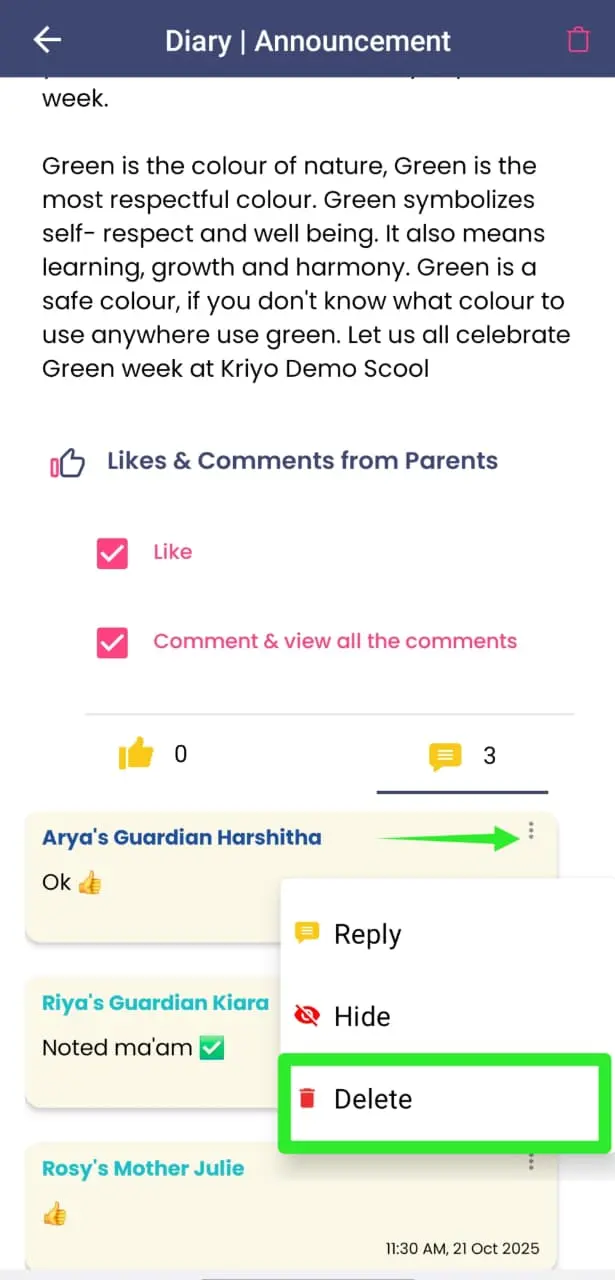
This helps schools manage communication professionally and keep the conversations relevant.
Will parents be notified if I delete their comment on a Diary update?
No. Parents will not be notified when their comment is deleted.
Once removed, the comment will simply disappear from their Parent App without any alert or notification.
Can multiple staff manage Diary updates?
Yes. Kriyo allows multiple staff members to access and manage Diary updates.
This ensures that parent communication never gets delayed — if one teacher is unavailable, another authorized staff member can view, respond, or share updates seamlessly.
Will attachments get downloaded automatically?
No. Attachments sent through the Kriyo Diary are not automatically downloaded to the parent’s device.
Parents can view the attachments directly in the app and download them if needed, helping them save storage space on their phones.
Can parents share the attachments sent to them?
Yes. Parents can download or share attachments (like PDFs, images, or videos) sent through the Diary.
They can open the file for a full view and use the Download button at the top right to save or share it.
If I edit a Diary update, what will happen to the older update in the Parent App?
When you edit a Diary update, the older version is automatically replaced with the latest one in the Parent App.
Parents receive a notification stating that the announcement or update has been edited, and they will only see the most recent version.
Can parents dislike diary update?
No. Parents can like and comment on Diary updates shared by the school, but there’s no dislike option in the Kriyo Parent App.
How many files can I share in a Diary update?
There’s no fixed limit on the total number of files you can share through Kriyo’s Digital Diary. However, for each Diary update, you can attach up to five photos, two documents, one voice message, and one video at a time.
This helps schools share rich updates with parents while keeping uploads quick, organized, and easy to view on both web and mobile.
Where can I see the likes or comments by parents on a Diary update?
You can go to the Diary feature and tap on the update you shared.
At the bottom of the message, you’ll see all likes and comments related to that update.
Alternatively, you can go to History, select School Activity Log and then click on the relevant Diary update to view the likes and comments at the bottom of that post.
Can I reply to or hide a comment from a parent on a Diary update?
Yes. To manage comments, go to the Diary feature and open the Diary update you want to review.
Scroll to the bottom to see all parent comments. Tap on any comment to view the available options — you can reply, delete, or hide it as needed.
You can also do this from the History section by selecting School Activity Log, opening the respective Diary update, and following the same steps.
Will parents be notified if a Diary update is deleted?
No, parents will not be notified when a Diary update is deleted. Once the school removes the update, it will automatically disappear from the Parent App, and parents will no longer be able to view it.