How to capture and manage admission inquiries in Kriyo
The Inquiries feature in Kriyo helps schools capture, organise, and manage all admission inquiries in one central place—without relying on paper forms, registers, or scattered spreadsheets.
This product guide explains how inquiries are captured from different channels and how schools can manage them efficiently inside Kriyo.
How Schools Capture Admission Inquiries in Kriyo
Kriyo allows schools to collect inquiries digitally, even before parents physically visit the campus. All inquiries—regardless of source—land in the same Inquiries module.
Digital Inquiry Form (QR Code & Link)
Each school gets:
- A unique QR code for the digital inquiry form
- A shareable inquiry form link
To access these:
- Open the Inquiries module in Kriyo
- Click the Share Inquiry button on the top right
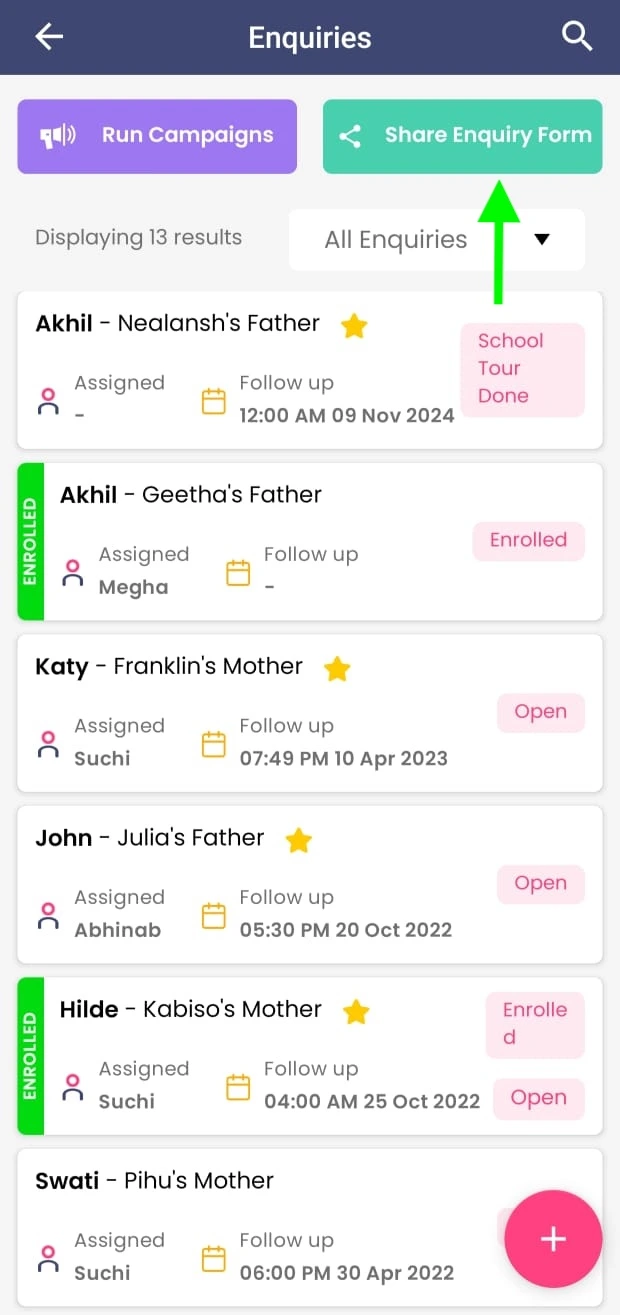
Here, schools can copy the link or view/download the QR code.
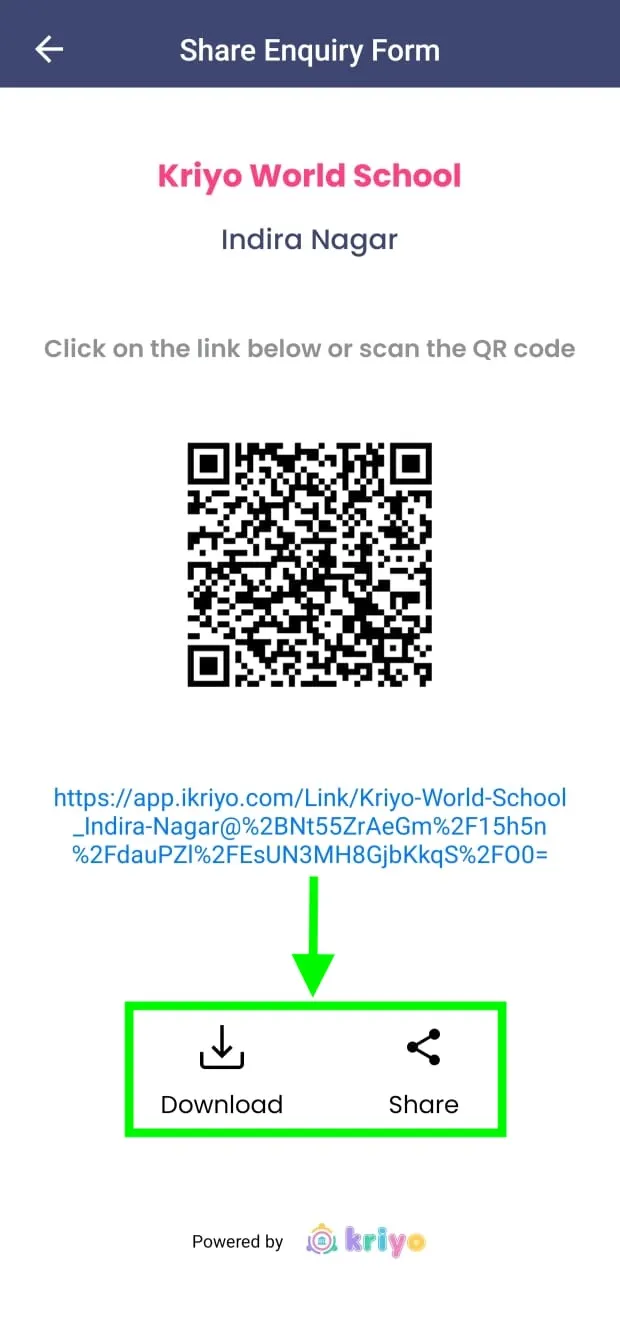
How Schools Use the QR Code
Schools typically use the QR code in three ways:
- On marketing brochures and flyers
Print the QR code on brochures, pamphlets, or marketing flyers so parents can scan it later from home and submit an inquiry at their convenience. This helps schools capture leads even after an initial interaction or referral.
- Outside the school or at the entrance
Display the QR code on posters or banners so parents can scan it even during non-working hours. This ensures inquiries are captured even when the school is closed.
- Inside the office or reception area
When parents walk in during working hours, they can scan the QR code and fill the form instantly instead of writing details on paper.
Schools can also:
- Share the link via WhatsApp or email
- Add it to their website or social media pages
Parents can scan the QR code or open the link and submit the inquiry form from anywhere, at any time.
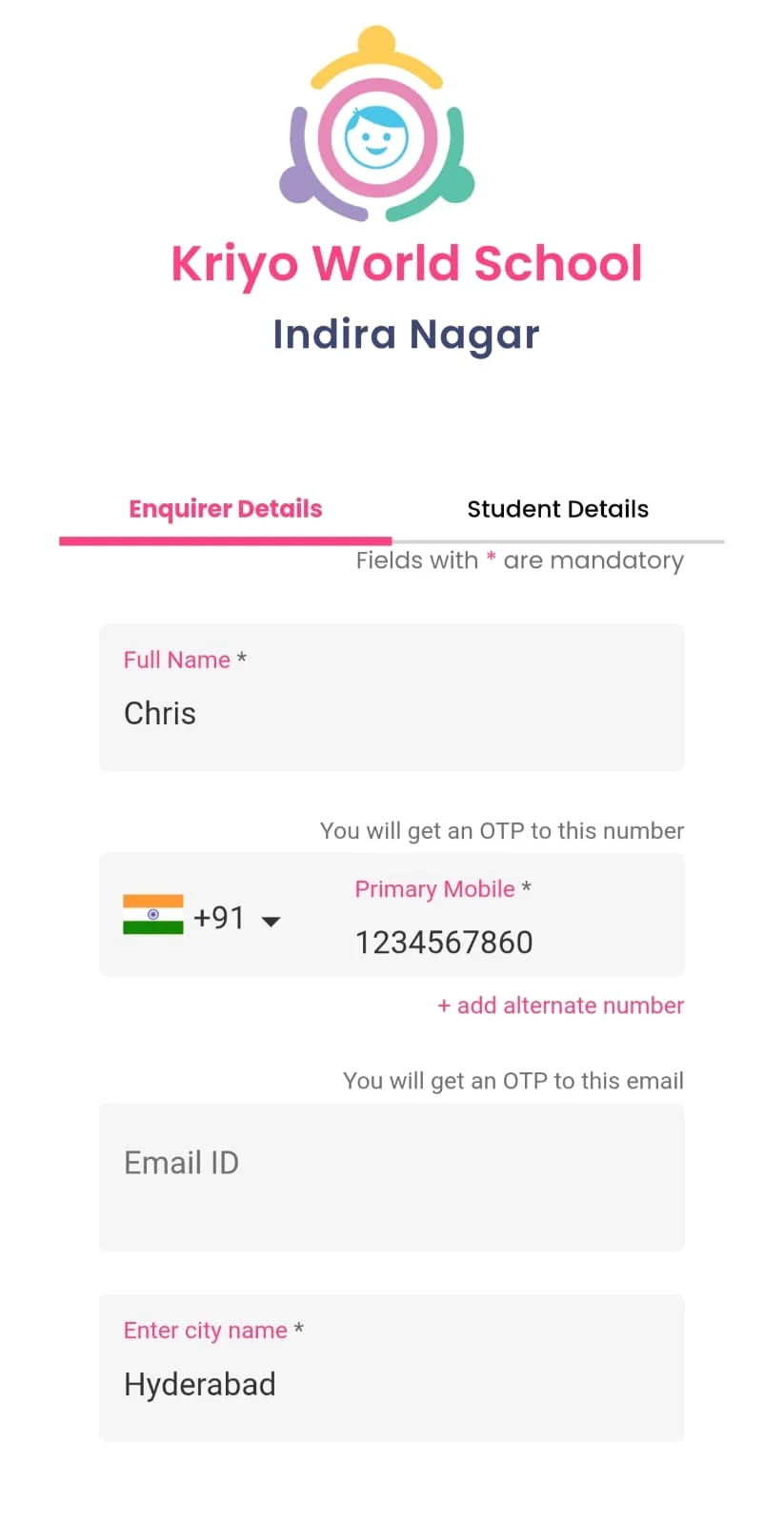
Once submitted:
- The inquiry is instantly added to Kriyo
- Authorised staff members receive notifications
- Parents receive an automatic acknowledgement email
Sample acknowledgement mail:
“Dear Kate, Thank you for inquiring at Kriyo World School. We look forward to welcoming your child. For any queries, please contact us at +91 90000 00000.”
This ensures schools never miss an inquiry—even outside working hours.
Adding Inquiries at the School
If a parent walks in or prefers not to fill the form themselves, school staff can add the inquiry directly in Kriyo.
To add an inquiry:
- Open Inquiries in Kriyo
- Click the plus (+) button
- Enter parent and child details such as:
- Parent name and relation
- Primary and secondary contact numbers
- Email ID
- Child name
- Child’s date of birth (age is auto-calculated)
- Recommended program (customisable)
- Academic year
- How the parent came to know about the school
- Any additional notes
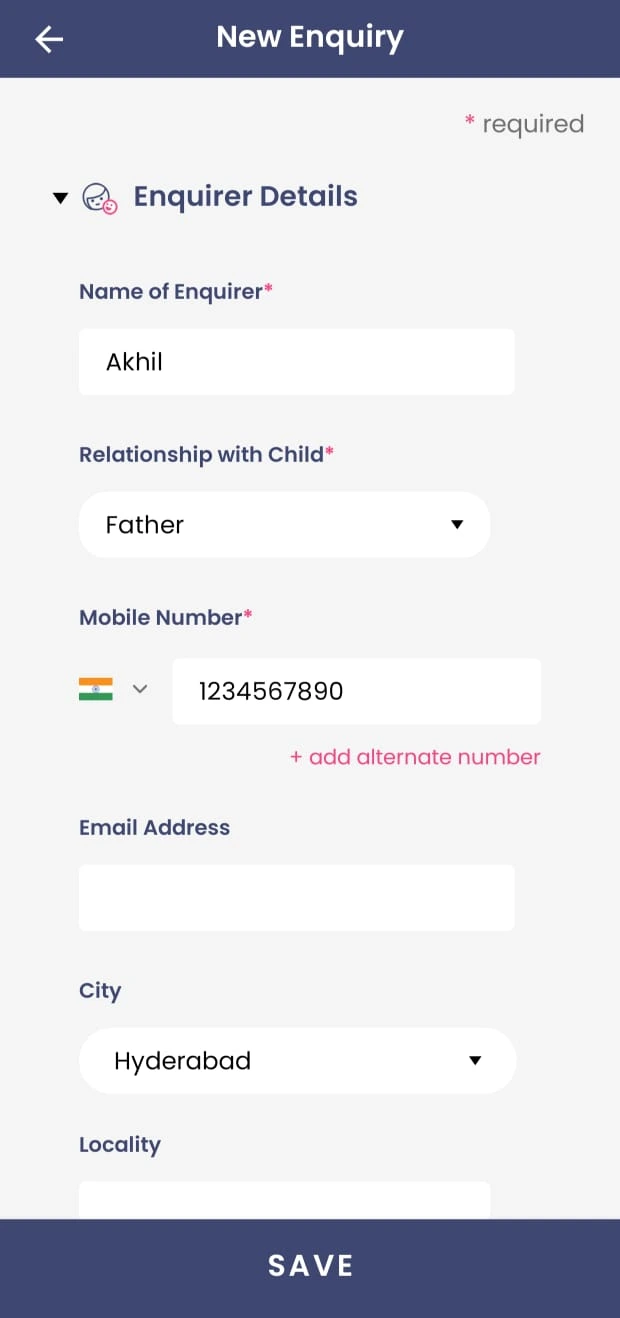
- Click Save
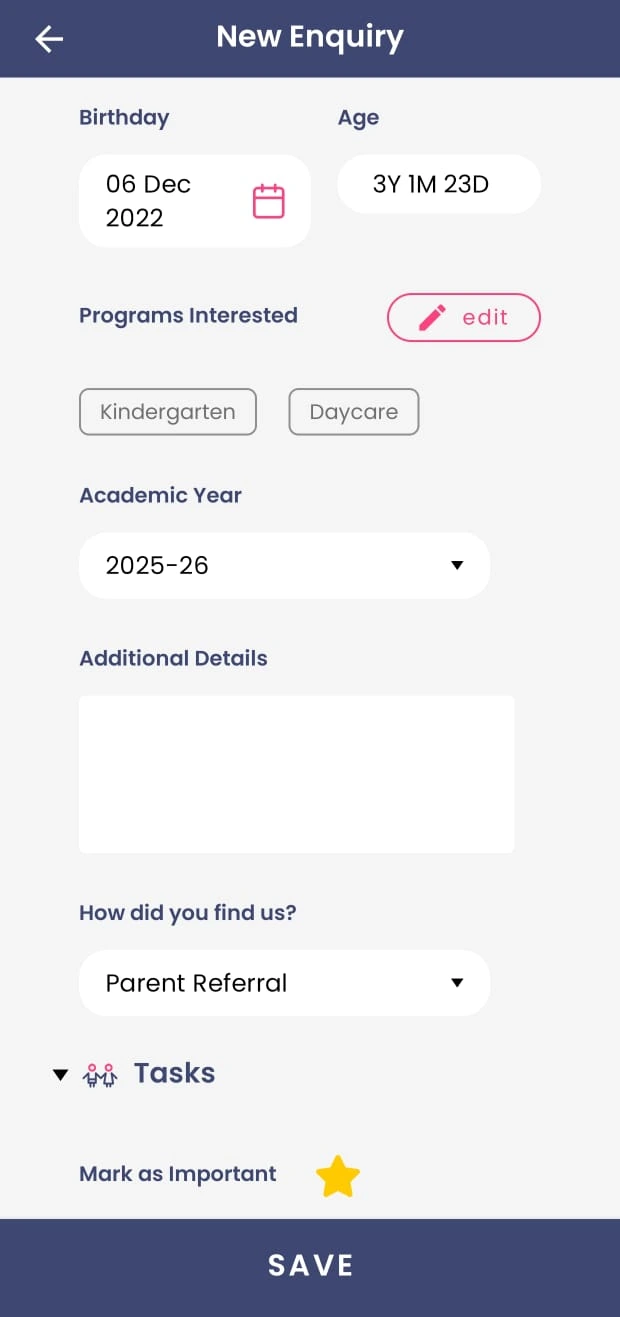
You can also:
- Mark an inquiry as important
- Set up a follow-up reminder
- Assign a status
- Assign to any teacher or admissions counsellor
These options are visible only to the school users and not to the parents when they fill out the form.
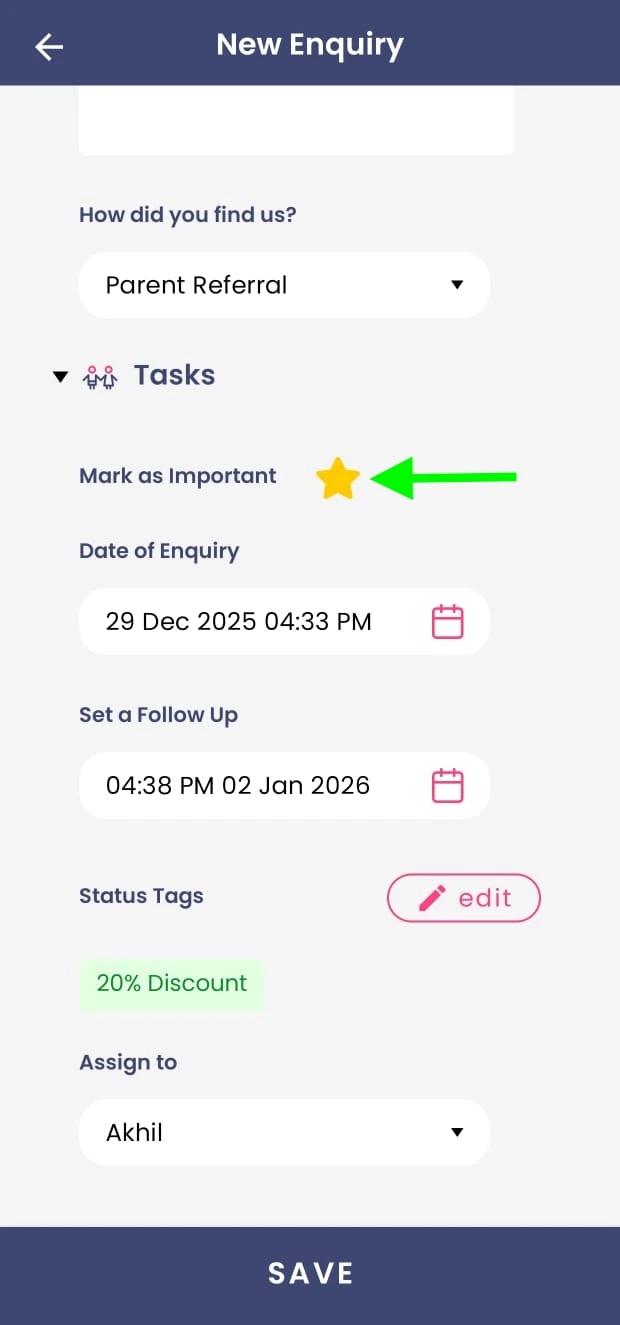
Once saved:
- The inquiry is added to the system
- Notifications are sent to relevant staff
- Parents receive an acknowledgement email automatically
Whether the inquiry is submitted by the parent or added by staff, the outcome is the same.
Access Control for Adding Inquiries
Schools can allow all staff members to add new inquiries so that no lead is missed, even if the admissions team is unavailable.
At the same time, schools can control:
- Who can view existing inquiries
- Who can edit or manage inquiry records
This ensures flexibility without compromising data security or visibility.
Viewing and Editing Inquiry Details
Each inquiry record has two main sections:
- Details – Contains all information submitted in the inquiry form
- Timeline – Shows the complete interaction history
From the Details section, schools can:
- Edit inquiry information if needed
- Delete duplicate or invalid inquiries
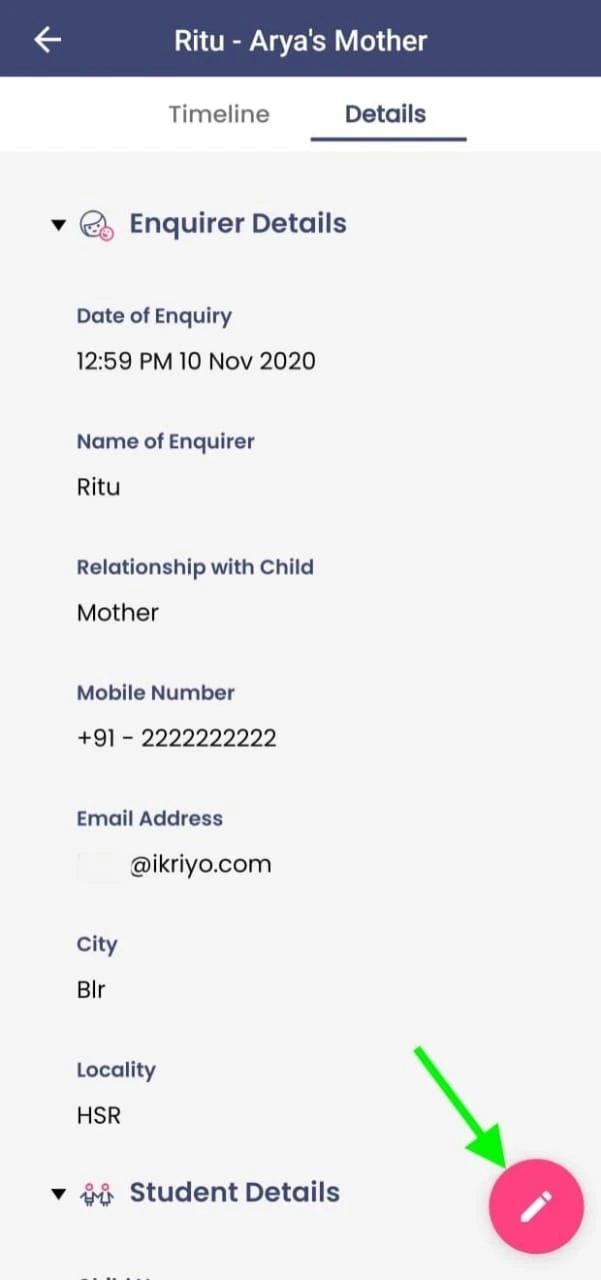
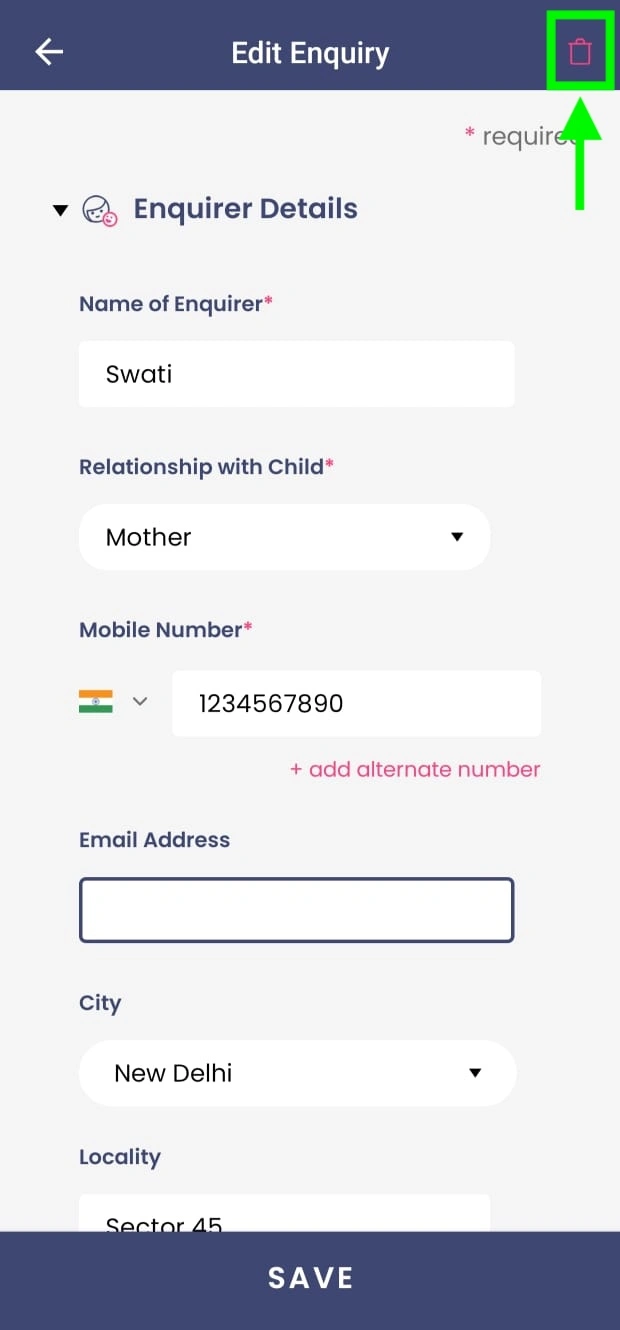
This keeps the inquiry database clean and accurate.
Understanding the Inquiry Timeline
The Timeline helps schools track how each inquiry is progressing.
Here, schools can see:
- Who added the inquiry (parent or staff)
- Follow-up actions taken
- Conversation summaries added by teachers or admissions counsellors
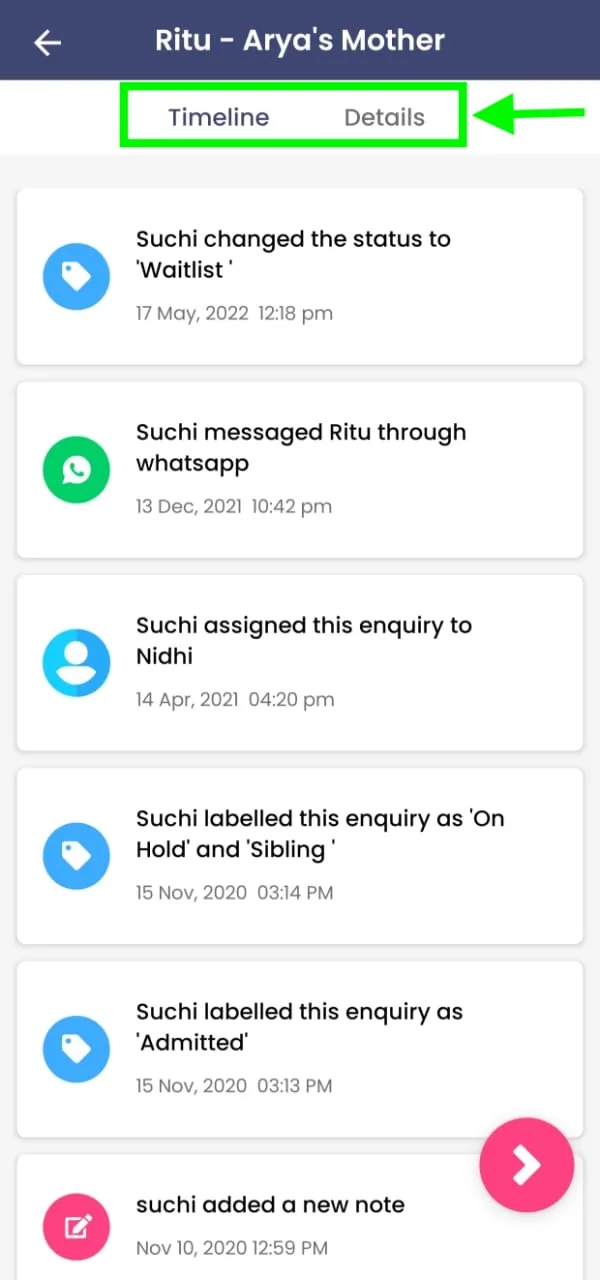
This ensures continuity even when multiple team members are involved.
Communicating with Parents from the Inquiry Record
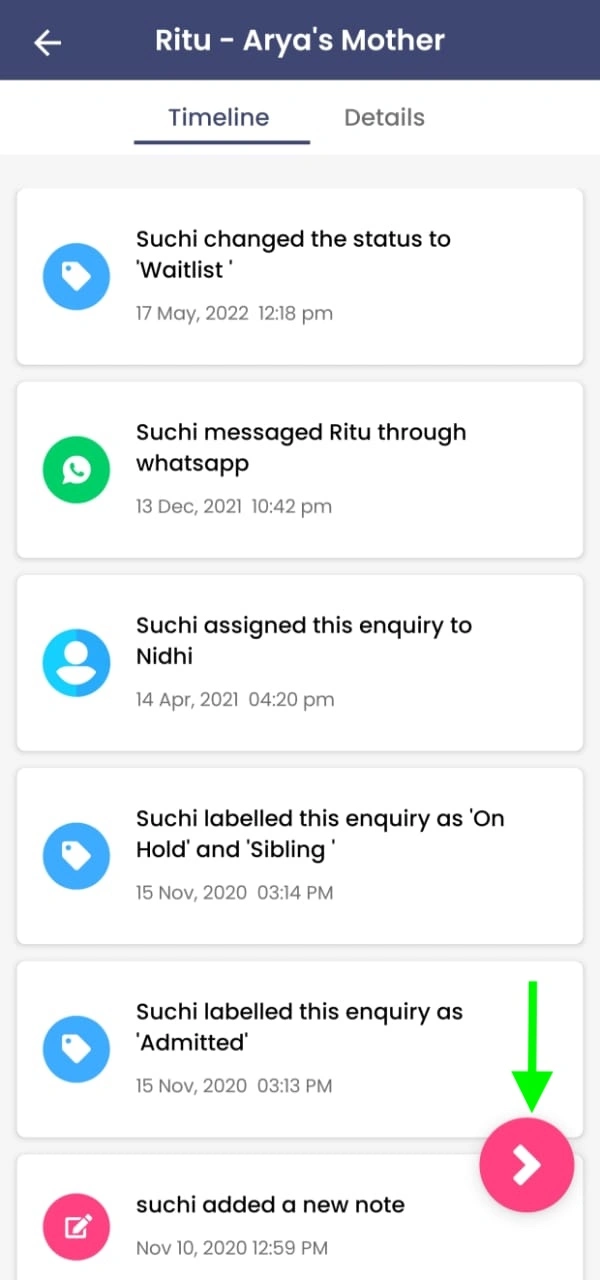
From any inquiry record, staff can contact parents without copying or saving phone numbers.
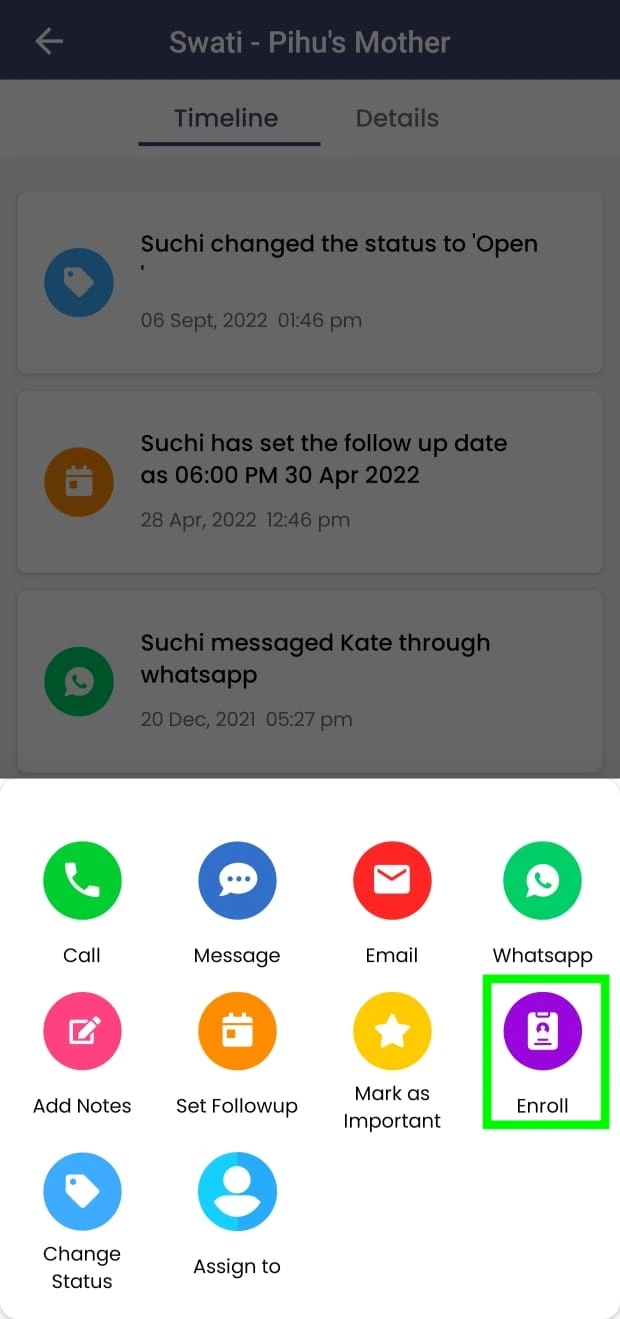
Using the actions button at the bottom right, schools can:
- Call parents
- Send messages
- Send emails
- Use WhatsApp (for individual contacts)
All contact details are picked directly from the inquiry form.
Note: All communication is sent from the sender’s device (mobile number or email), ensuring better delivery and parent recognition—not from Kriyo.
Converting an Inquiry into an Admission
When a parent confirms admission:
- Open the inquiry record
- Tap the actions button and Click Enroll
The inquiry is converted into an admission profile:
- Existing details are auto-filled
- Add remaining information and save
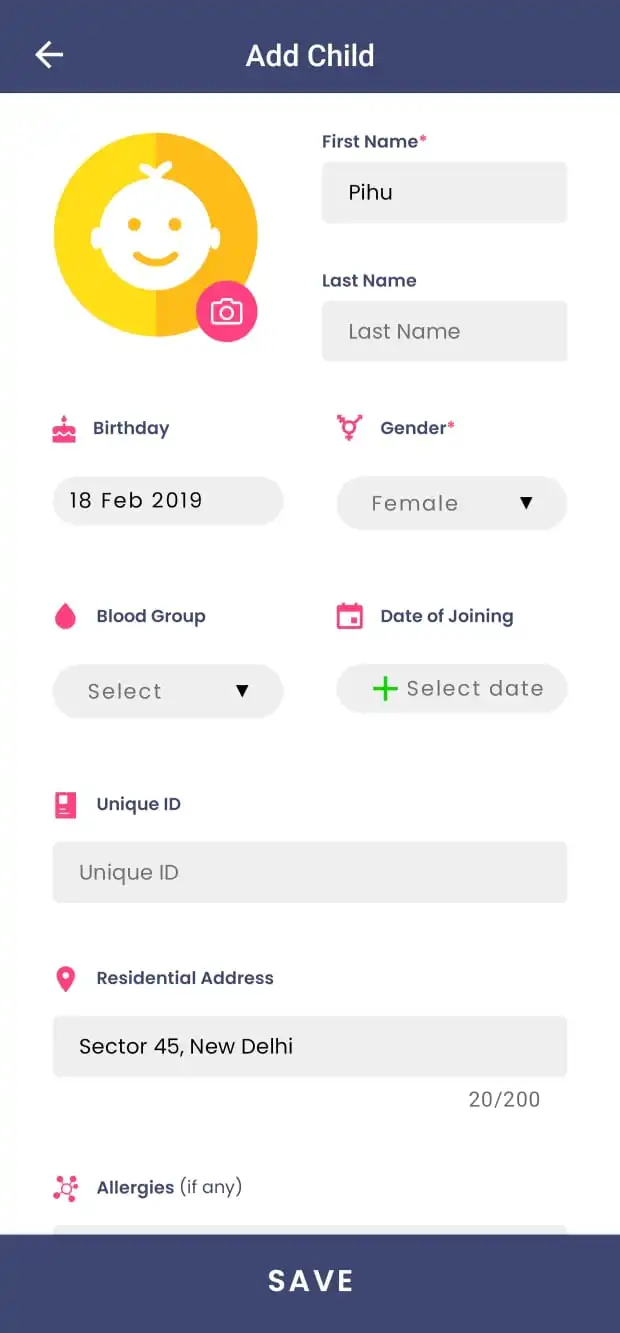
Once saved:
- The child profile is created
- Parent login credentials are sent automatically via SMS or email
- Parents get access to the Kriyo Parent App
Up to three family members can be added for each child.
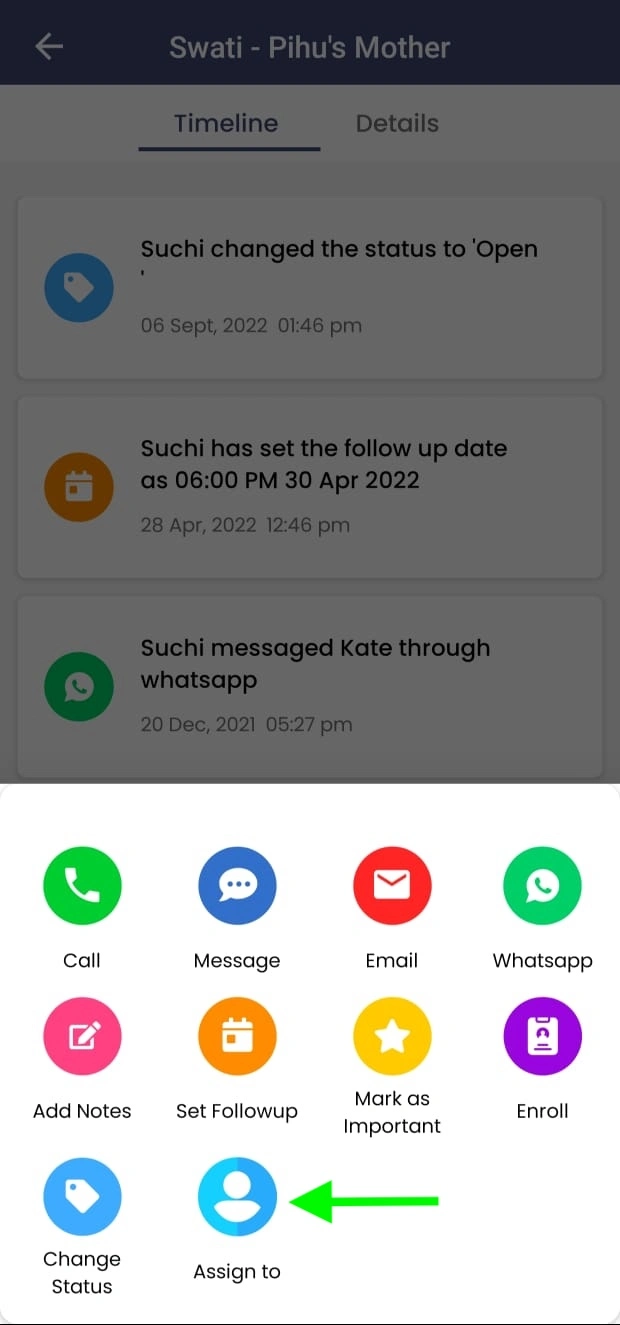
Assigning and Managing Inquiries Across the Team
Schools can:
- Assign inquiries to different team members
- Distribute workload during peak admission seasons
- Ensure smooth handovers without losing context
All inquiry details and timelines remain visible in Kriyo.
Importing Existing Inquiries into Kriyo
If schools already have inquiry details stored in spreadsheets or paper registers, Kriyo allows them to import existing inquiries so that all data is managed in one place from day one.
This option is available only on Kriyo Web.
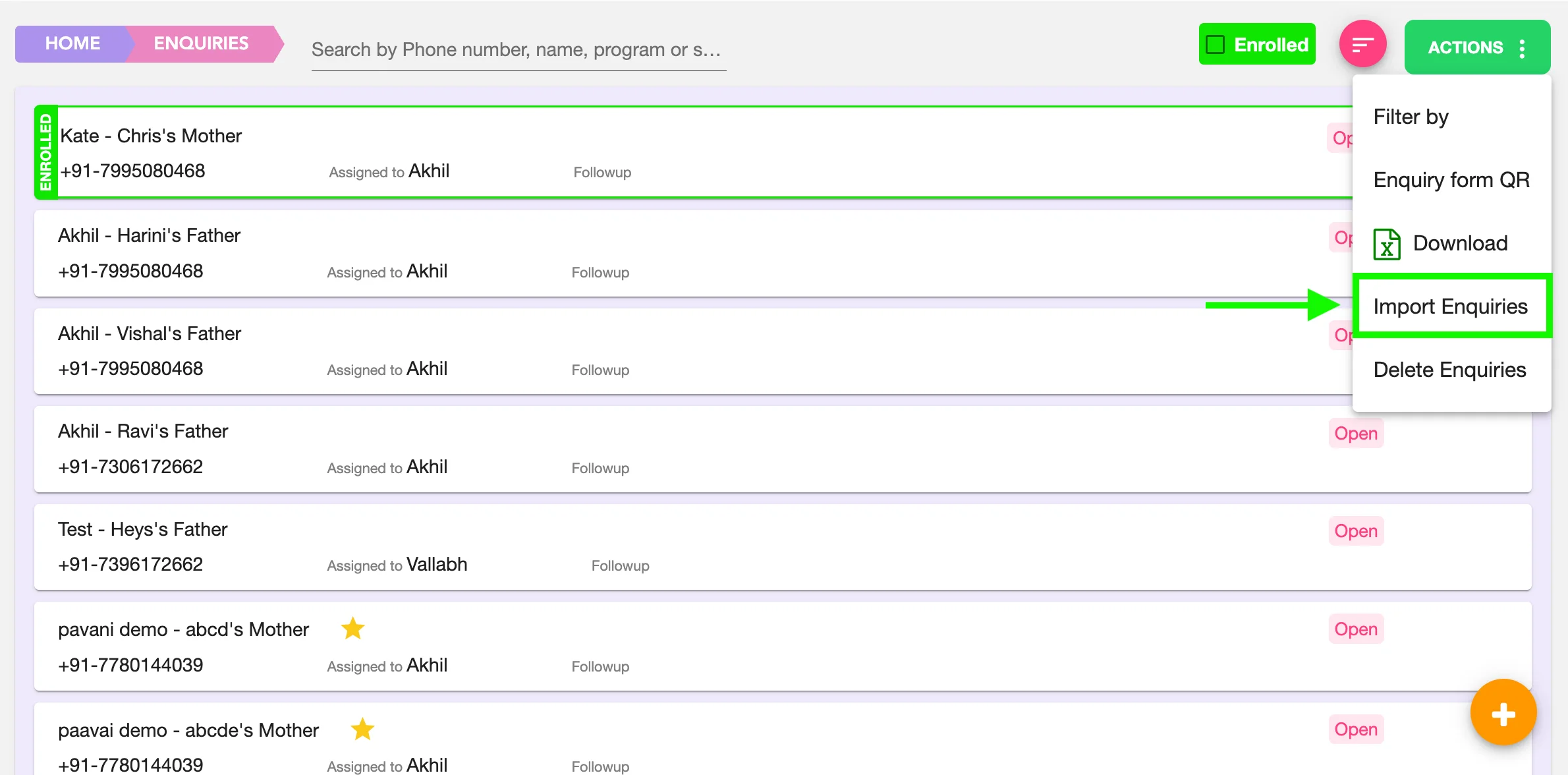
To import existing inquiries:
- Log in to Kriyo Web
- Open the Inquiries module
- Click on the Actions button at the top right
- Select Import Inquiries
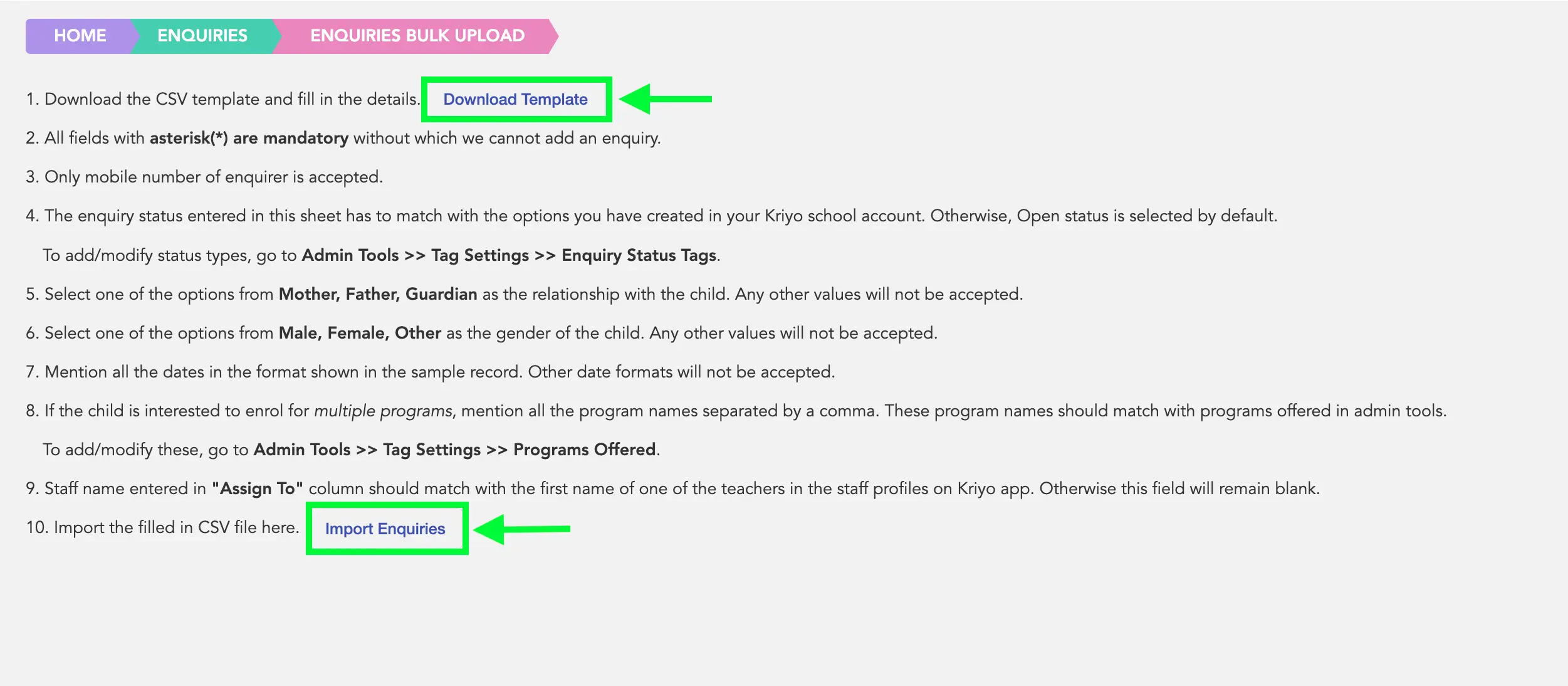
Here, schools can:
- Download a sample import template
- View instructions on how to fill in the required details
- Upload the completed template to import all existing inquiries into Kriyo
Once imported, these inquiries behave just like any other inquiry in Kriyo—allowing schools to track, follow up, and manage them without switching between systems.
Why Managing Inquiries in Kriyo Works Better
By using Kriyo’s Inquiries feature, schools can:
- Capture inquiries from multiple channels in one place
- Avoid paper forms and scattered data
- Respond faster to prospective parents
- Maintain a clean, searchable inquiry database
- Run admissions smoothly—even during peak seasons