How to follow up, prioritise, and convert admission inquiries into enrolments in Kriyo
Once admission inquiries start coming in, the real work begins—timely follow-ups, prioritisation, collaboration, and conversion. Kriyo’s Inquiries feature is designed not just to collect leads, but to help schools systematically move every inquiry towards enrolment.
This product guide explains how schools can manage inquiry progress, avoid missed follow-ups, collaborate across teams, and analyse outcomes using Kriyo.
Viewing and Tracking an Inquiry
To open an inquiry, tap on any inquiry record from the list.
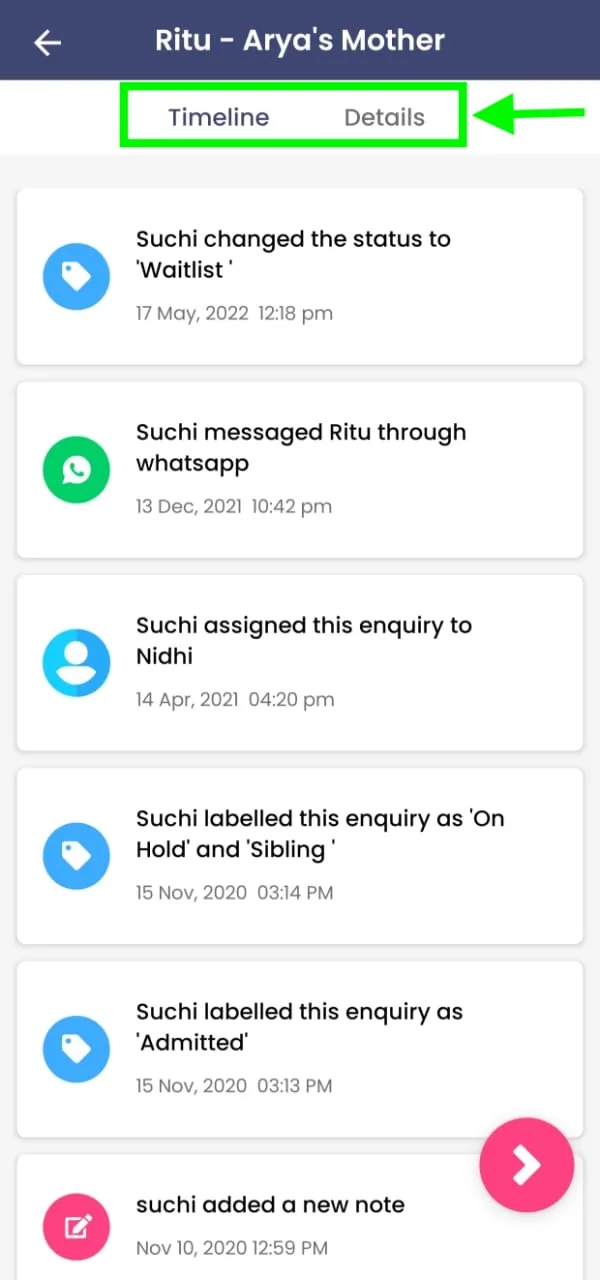
Each inquiry has two key sections:
- Details
- Timeline
Managing Inquiry Details
The Details section contains all the information submitted in the inquiry form.
From here, schools can:
- Review parent and child details
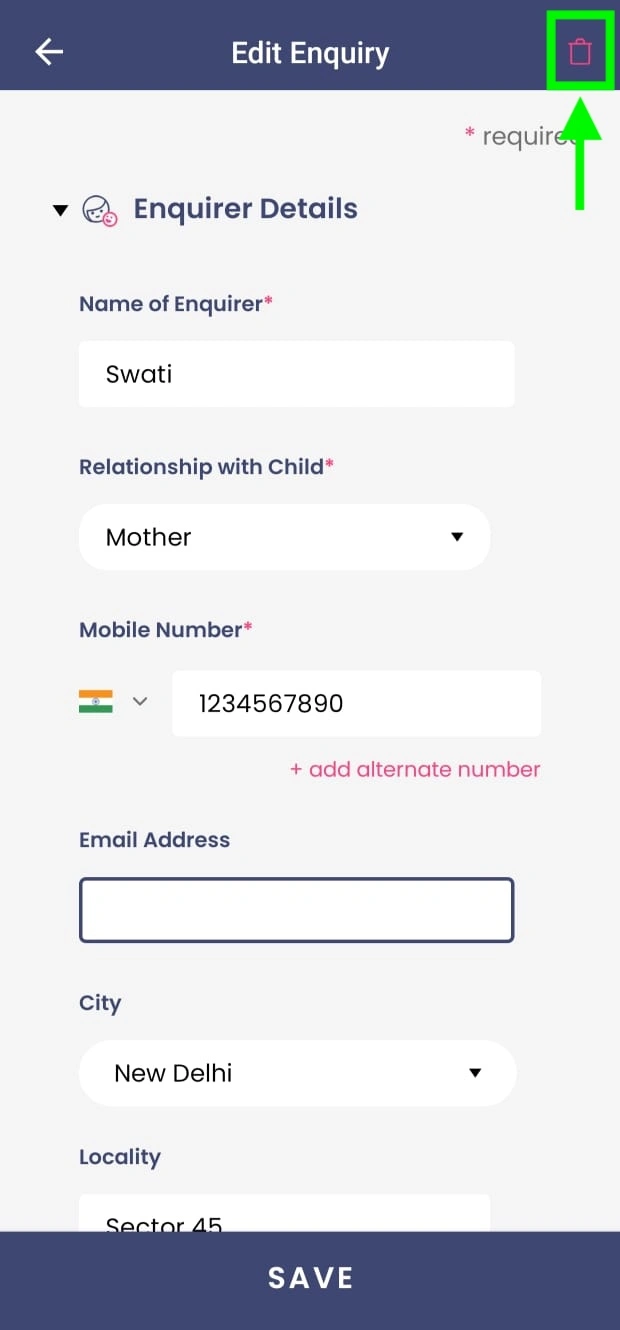
- Click Edit to update any information in the inquiry form
- Delete the inquiry if it is a duplicate or invalid record (via the delete button in Edit screen)
This helps keep the inquiry database accurate and clutter-free.
Understanding the Inquiry Timeline
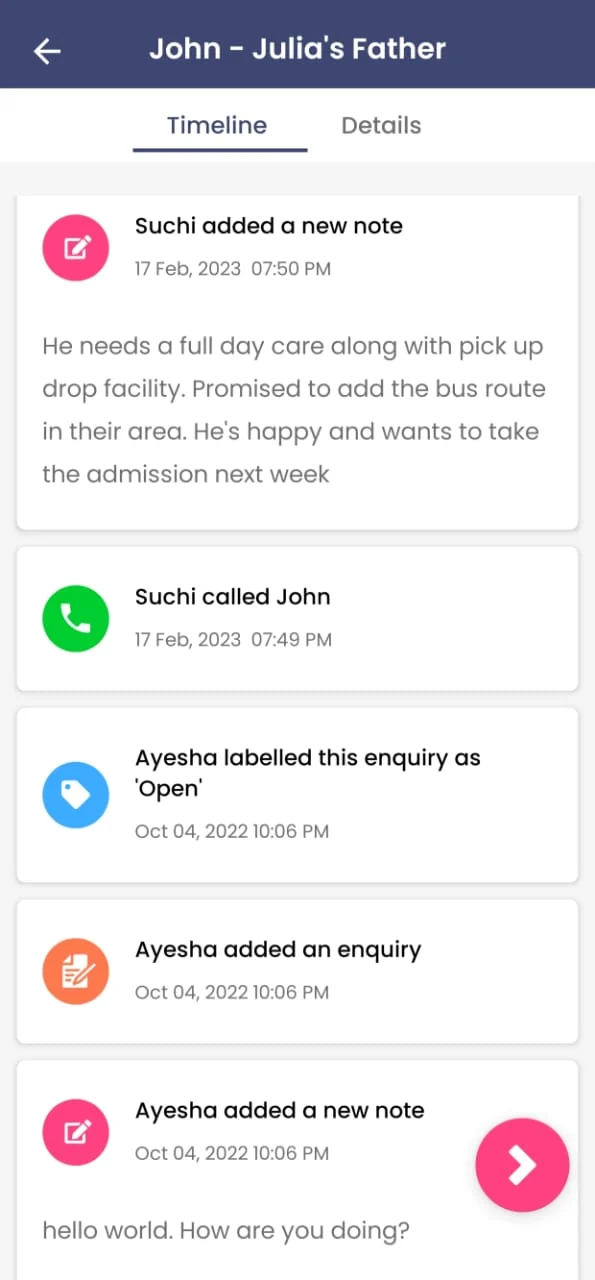
The Timeline provides a chronological view of everything that has happened for that inquiry.
Here, schools can see:
- Who added the inquiry (parent or staff)
- Follow-up actions taken
- Notes added after conversations
- Status changes and assignments
The timeline ensures continuity, even when multiple staff members are involved.
Following Up with Parents
To take action on an inquiry or contact a parent:
- Open the inquiry
- Tap the Actions button at the bottom right corner
This opens a menu with multiple options.
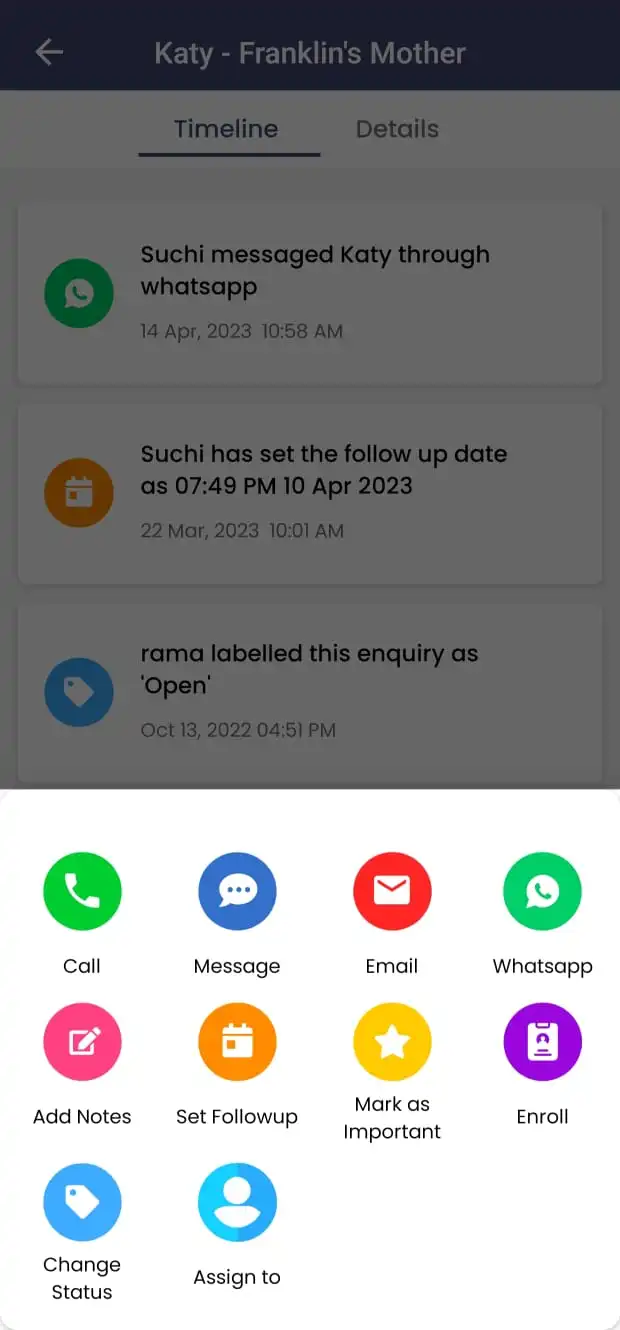
From here, schools can:
- Call the parent directly
- Send an SMS
- Send an email
- Send a WhatsApp message (for individual contacts)
All contact details are automatically picked from the inquiry form, so there is no need to copy or save phone numbers manually.
Note: All communication is sent from the sender’s device (mobile number or email), ensuring better delivery and parent recognition—not from Kriyo.
Recording Follow-up Conversations
After speaking with a parent, it’s important to capture context for future reference.
To record a conversation:
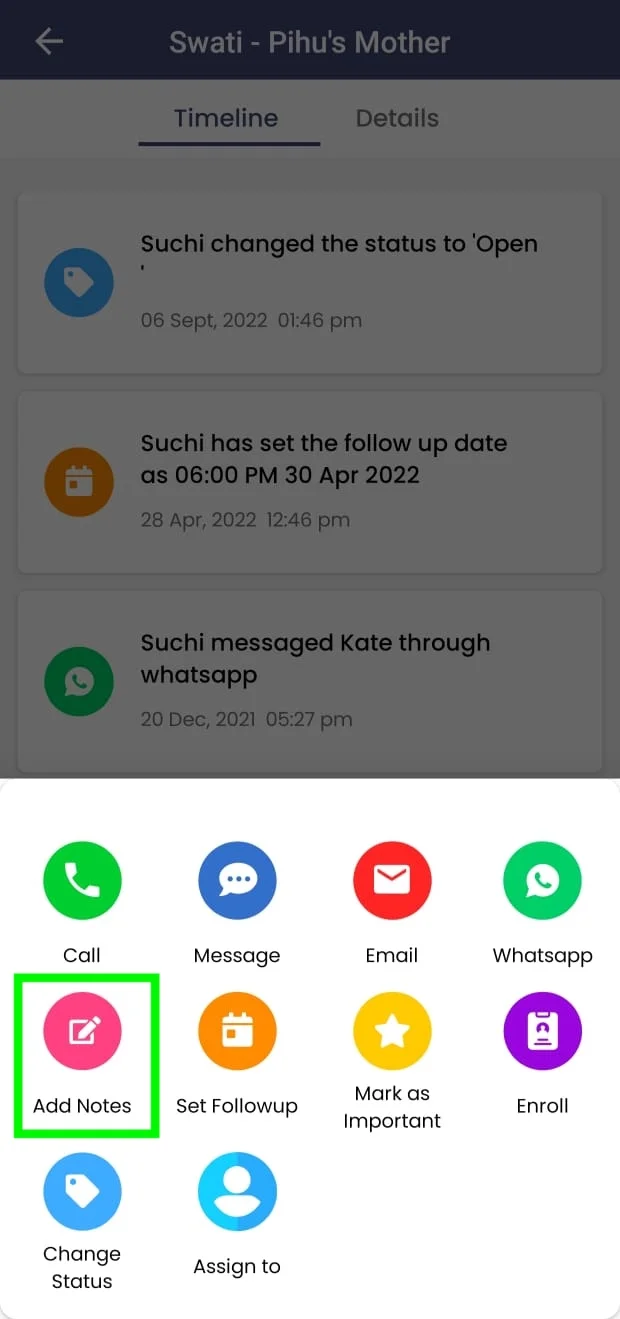
- Click Add Notes from the Actions menu
- Write a short summary of the discussion
- Save the note
These notes appear in the Timeline and help:
- Avoid confusion between multiple inquiries
- Ensure smooth handovers between team members
- Give management full visibility into conversations
Setting Follow-up Reminders
To avoid missing follow-ups, you can add a follow-up reminder
- While adding an inquiry, or
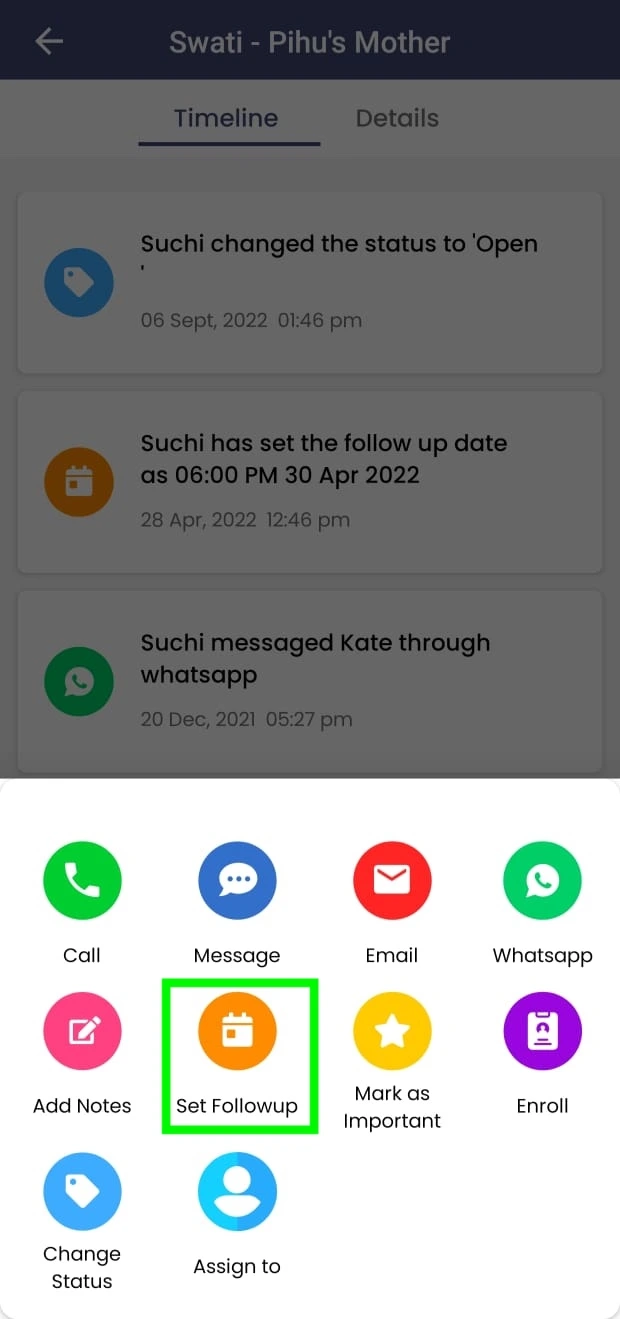
- Later, by opening an inquiry and clicking Set Follow-up from the Actions menu
Select the required date and time, and save.
Kriyo will remind the assigned staff member at the scheduled time, ensuring timely follow-ups.
Prioritising Important Inquiries
Some inquiries show strong intent—parents ask detailed questions, mention timelines, or indicate readiness to enrol.
In such cases, schools can
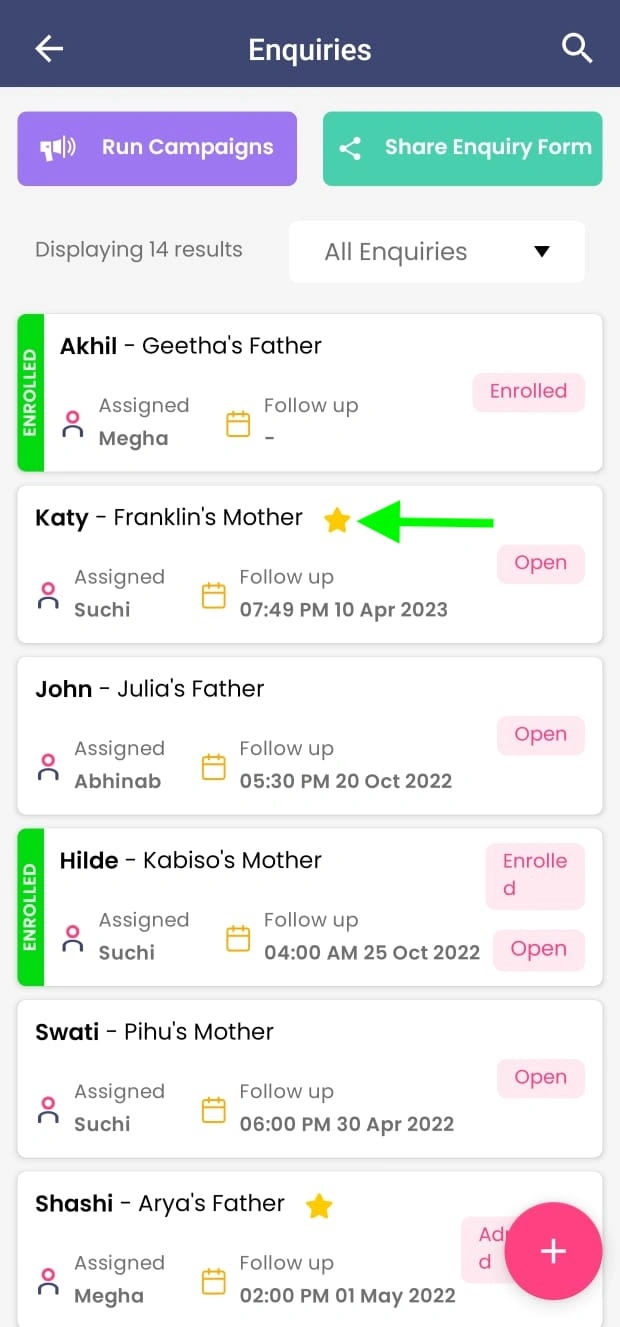
- Mark an inquiry as Important
- Easily prioritise high-intent leads
- Ensure timely follow-ups
This helps admissions teams prioritise serious prospects and focus effort where it matters most.
Assigning Inquiries Across the Team
Admissions workload often peaks during vacations or summer breaks. Kriyo allows schools to distribute responsibility without losing control.
Schools can:
- Assign inquiries to different staff members
- Reassign leads when team members are unavailable
- Ensure smooth handovers without losing history or context
Schools can assign inquiries to staff members in two ways:
While adding a new inquiry
When creating an inquiry manually, you’ll find the Assign To option at the end of the inquiry form.
- Click Assign To
- Select the required staff member from the list
- Click Save
This ensures the inquiry is owned by the right person from the start.
After an inquiry is already created
If a parent has submitted the inquiry themselves, or if the assigned staff member is unavailable, the inquiry can be reassigned at any time.
- Open the inquiry record
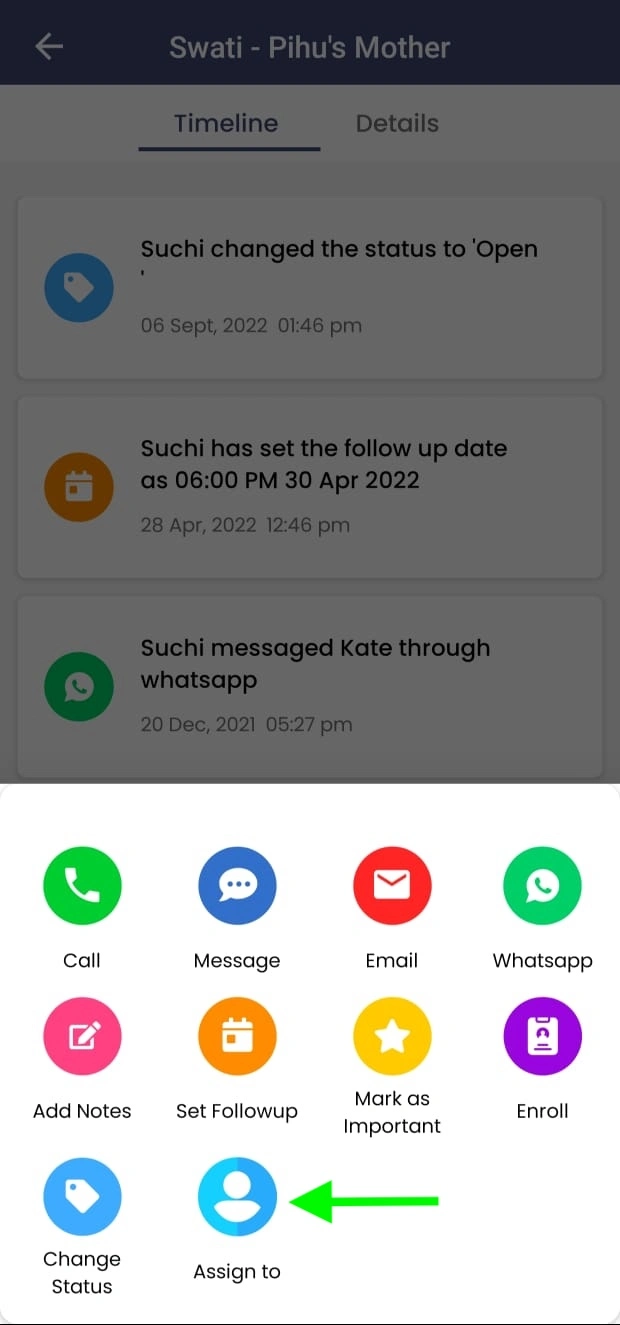
- Click the Actions button at the bottom right
- Select Assign To
- Choose the required staff member from the pop-up
The inquiry is instantly reassigned, with no loss of history or context.
Because all inquiry details and timelines remain visible, transitions between team members are seamless.
Updating Inquiry Status
As an inquiry progresses, schools can update its status to reflect the current stage of the conversation. This helps teams quickly understand where each inquiry stands and what action is needed next.
Common inquiry statuses may include:
- Open
- School tour done
- Follow-up Scheduled
- Enrolled
Inquiry statuses in Kriyo are fully customisable. Schools can create and manage their own status labels based on their admissions process.
To customise inquiry statuses, go to Tag Settings in Admin Tools and click on Enquiry Status Tags.
By using meaningful and consistent status labels, schools can:
- Categorise leads more effectively
- Prioritise follow-ups
- Analyse conversion trends
- Understand how inquiries move through different stages
Updating the inquiry status regularly ensures the admissions pipeline remains clear, organised, and easy to review.
Converting an Inquiry into an Enrollment
When a parent confirms admission:
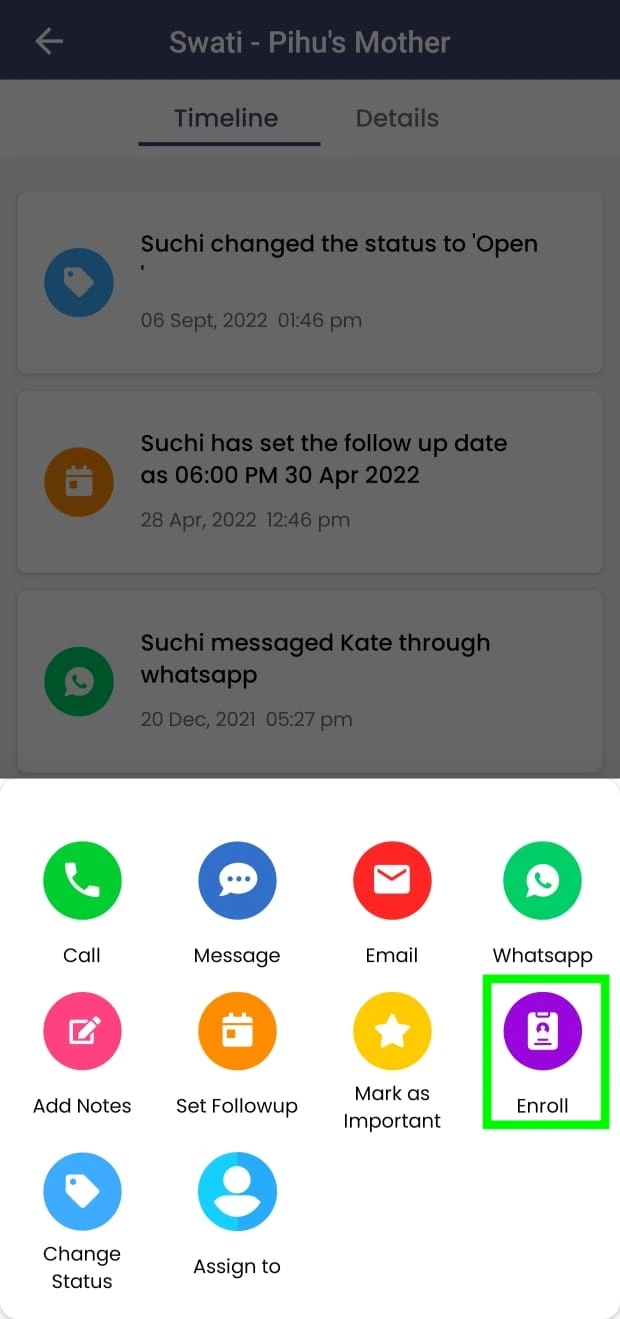
- Open the inquiry and click on the Action button
- Click Enroll and the inquiry is converted into an admission profile
- Existing details are auto-filled
- Add remaining required information and save
Once saved:
- The child profile is created
- Parent login credentials are automatically sent via SMS or email
- Parents gain access to the Kriyo Parent App
- Up to three family members can be added
Filtering and Downloading Inquiry Data
As inquiry volumes grow, schools need quick ways to search, review, analyse, and export their data. Kriyo provides built-in filters and download options to help with this.
Searching for a Specific Inquiry
On the Inquiries screen, use the Search bar to look up inquiries by:
- Child’s name
- Parent’s name
- Mobile number
- Staff name
This helps you instantly locate a specific inquiry without scrolling through the full list.
Filtering Inquiries
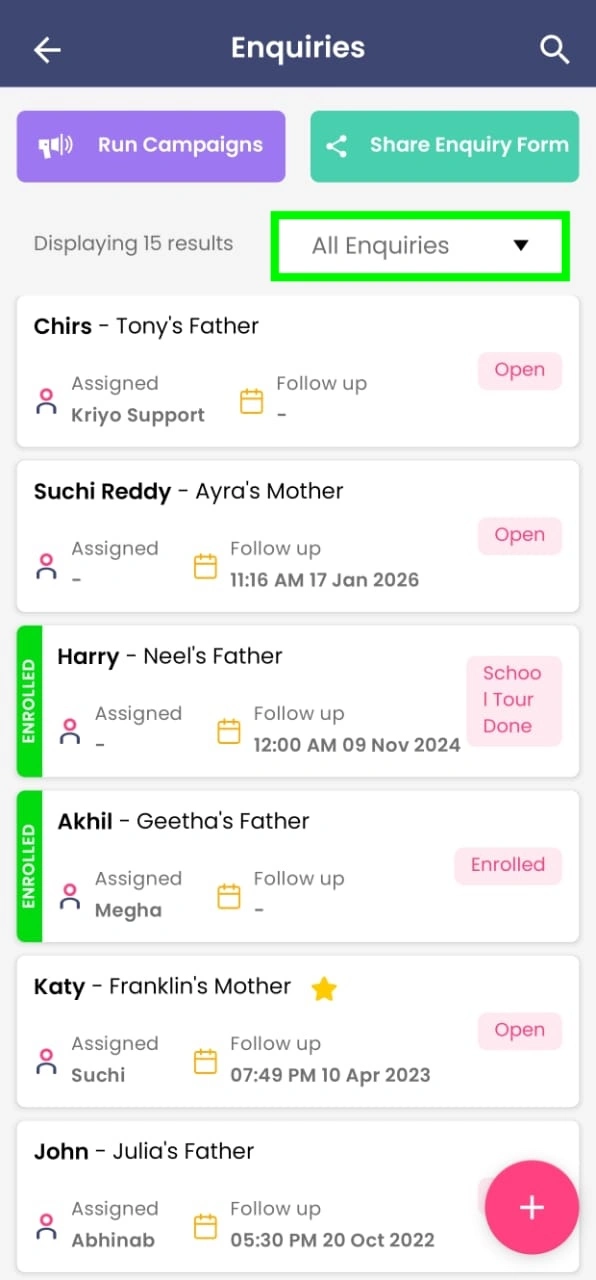
Schools can filter inquiries to focus on specific records, such as:
- Inquiries assigned to a particular staff member
- Inquiries marked as important
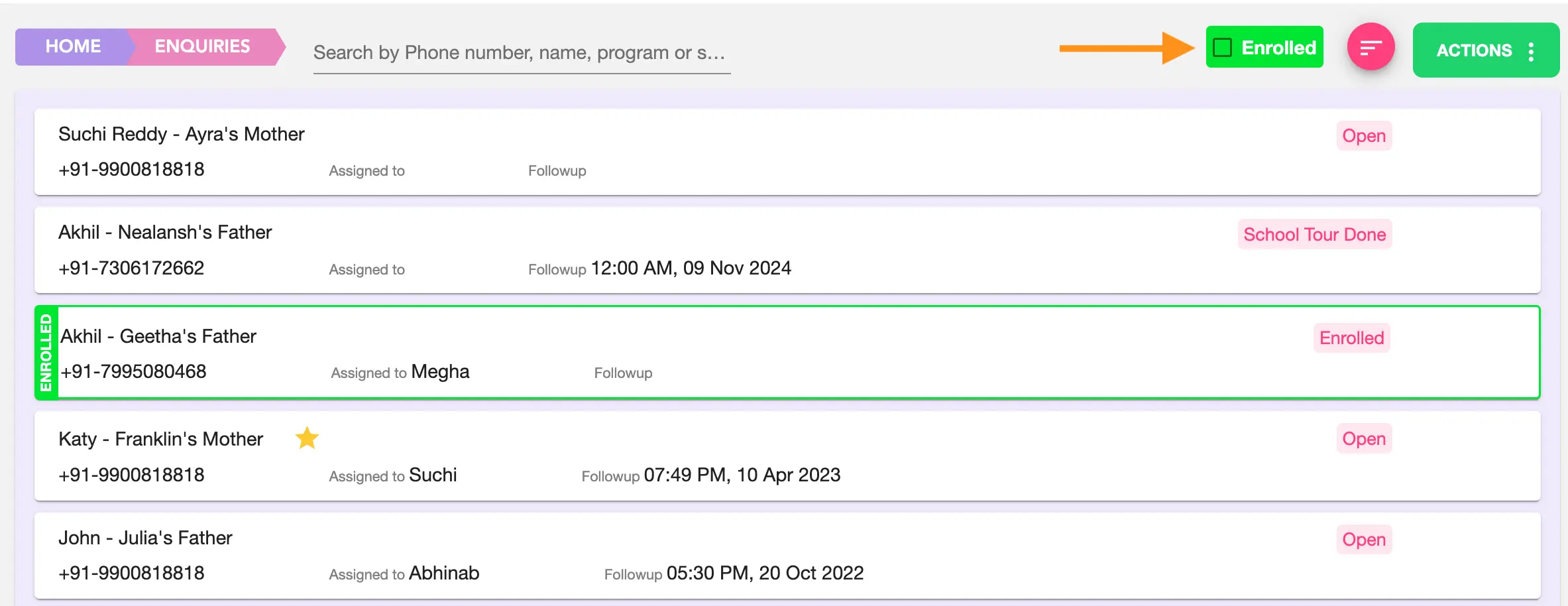
- Inquiries based on their current status (for example Enrolled, Open, Follow-up Pending)
On the mobile app, filters help narrow down the inquiry list for quick review.
On Kriyo Web, additional filter options are available for deeper analysis
- View only enrolled inquiries by clicking the Enrolled option available at the top, helping teams quickly review confirmed admissions.
- Sort inquiries by follow-up date to see which follow-ups are coming up next and prioritise outreach.
- Use the Actions button on the top right to
- Filter inquiries assigned to a staff or by status or marked important
- Import old inquiries into Kriyo
- Download inquiry data as an Excel file
- Delete multiple enquiries in bulk
Any filters applied before downloading are reflected in the file, making it easy to analyse trends, review conversions, or share data with management or marketing teams.