How can schools download and analyse inquiry and admission reports in Kriyo?
Tracking inquiries and admissions is not just about collecting data—it’s about understanding what’s working, where follow-ups are needed, and how admissions are progressing. Kriyo provides multiple ways for schools to download and analyse inquiry and admission data using built-in reports and Excel exports.
This article explains where to find these options and how to use them effectively.
Downloading Inquiry Data from the Enquiries Module
Schools can quickly download inquiry data directly from the Enquiries module in Kriyo Web.
To download inquiries:
- Log in to Kriyo Web
- Open the Enquiries module
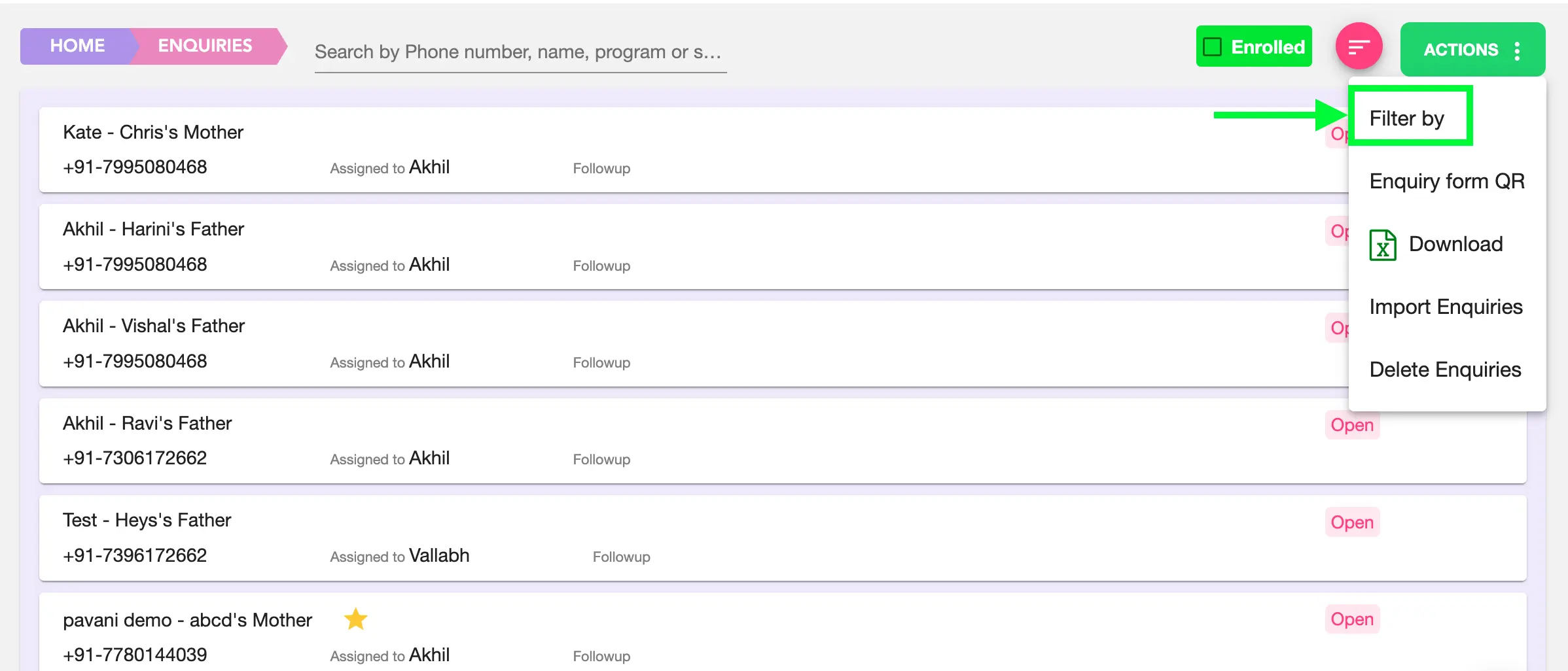
- Click the Actions button at the top right
- Select Download
This will download all enquiries for the school till date into an Excel file.
.webp)
If you want to download only specific enquiries, use the Filter option within the Actions menu before downloading. You can filter enquiries based on:
- Assigned to me
- Marked as important
- Enrolled
- Specific inquiry status
After applying the required filters, click Download. Only the filtered enquiries will be included in the Excel file.
Note: Date-range filtering is not available within the Enquiries module. For date-based analysis, use Reports under Track & Act.
Enquiry Reports in Track & Act
For more advanced analysis, Kriyo provides Enquiry Reports under the Track & Act → Reports section in Kriyo Web.
To access enquiry reports:
- Go to Track & Act and open Reports
- Select Enquiries and choose the required school(s)
- If you manage multiple schools, you can select individual schools, multiple schools, or a group of schools
- Click Apply
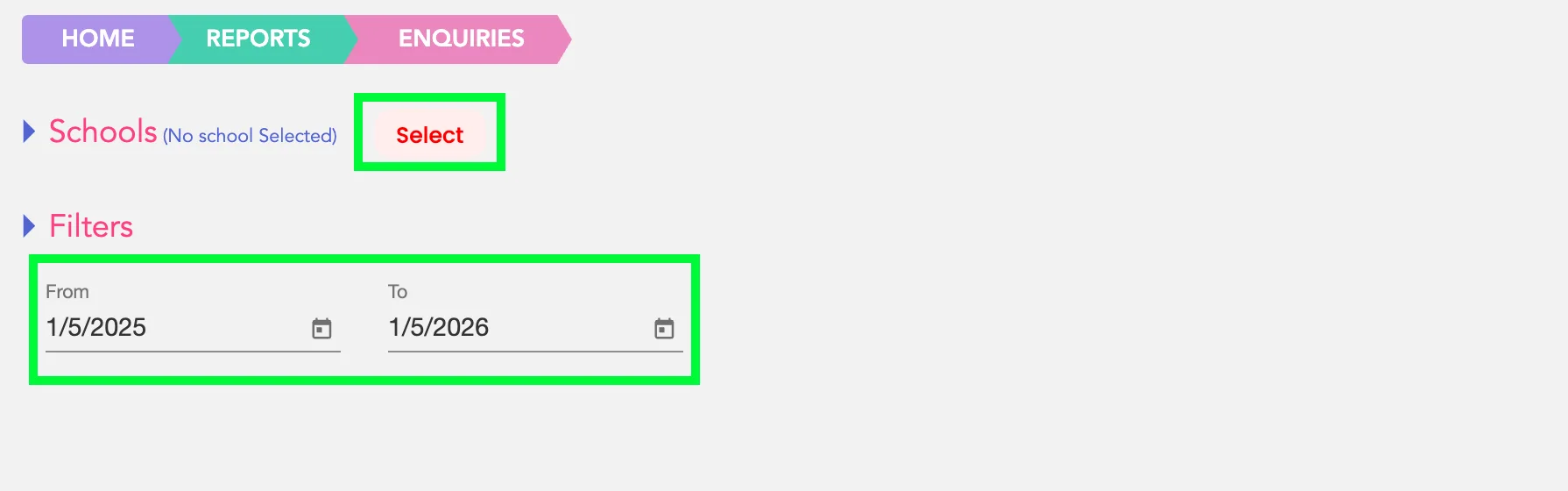
By default, the report shows enquiries for the last one year. You can change the date range as required.
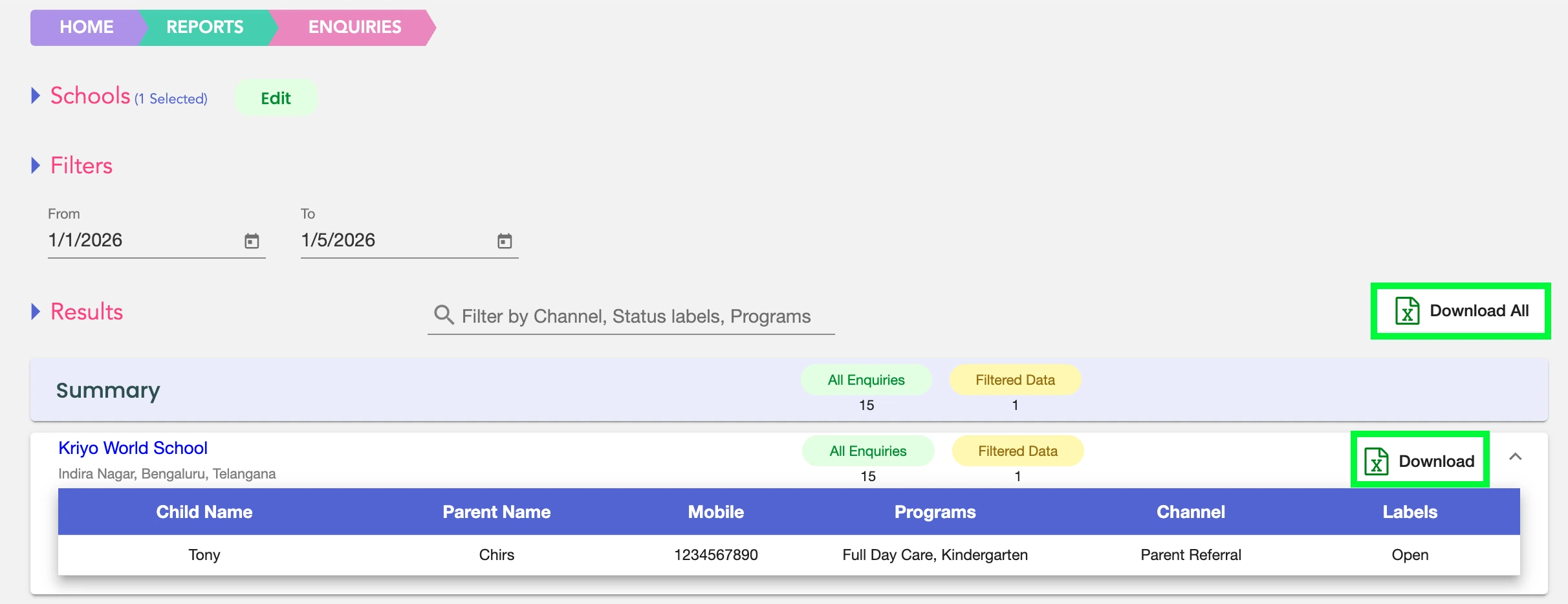
The report view displays a summary for each selected school. Clicking on a school row expands it to show:
- Child name
- Parent name
- Contact number
- Program
- Enquiry source (channel)
- Current status
You can:
- Click Download next to a specific school to download its enquiry data
- Click Download All to download enquiry data for all selected schools
Understanding the Enquiries Report (Excel)
When you download enquiry reports:
- Summary tab
- Consolidated tab
- Individual school tabs
Shows school-level information, total enquiries till date, and enquiries added during the selected period.
Contains detailed enquiry information for all selected schools combined.
From the third tab onwards, each school has its own sheet with detailed enquiry data.
If you download data for a single school, the file directly contains that school’s enquiry details.
Admissions Reports in Track & Act
Kriyo also provides Admissions Reports for analysing confirmed enrollments.
To access admissions reports:
- Go to Track & Act → Reports
- Select Admissions
- Choose one or more schools
- Select the required date range
By default, admissions are filtered using the profile creation date for the last one year. If the joining date has been accurately filled in student profiles, you can choose to filter based on joining date instead.
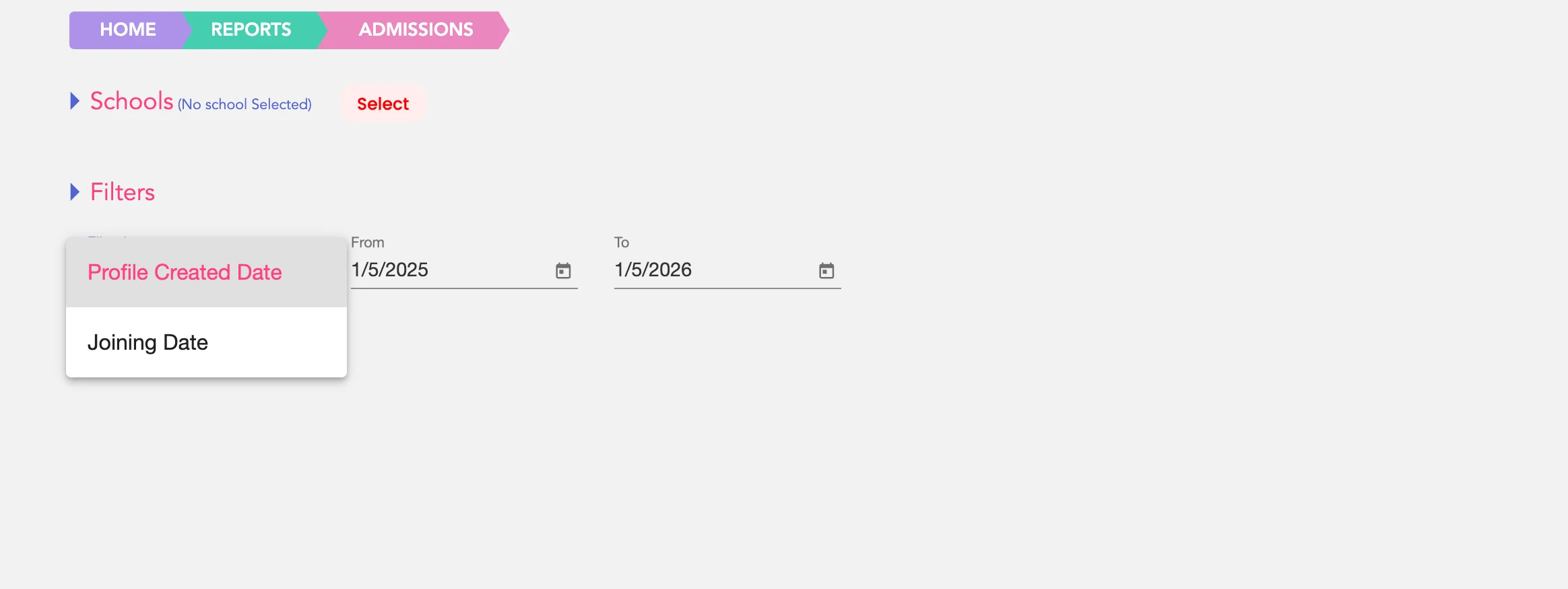
The report view shows school-level summaries. Clicking on a school row expands to show:
- Child name
- Gender
- Date of birth
- Joining date
- Program
You can download:
- Individual school admission data using Download
- Admission data for all selected schools using Download All
.webp)
Understanding the Admissions Report (Excel)
When you open the downloaded admissions report:
- Summary tab
- Consolidated tab
- Individual school tabs
Displays school details, allotted slots, total profiles, and admissions within the selected duration.
Shows detailed admission data for all selected schools together.
From the third tab onwards, each school has a separate sheet with detailed student profile information.
This structure makes it easy to review both high-level performance and school-wise details.
Why These Reports Are Useful
Using enquiry and admissions reports in Kriyo, schools can:
- Track enquiry trends over time
- Analyse which channels generate the most leads
- Monitor conversions from enquiry to admission
- Review admissions performance across centres
- Share clean, structured data with management or marketing teams
All reports are downloadable in Excel, making them easy to analyse or archive.