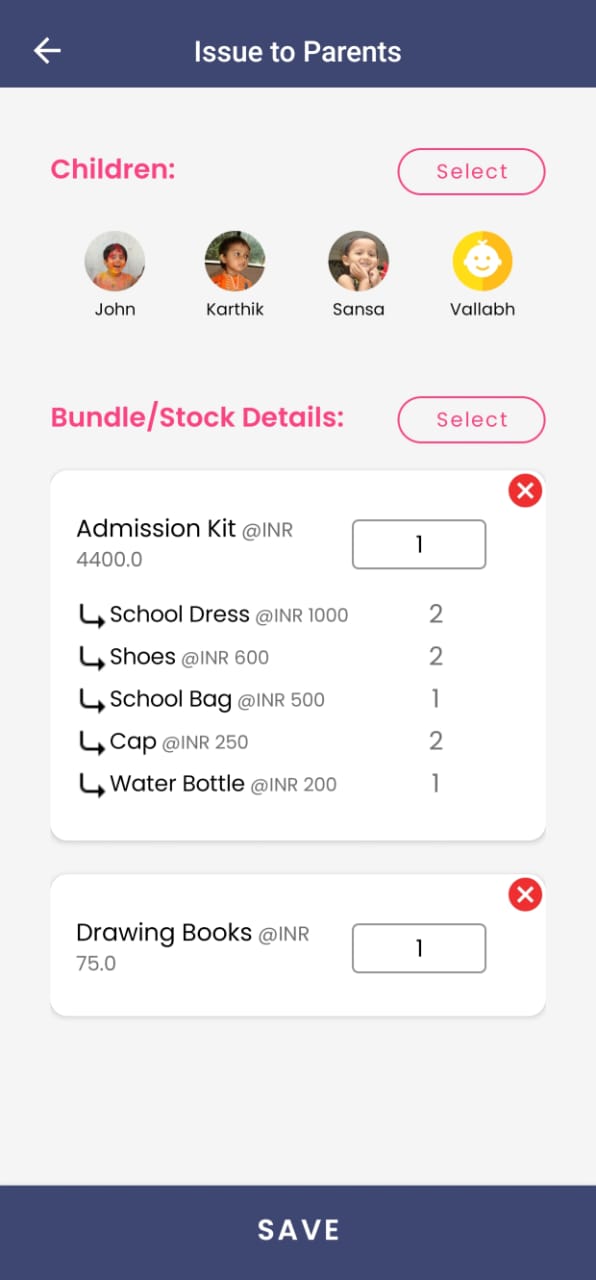
How to issue stock to the parents or students?
Issuing stock to students through Kriyo helps schools manage distribution in a streamlined, error-free way. Instead of maintaining manual records, you can track what items were given, when, and to whom — all from one place. This not only improves accountability but also saves time, prevents duplicate entries, and ensures your inventory stays up to date automatically.
1. Go to the Issue to Parents in the inventory management module.
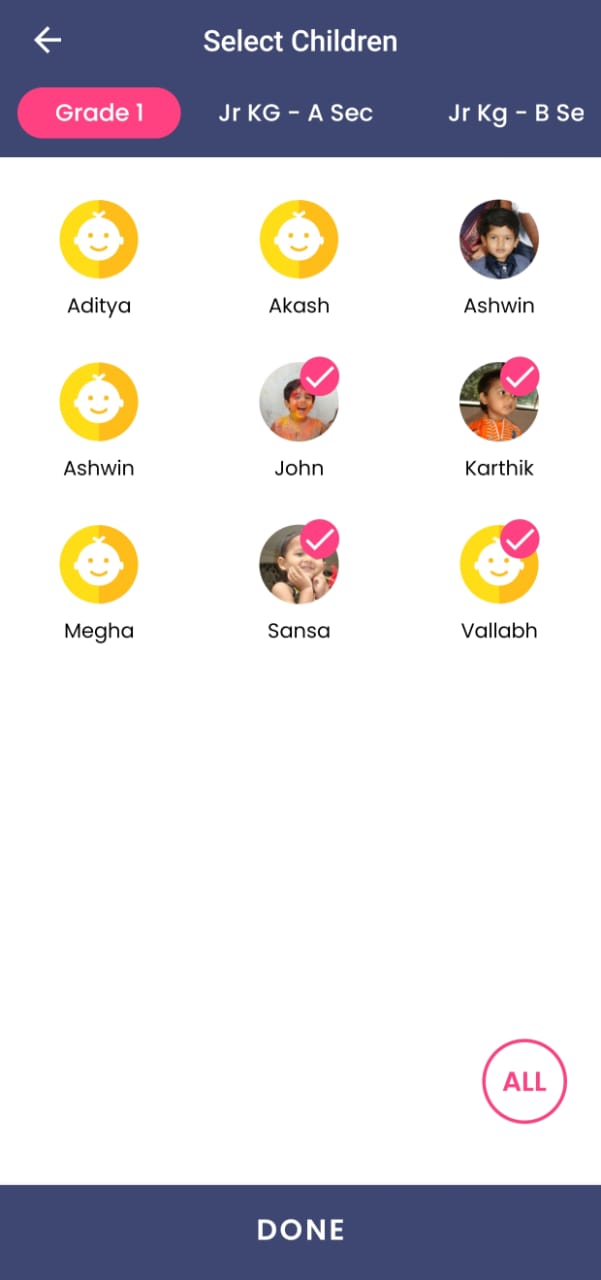
2. Click Select under Children and choose one or more students, and select Done.
3. In the Order Details section, click Select to add stock items. From the pop-up at the bottom, choose either a bundle or an individual stock item, set the quantity, and click Done.
Note: If you want to add both a bundle and stock items, simply click Select again and repeat the process.
4. Enter the quantity to be issued per child for each selected item and click Send. The issued quantity will be automatically deducted from your current stock.
Note: Notifications will not be sent to parents or staff when stock items are issued to children. However, all issued stock details can be easily tracked anytime in the Reports section.