How to generate Student ID Cards in Kriyo?
Overview
Generating Student ID Cards in Kriyo is quick, flexible, and a one-time setup.
Schools can easily add their branding, design elements, and student details to create professional, ready-to-print ID cards in minutes — no external designer needed.
👉 This feature is available only on Kriyo Web.
To get started, log in to your Kriyo Web account and go to the Children ID Cards section.
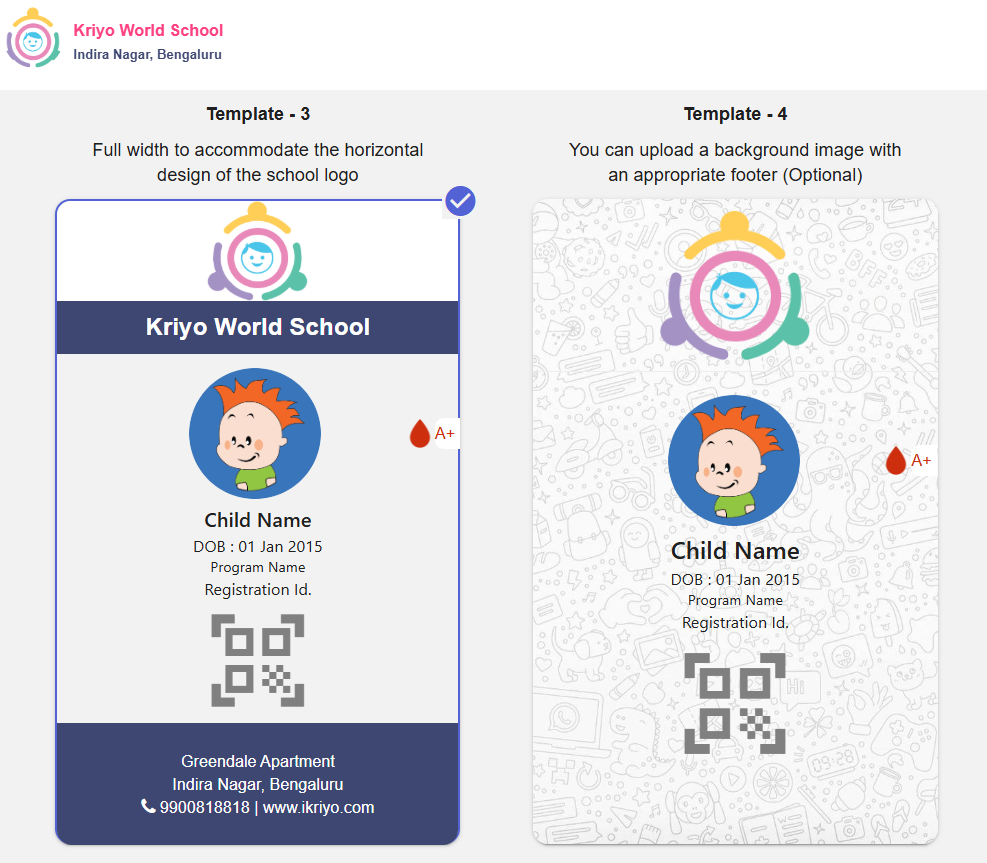
You’ll find a variety of ready-to-use templates to choose from.
Step 1: Choose and Customise a Template
Some templates come with built-in backgrounds — just add your logo and adjust the font colours to match your school’s branding. You can either choose the colours from the colour chart or enter the RGB or HSL, or HEX code to customise the colours on the ID card.
Other templates allow you to upload a background image for complete customisation.
Once a template is selected, you can add your school logo and adjust font styles or colours.
Step 2: Personalise the Details
By default, Kriyo automatically fetches your school name, logo, address, and contact details from the School Profile section.
You can edit these details for your ID card — changes made here won’t affect your main school profile.
Next, select the children for whom you want to generate ID cards. Kriyo automatically fetches details such as the child’s name, class, blood group, parent contact information, and photo (if uploaded) from the children's profiles.
You can also choose whether to display the Unique ID or Registration ID on the card.
- Unique ID: Manually added in each child’s profile.
- Registration ID: Automatically generated when configured in Configuration Settings → Child Registration ID
Step 3: Preview & Download
Preview the ID cards before downloading to ensure all details are accurate.
If any information needs updating, make the change in the children's profiles — updates will instantly reflect in the preview.
Once confirmed, simply download the ID cards in PNG format for printing or sharing.
They are ready for printing in standard CR80 size (3.375” x 2.125”) at 300 dpi, compatible with all standard ID card printers.
Note: If you do not wish to include a QR code for attendance, simply pick a template without it.

In Summary
Kriyo simplifies ID card generation by automating data fetching, maintaining brand consistency, and reducing design dependency.
Schools can issue professional, secure ID cards in just a few clicks — accurate, branded, and always up to date.
Related Article
What are the benefits of maintaining a School Profile in Kriyo?Related FAQs