How to order stock from the Head Office?
In Kriyo, you can easily manage all stock orders from the Head Office. After placing an order, you can track its status, upload invoices, payment slips, or other documents, all in one place. This keeps everything organised and makes future reordering faster and simpler.
If your school is part of a chain that is associated with Kriyo, you can place stock orders directly to the Head Office via the Kriyo app. The Head Office will be notified, and they will confirm the order. Once the Head Office sends the stock, your Current Stock will be automatically updated.
Here’s how to manage the entire order process.
Create and Confirm the Order
1. Go to My Orders under the Inventory module.
2. To create a new order, click the Plus (+) button at the bottom right corner. By default, a sample order is provided to help you understand how it looks.
3. In the Vendor Details section, click 'Select' and choose your Head Office. By default, your Head Office will be listed as the vendor. If it's not visible, please contact us through the app chat.
4. In the Order Details section, click Select to add stock items. From the pop-up at the bottom, choose either a bundle or an individual stock item, set the quantity, and click Create Order.
Note: If you want to add both a bundle and stock items, simply click Select again and repeat the process.
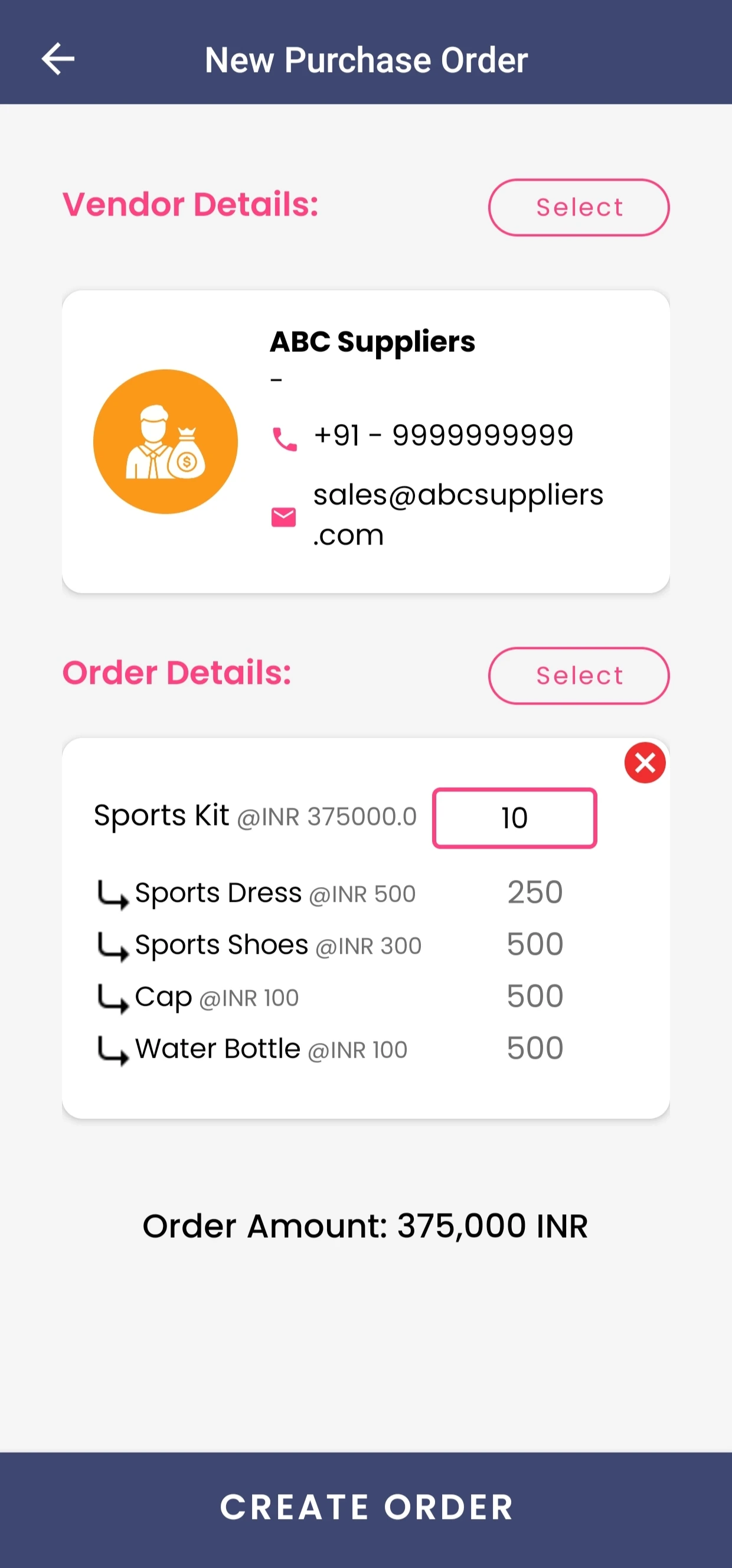
Once saved, the order status will be marked as Created. The Head Office will be notified, and they will change the status to Confirmed after checking the availability.
Update Payment Status
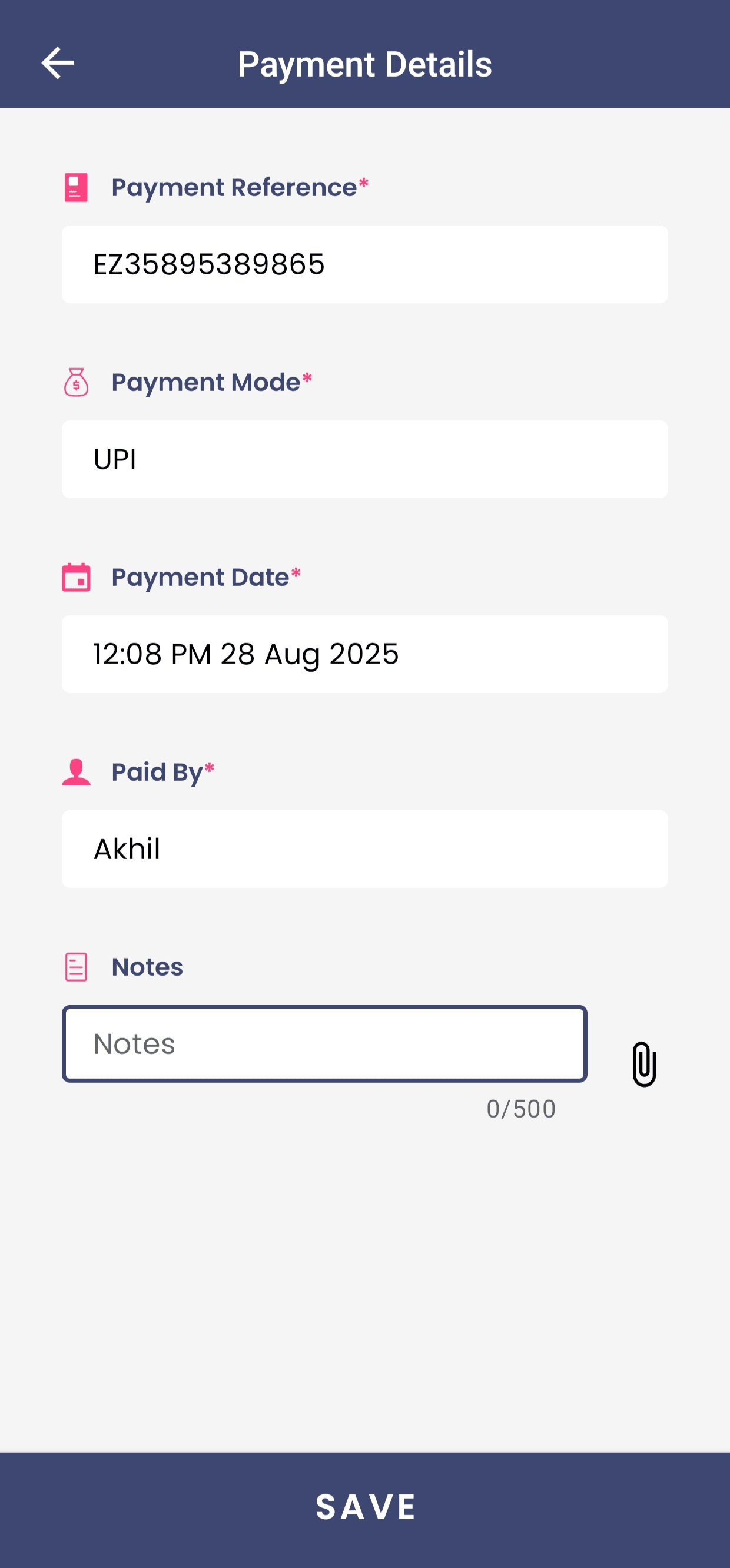
Once the Head Office confirms the order and you’ve made the payment, click on the Confirmed status and select Mark as Paid.
Note: In-app payments are currently not available for inventory purchases. You will need to make the payment outside Kriyo and then update the status manually.
After selecting Mark as Paid, enter the necessary payment details such as the payment reference number, paid by, payment date, mode of payment, and any additional notes if needed. You can also upload a payment screenshot or receipt for future reference.
Once all details are filled in, click Save. The order status will now be updated to Paid.
Fulfilled and Delivered Status
Once the payment is made and the Head Office dispatches the stock, they will update the order status to Fulfilled. After you receive the stock at your school, click on the Fulfilled status and choose Mark as Delivered. Enter the Receipt Number, Received By, and Delivery Date, and add any notes if required. You can also upload the invoices for your records. Finally, click Save.
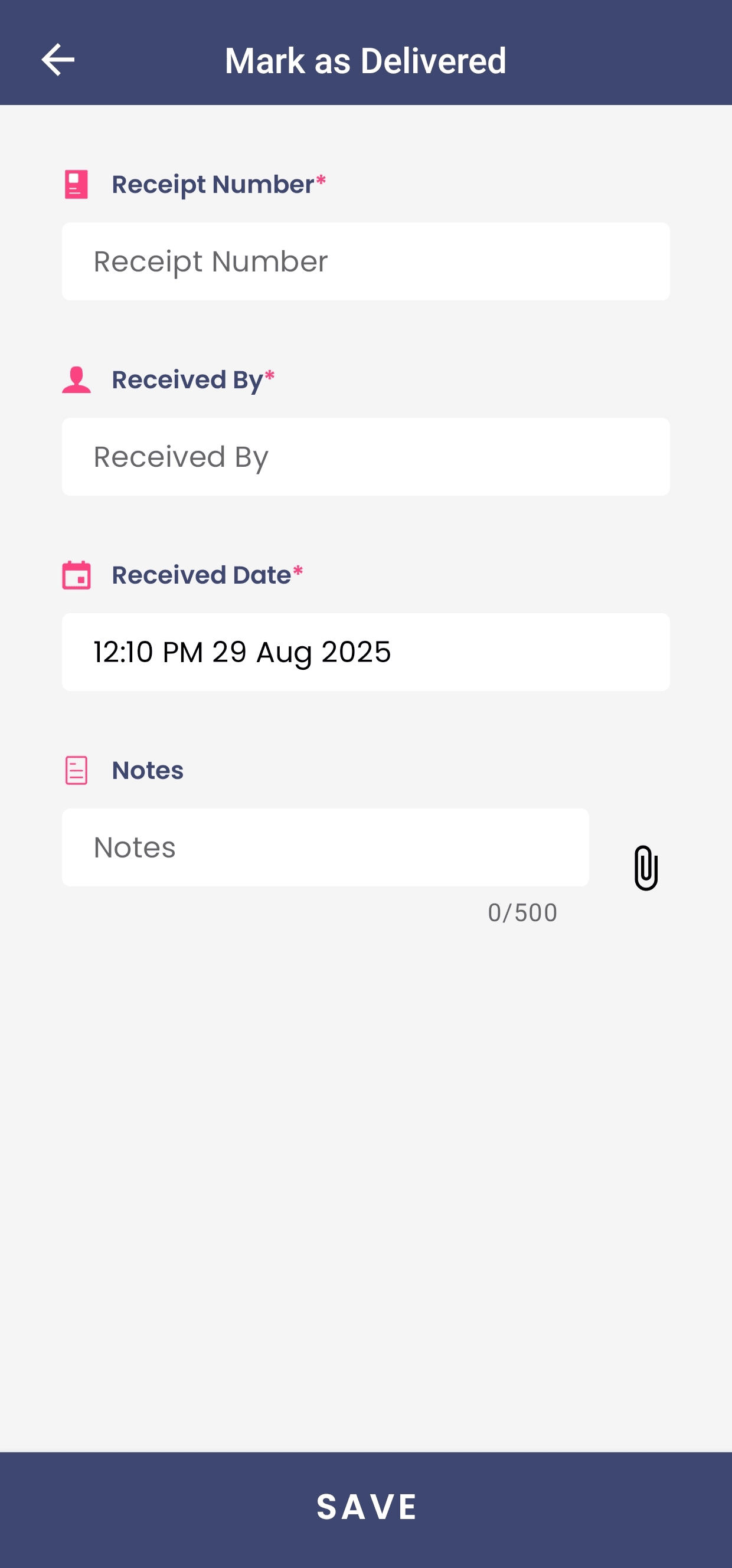
Once the order status is updated to Delivered your Current Stock will be automatically updated for the ordered items.