How to use the Digital Notice Board in Kriyo?
The Digital Notice Board in Kriyo is just like the physical one you have at school — only smarter and easier to manage. It’s the perfect place to post important updates like weekly food menus, PTM schedules, event details, or holiday information that every parent should see.
Unlike messages in a chat, updates added in the notice board are easily visible to all the parents of a specific program and not lost in scrolling, making it ideal for important announcements.
You can watch this simple video or follow the steps below
Adding a New Notice
Open Notice Board
- On the homepage, click See All Features.
- Scroll down and click Notice Board under the Track and Act section.
Click “Add Notice”
- Click the + button at the bottom right corner to add a new notice.
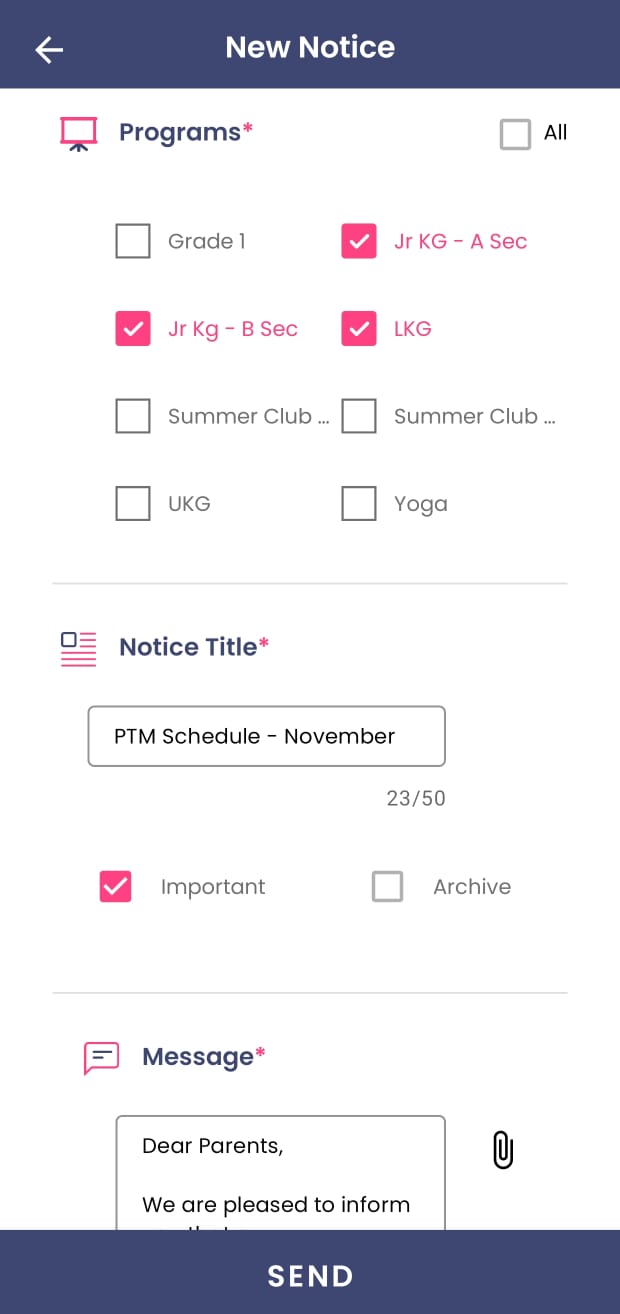
Select the Program
- Choose one or multiple programs for which the notice applies.
- Only parents of the selected programs will be able to view it.
Enter the Details
- Enter a Title (e.g., “PTM Schedule – November”).
- Add a Description with the key details.
- Mark it as important (optional) — useful when you have multiple notices and want to highlight one.
- Optionally, attach a Photo, Document (PDF), or Voice Note to make it more engaging.
Post the Notice
- Click Send.
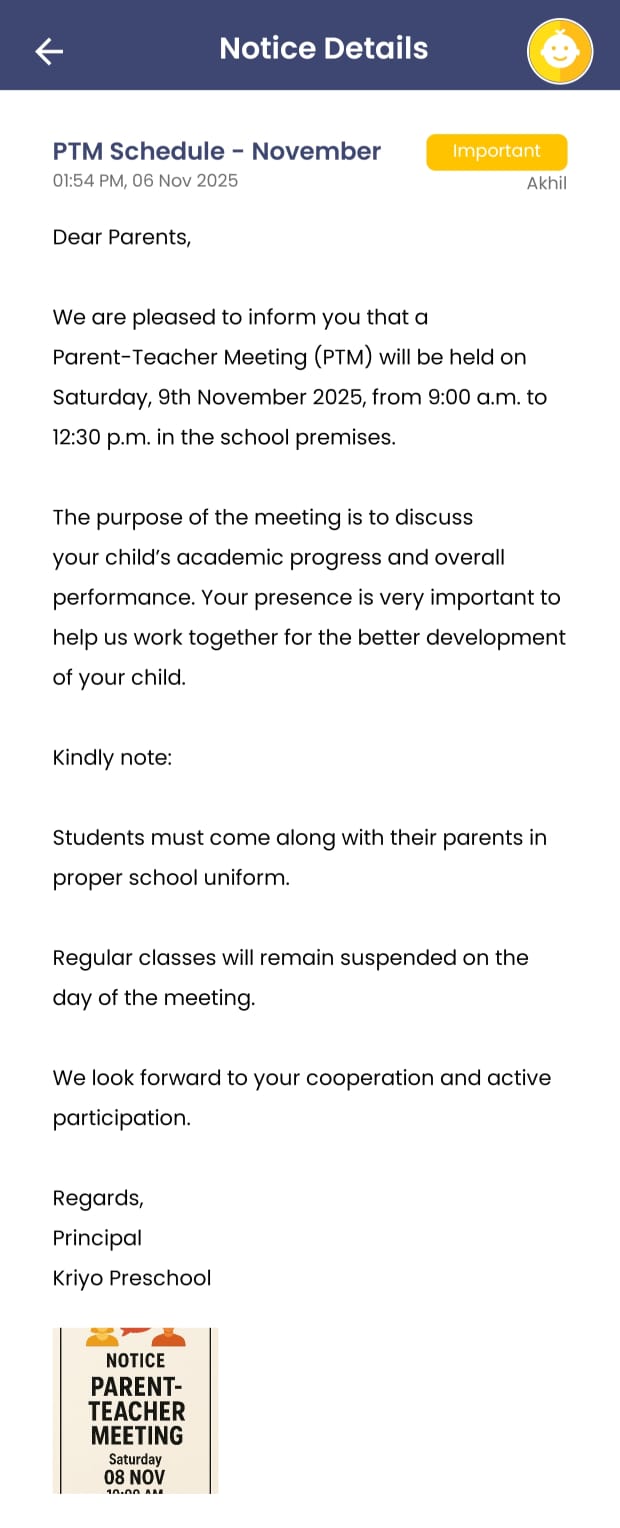
- The notice will appear instantly in the parent app under the Notice Board section, and the parents will also be notified.
Editing or Updating a Notice
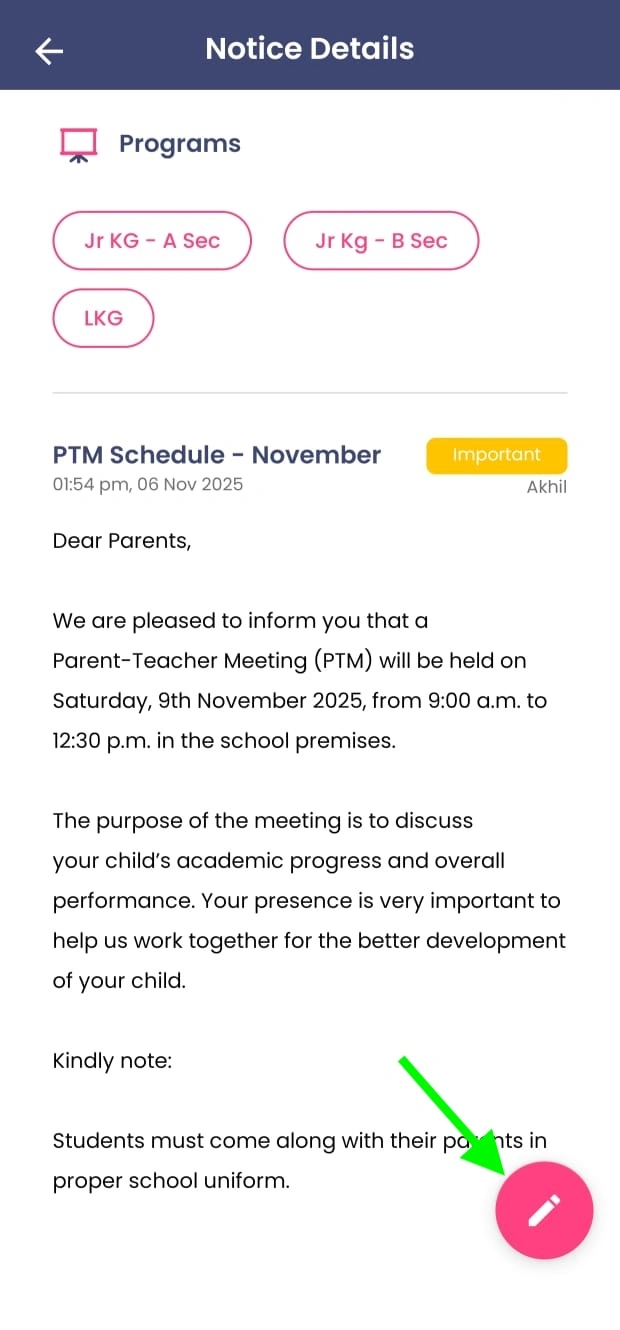
- Open the notice you want to modify.
- Tap Edit, make the necessary changes, and Send.
- Parents will be notified that an existing notice has been updated, and the updated version will be visible to them immediately.
Archiving a Notice
If the notice is not relevant for now but you want to reuse it later, you can archive it. Archived notices are hidden from parents but saved in your list for future use.
For example, if you conduct parent-teacher meetings every quarter, just archive the old notice, update the dates next time, and repost it — no need to rewrite everything.
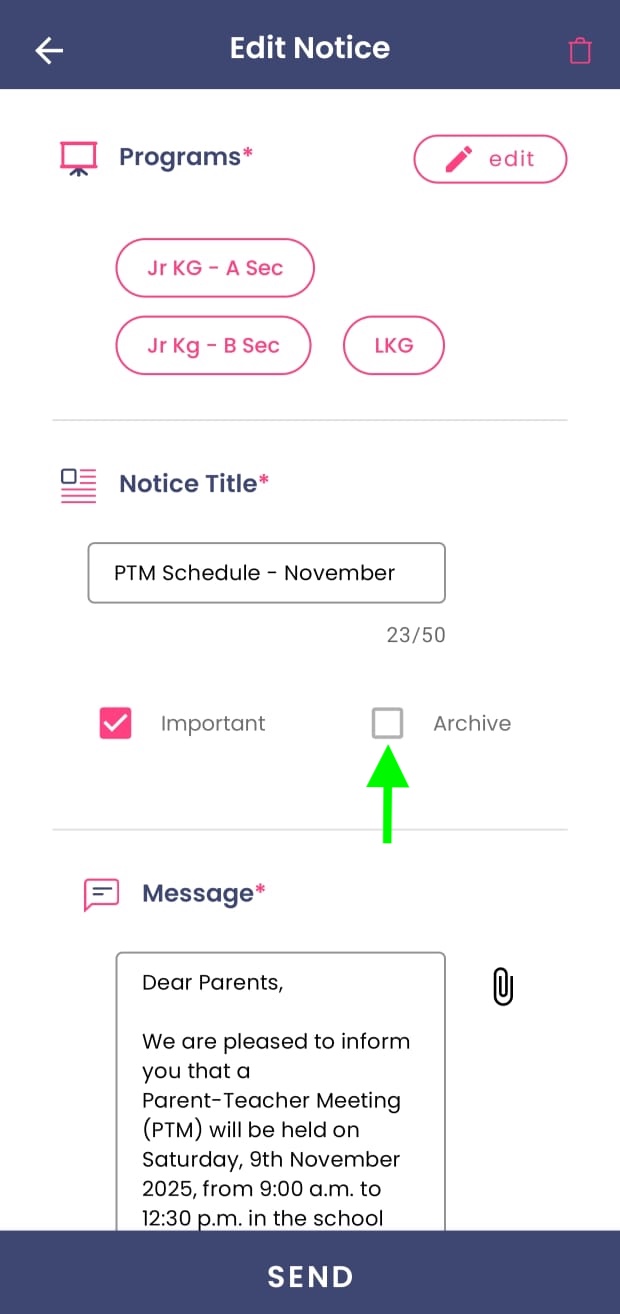
Deleting a Notice
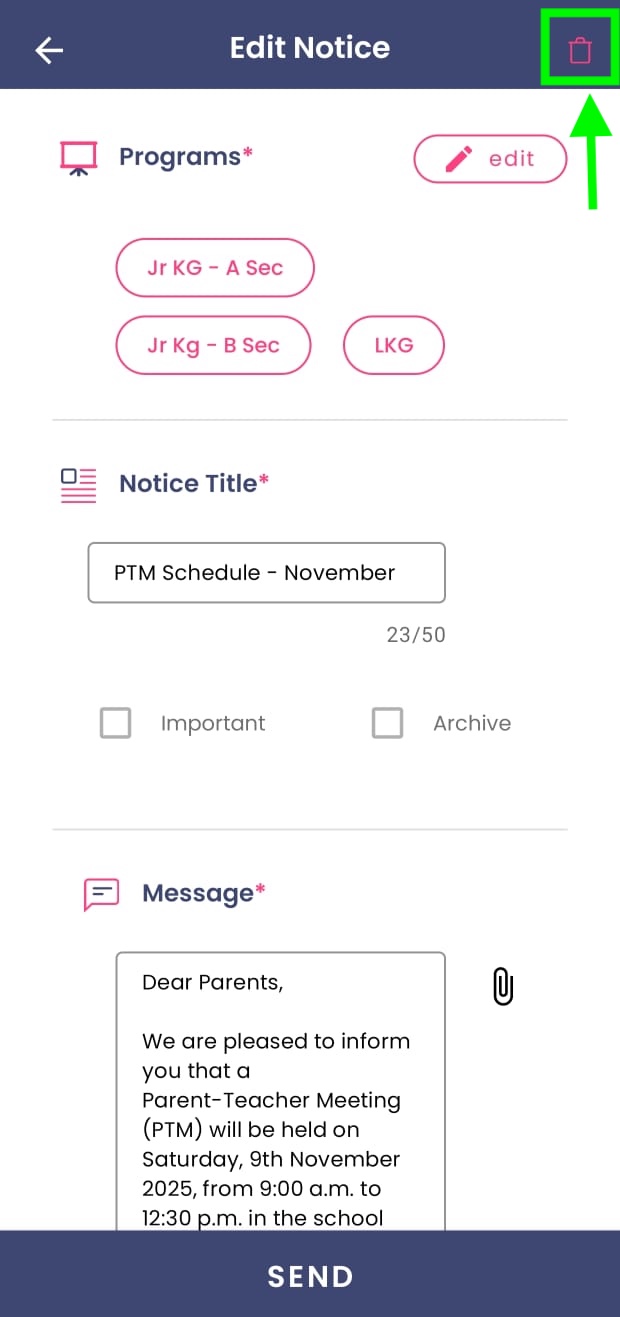
To delete a notice:- First, click on the Edit button.
- On the top right corner, you’ll see the Delete (bin) icon. Click on it.
- Once deleted, the notice will disappear from the parent’s notice board without any notification.